Apply Coupon is a calendar-level setting that controls whether guests can enter a coupon code when booking that calendar. You can find it on the calendar’s Pricing tab.
It works together with the coupons you create under Settings → Coupons. The calendar must allow coupons, and the coupon itself must include that calendar in its selected calendar list.
Both conditions must be true before a coupon can be used successfully.
Why Do You Need It?
- Control discounts per calendar: Allow promo codes on selected services without enabling them everywhere.
- Keep premium services at full price: Disable coupons on calendars where discounts should never apply.
- Keep free booking pages clean: Avoid showing a coupon field where there is nothing to discount.
- Add a simple master switch: Turn coupon support on or off without editing every coupon individually.
Step-by-Step Instructions
Enable Coupon
Go to Dashboard → Manage Calendars → Pricing → Apply Coupon and turn the setting On to allow guests to enter coupon codes during booking. Turn it Off to hide the coupon option. Changes are saved automatically.
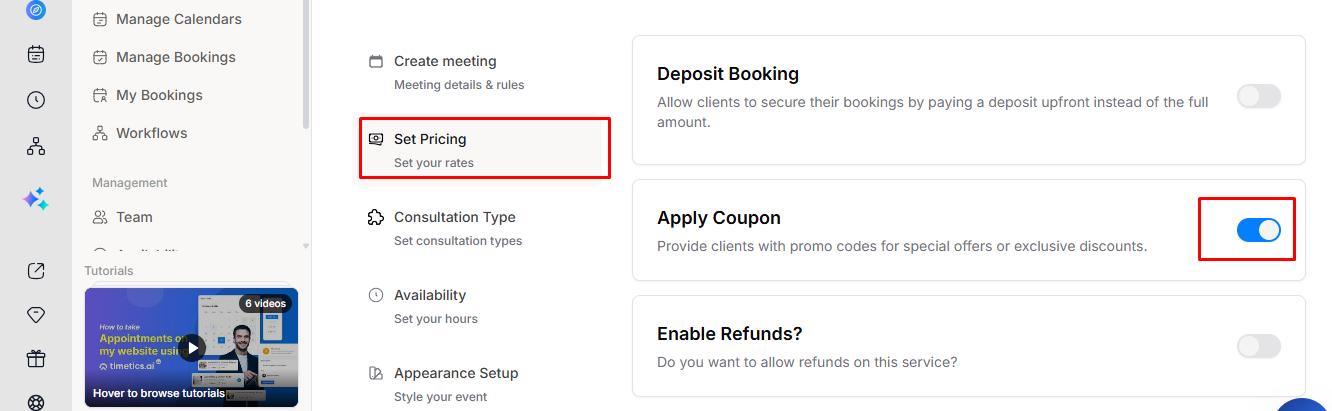
Note: Coupon Management is not available on the Free plan. You need to upgrade your plan to use this feature.
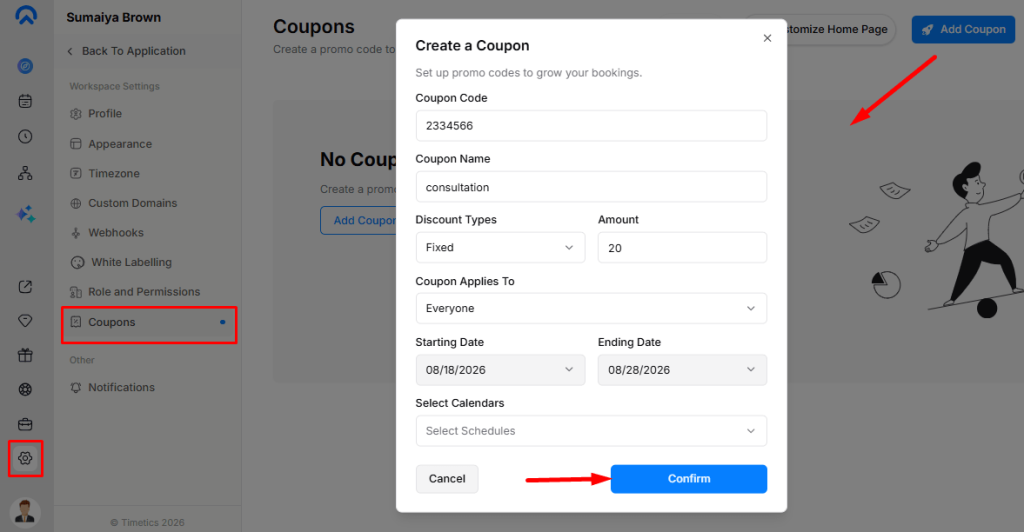
Create a Coupon and Attach the Calendar
Turning on Apply Coupon does not create a coupon automatically.
Go to Settings → Coupons, create or edit a coupon, and choose this calendar under Select Calendars.
For a coupon to work, both of these conditions must be true:
- The calendar has Apply Coupon turned on.
- The coupon includes that calendar in its selected calendar list.
What Does the Guest See?
When Apply Coupon is enabled, an Apply Coupon option appears in the booking cost summary.
The coupon field appears only after the guest enters their email address. Timetics AI needs the email to check audience rules such as New Customers, Existing Customers, or First Booking Only.
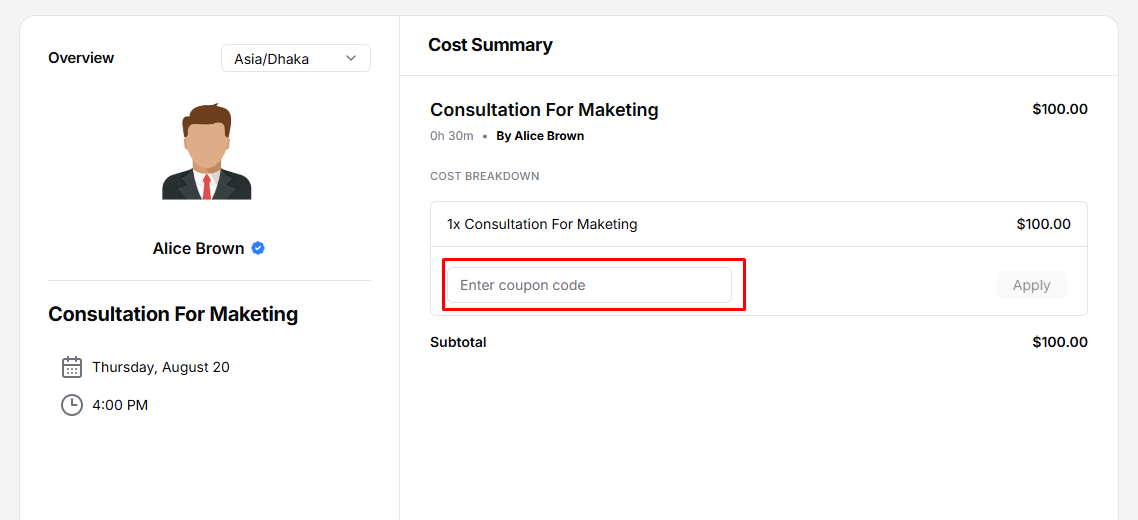
The guest enters a coupon code and clicks Apply.
| Result | What the Guest Sees |
|---|---|
| Valid coupon | The code and discount appear in the cost summary and the subtotal is reduced |
| Coupon removed | A small Remove action clears the applied code |
| Calendar does not accept coupons | Coupon are not accepted for this booking |
| Invalid or expired coupon | Coupon code is invalid or expired |
| Coupon not attached to the calendar | Coupon code is invalid |
| Guest is not eligible | Sorry, you are not eligible to use this coupon. |
When Apply Coupon is turned off, the complete coupon section disappears. Guests do not see a disabled coupon box or an unavailable message.
Key Functionality
Two Conditions Are Required
Enabling coupons on the calendar is not enough by itself.
A coupon can only be redeemed when:
- The calendar has Apply Coupon enabled.
- The coupon itself lists that calendar.
If Apply Coupon is enabled but no coupon is attached to the calendar, guests can still see the coupon field, but the codes they enter will not be accepted for that booking.
Apply Coupon Is Per Calendar
The setting belongs to each individual calendar rather than the whole workspace.
New calendars start with Apply Coupon turned off.
What the Discount Applies To
The coupon discount is calculated across the discountable booking total, including applicable extras, consultation types, guest fees and group multipliers.
Recurring bookings are handled differently. The recurring portion is excluded unless Apply discount to recurring events is enabled in the calendar’s Recurring settings.
Coupons Are Applied Before Deposits
If Deposit Booking is also enabled, Timetics AI applies the coupon discount first and then calculates the deposit from the reduced amount.
For example, with a $100 booking, a 50% coupon and a 30% deposit:
- Original price: $100
- Price after coupon: $50
- Deposit due now: $15
- Remaining balance: $35
How It Works with Consultation Types
Consultation Types do not change how Apply Coupon works.
On a One-to-One calendar with Consultation Types enabled, the booking price comes from the consultation types selected by the guest. The coupon is then applied to that total.
The Apply Coupon switch remains on the Pricing tab even when the normal calendar price fields are replaced by the Consultation Type pricing notice.
Prerequisites
- A plan that includes Coupon Management
- Permission to update calendars
- At least one coupon that includes the calendar for a code to be redeemable
- A booking price above zero for the coupon to provide a monetary discount
Important Notes
- The coupon field appears after the guest enters an email address. This allows Timetics AI to evaluate customer eligibility rules.
- Turning Apply Coupon off does not affect previous bookings. Existing bookings keep their recorded coupon code and discount amount.
- Turning the setting back on does not require rebuilding coupons. Coupon-to-calendar assignments remain stored on the coupon.
- The card is a simple toggle. Unlike Recurring, Guest Allowed and Deposit Booking, it does not expand to reveal additional settings.
- Use both controls carefully. Apply Coupon controls whether coupon entry is available on the booking page, while the coupon’s own calendar list determines where that particular code can be redeemed.
- Free bookings have nothing to discount. A calendar or consultation selection with a zero total does not gain a monetary benefit from a coupon.