What is the Video Popup Block?
The Video Popup is a floating video widget you can add to any page you build in Timetics. It stays fixed in a corner of the screen while visitors scroll, starts as a small video bubble with a greeting beside it, and expands into a full video card when someone clicks it.
Inside the expanded card, you can place your own call to action so visitors can watch your introduction and take the next step, such as booking an appointment, without leaving the page.
Why Do You Need It?
- Puts a video on your booking page: A short talking-head video can help visitors understand who they are booking with and build trust quickly.
- Follows the visitor: The widget stays fixed on the screen, so your call to action remains accessible while someone scrolls through the page.
- Converts where attention already is: The Book Now button can appear directly inside the video card, where the visitor is already focused.
Step 1: Open the Page Builder
Two types of pages can use a Video Popup, and each has its own entry point.
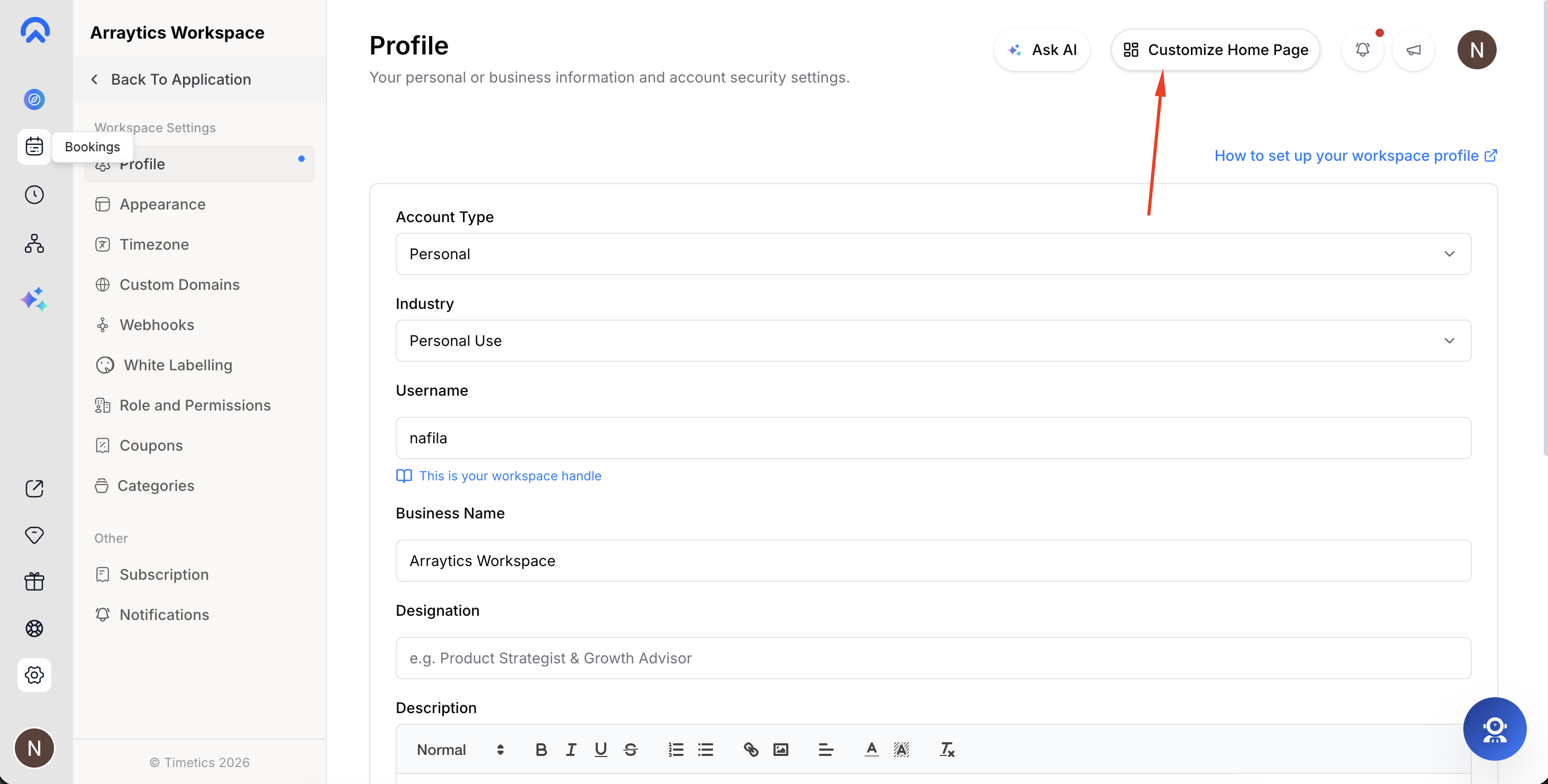
Your home page: From the admin dashboard top bar, click Customize Home Page.
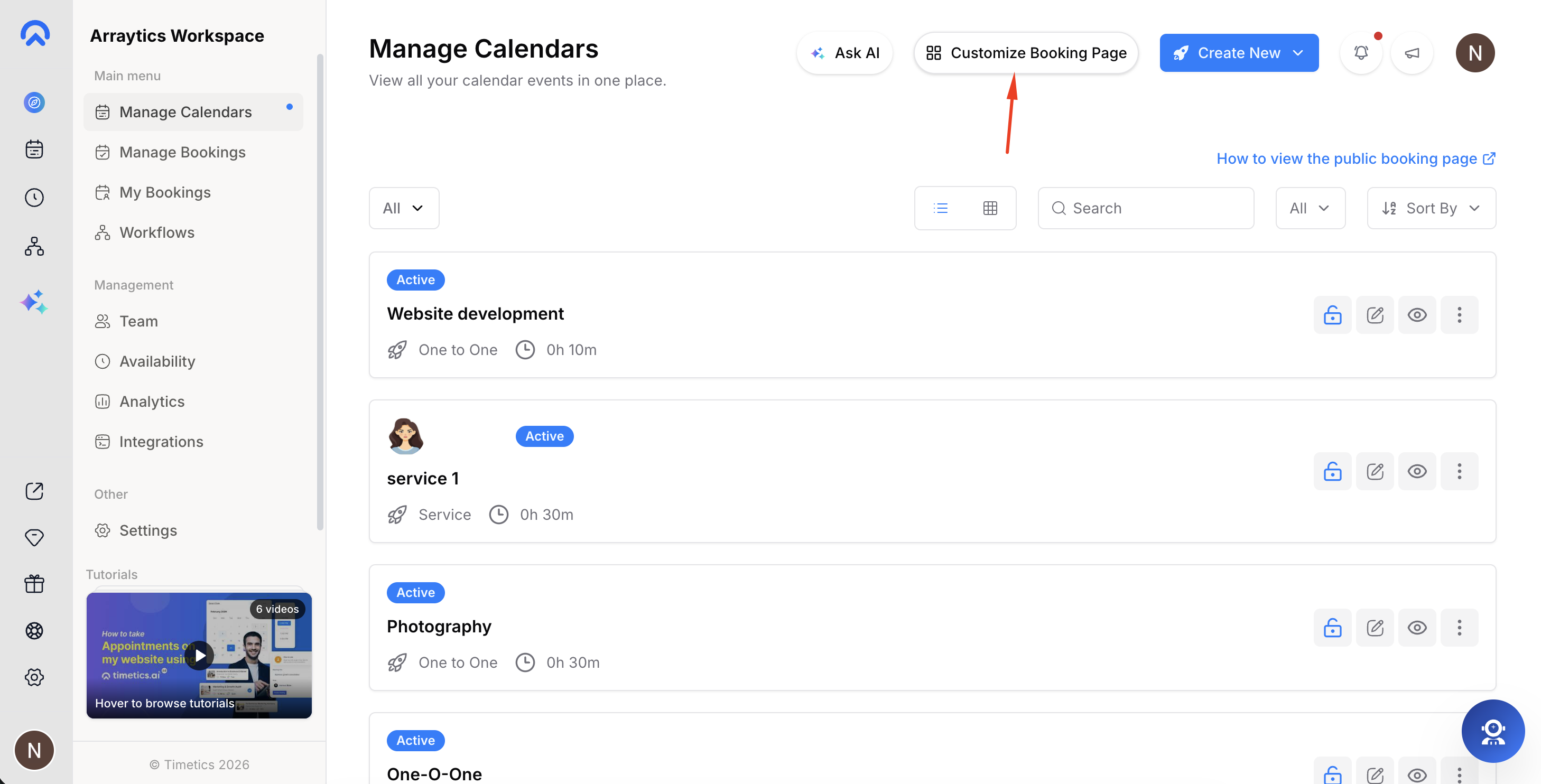
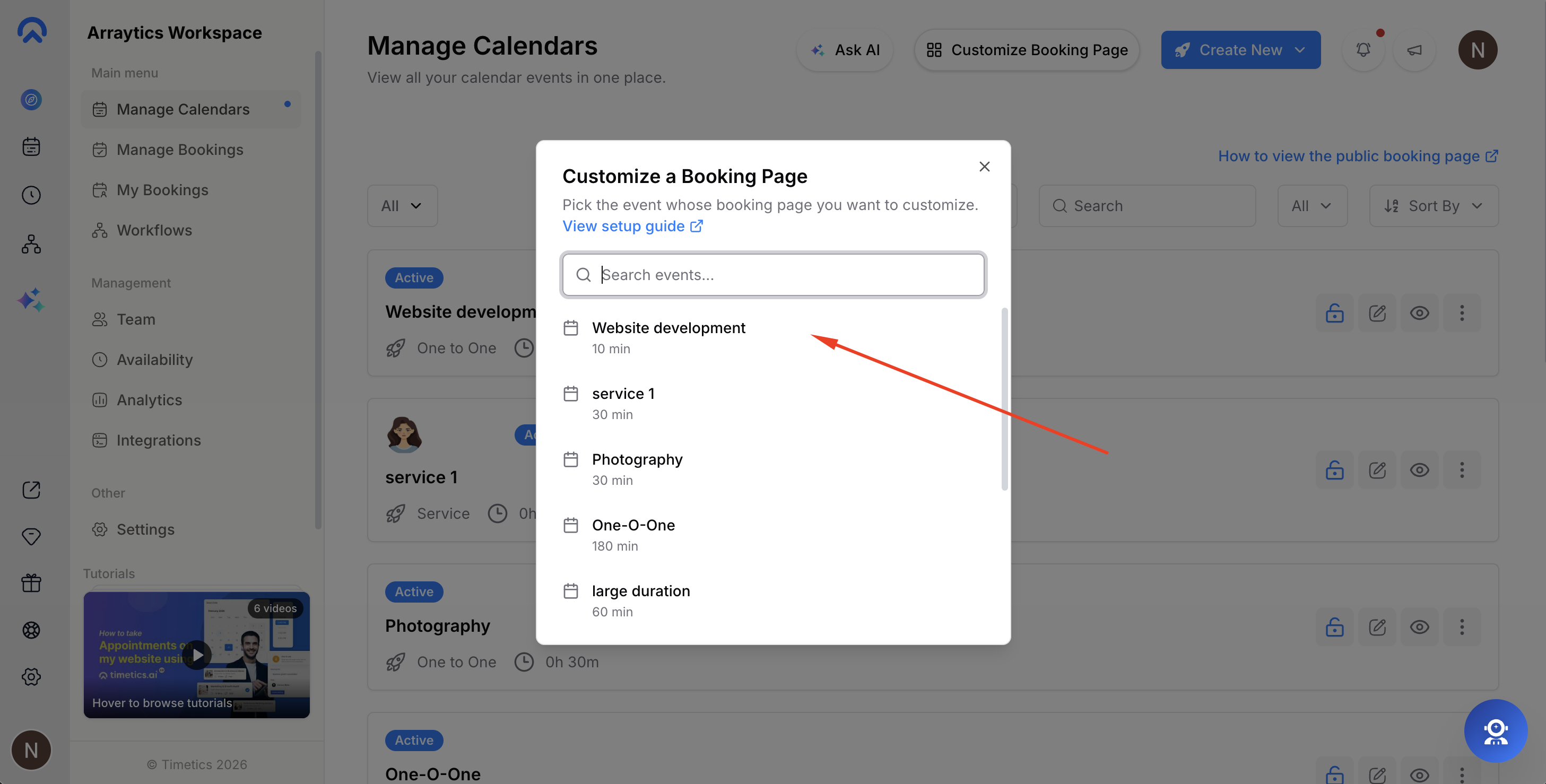
A booking page: From the top bar, click Customize Booking Page and select the event you want. You can also open the event itself and choose Customize booking page from its action panel.
The builder opens with your page on the canvas and the block palette in the left sidebar.
Step 2: Add the Video Popup Block
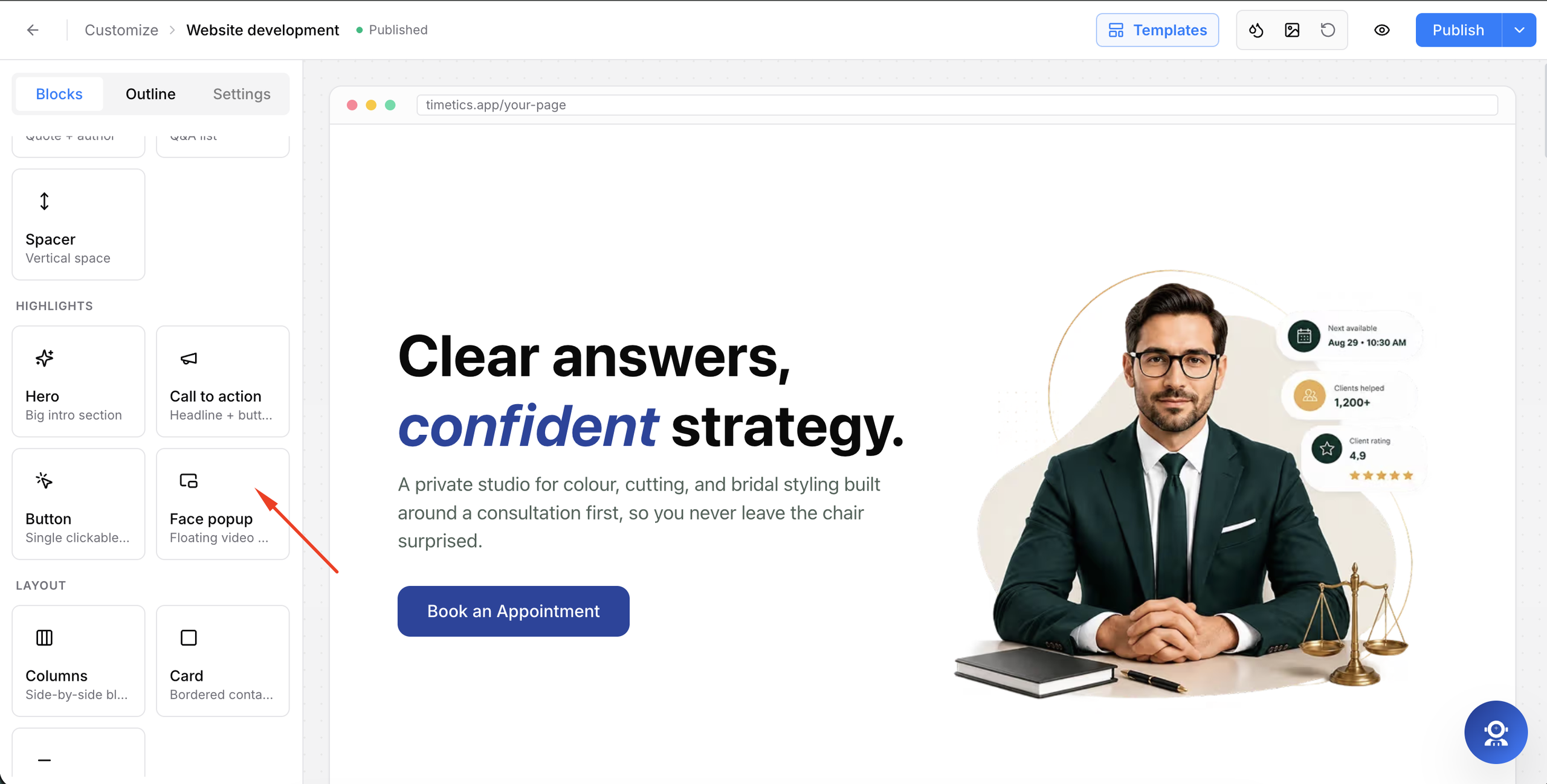
In the left sidebar, scroll to the Highlights group.
The block is labelled Video popup and includes the subtitle Floating video widget with a smiley icon.
Drag the block onto the canvas.
On phones and tablets, open the block drawer and drag it from there, or use the + Add block button inside any available zone on the canvas and select the Video Popup from the list.
The block arrives ready to use with:
- A sample video
- A Hi there! 👋 greeting
- A working Book Now button
You can preview it immediately, then customize the parts you want.
On some plans, the block shows a Lock icon and an Upgrade badge instead. The page builder and the Video Popup are both plan features. Clicking a locked block opens the upgrade window so you can see which plan unlocks it.
Step 3: Set Your Video URL
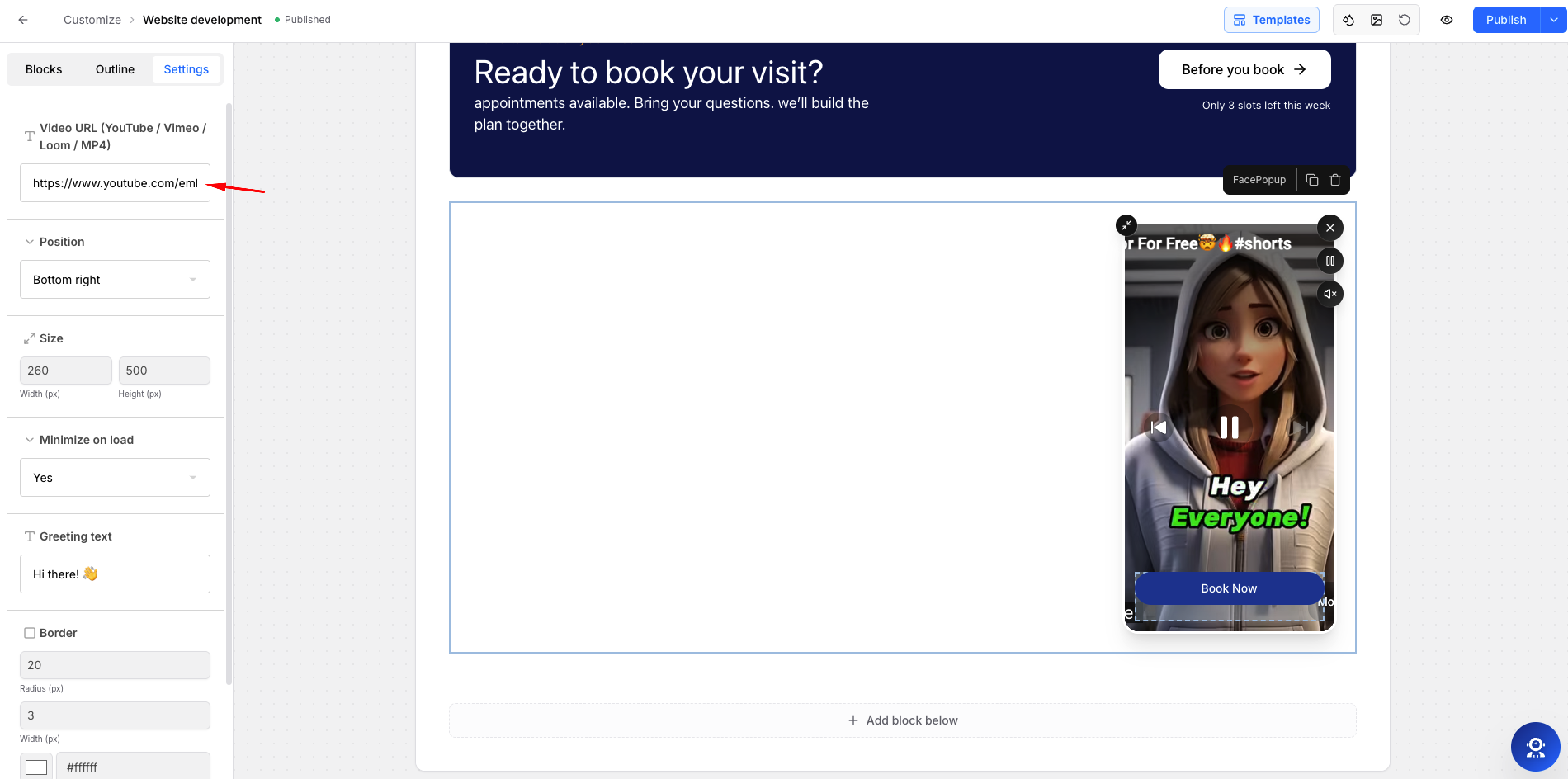
Select the Video Popup block. In the right sidebar, paste your video link into Video URL (YouTube / Vimeo / Loom / MP4).
Accepted video links include:
- YouTube:
https://www.youtube.com/watch?v=xxxxxxxorhttps://youtu.be/xxxxxxx - Vimeo:
https://vimeo.com/123456789 - Loom:
https://www.loom.com/share/xxxxxxx - Direct video file: Any URL ending in
.mp4,.webm,.ogg, or.mov
Paste the normal share link. Timetics converts it into the appropriate embed automatically, hides the provider’s standard controls and branding, and sets the video to autoplay on loop.
Step 4: Choose Position and Size
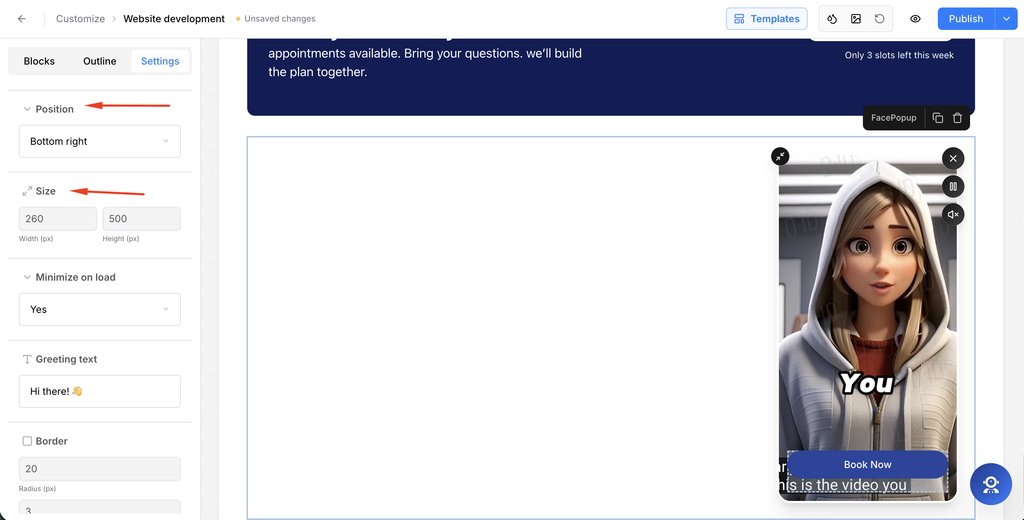
- Position: Pins the widget to one of four corners: Bottom right, Bottom left, Top right, or Top left. The default is Bottom right.
- Size: Sets the width and height of the expanded video card in pixels. The default is 260 × 500 px, giving the popup a portrait layout.
The width and height values act as the desktop maximum. On smaller screens, the popup automatically scales down, so there is no separate mobile size setting.
Step 5: Style the Greeting and Border
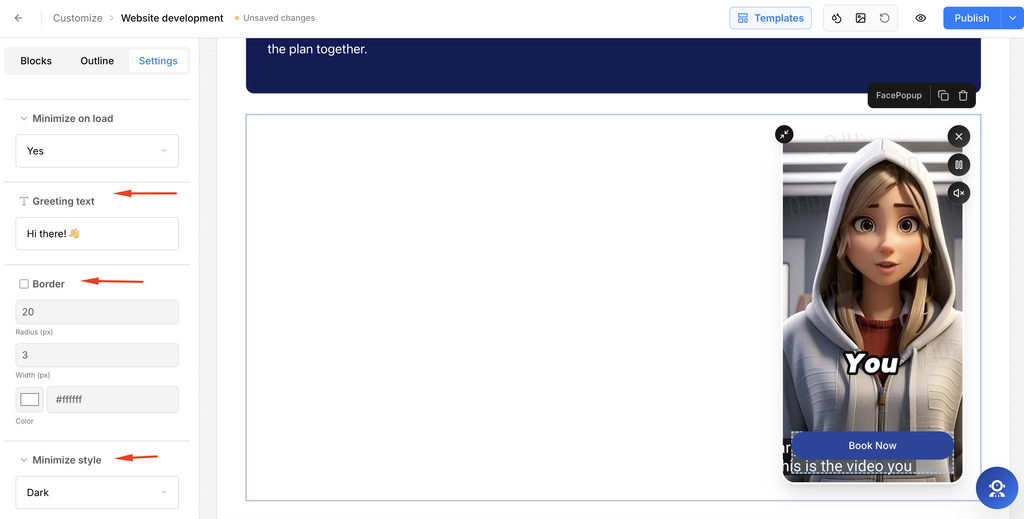
Greeting Text
Greeting text controls the speech bubble shown beside the collapsed video. Clear the field if you want to hide the greeting bubble completely.
Border
The Border settings include three controls:
- Radius: Controls the roundness of the card corners. The default is 20 px.
- Width: Sets the border thickness. The default is 3 px.
- Color: Sets the border color. Clearing the color removes the border.
Minimize Style
Minimize style controls the appearance of the close, play, and mute buttons.
- Dark — Default
- Light
- Outline
Choose the style that provides the clearest contrast with your video.
Step 6: Decide the Opening State
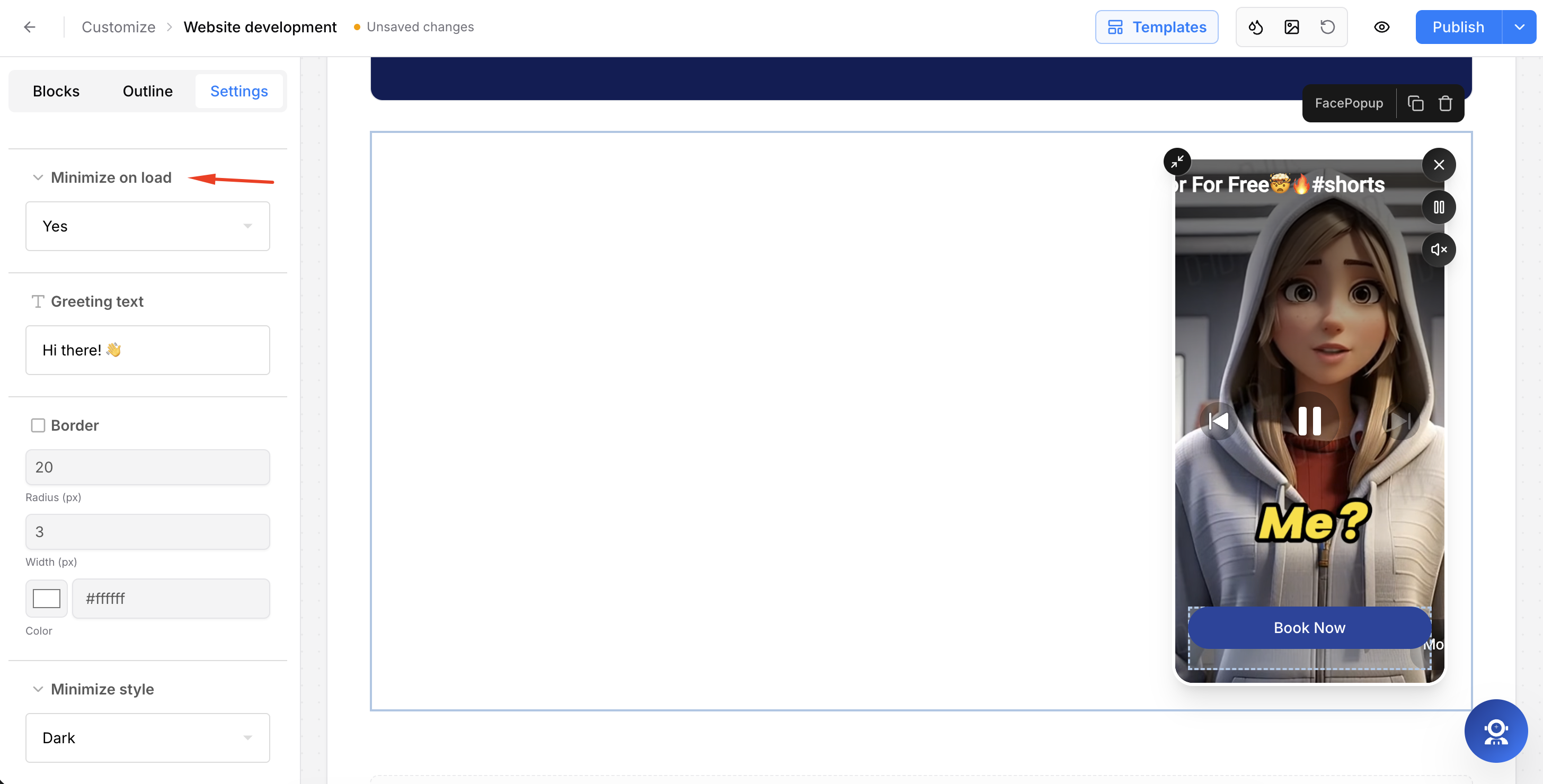
Minimize on load controls what visitors see when the page first opens.
- Yes — Default. The widget starts as a small video bubble with the greeting beside it. Clicking either one expands the full card.
- No — The full video card appears immediately when the page loads.
While editing, a small toggle appears in the top-left corner of the Video Popup block. You can use it to switch between the collapsed and expanded states and preview both designs.
This toggle is available only in the editor. It does not change your saved Minimize on load setting and does not appear on the live page.
Step 7: Edit the Call to Action Inside the Popup
The popup includes its own content area across the bottom of the video.
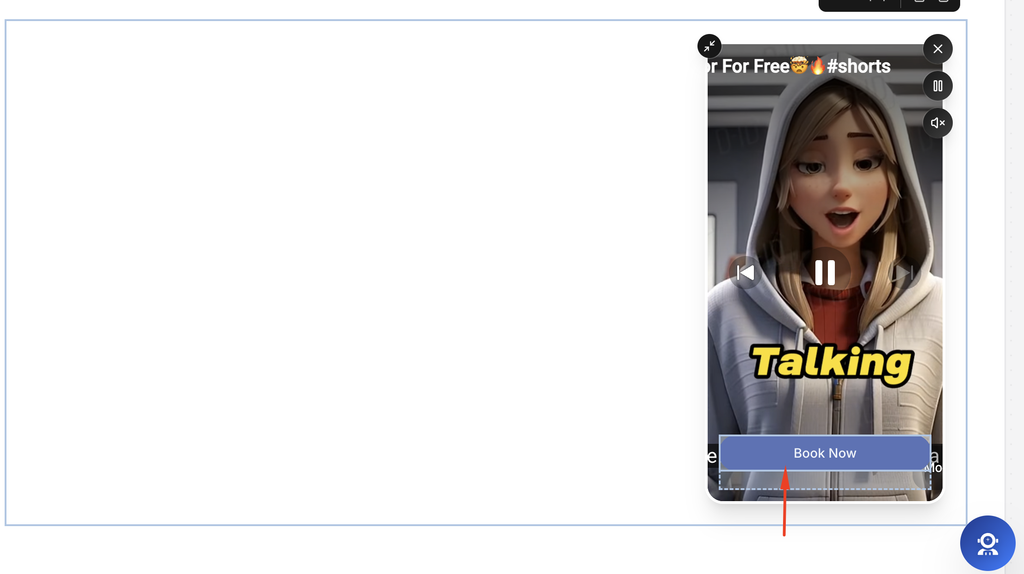
Click the built-in Book Now button to customize its label, link, color, and size. You can also delete it and add another supported block instead.
Seven block types can be added inside the popup:
- Button
- Rich text
- Heading
- Card
- Image
- Spacer
- Divider
The limited block selection is intentional. It keeps the Video Popup focused on one clear action rather than turning it into another full page.
By default, the Book Now button links to #timetics-booking-form. This scrolls the visitor to the booking form on the same page. You can replace it with any link you want.
Step 8: Save and Preview
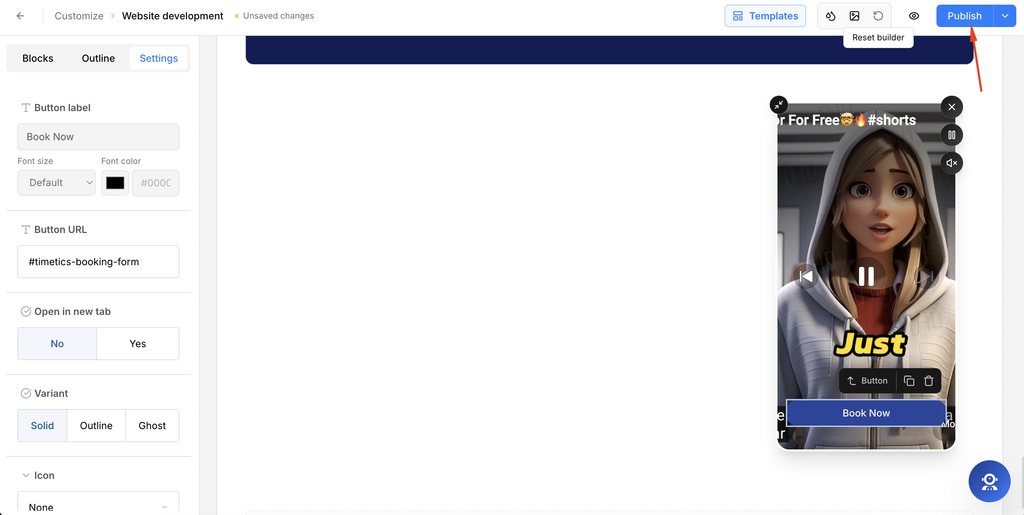
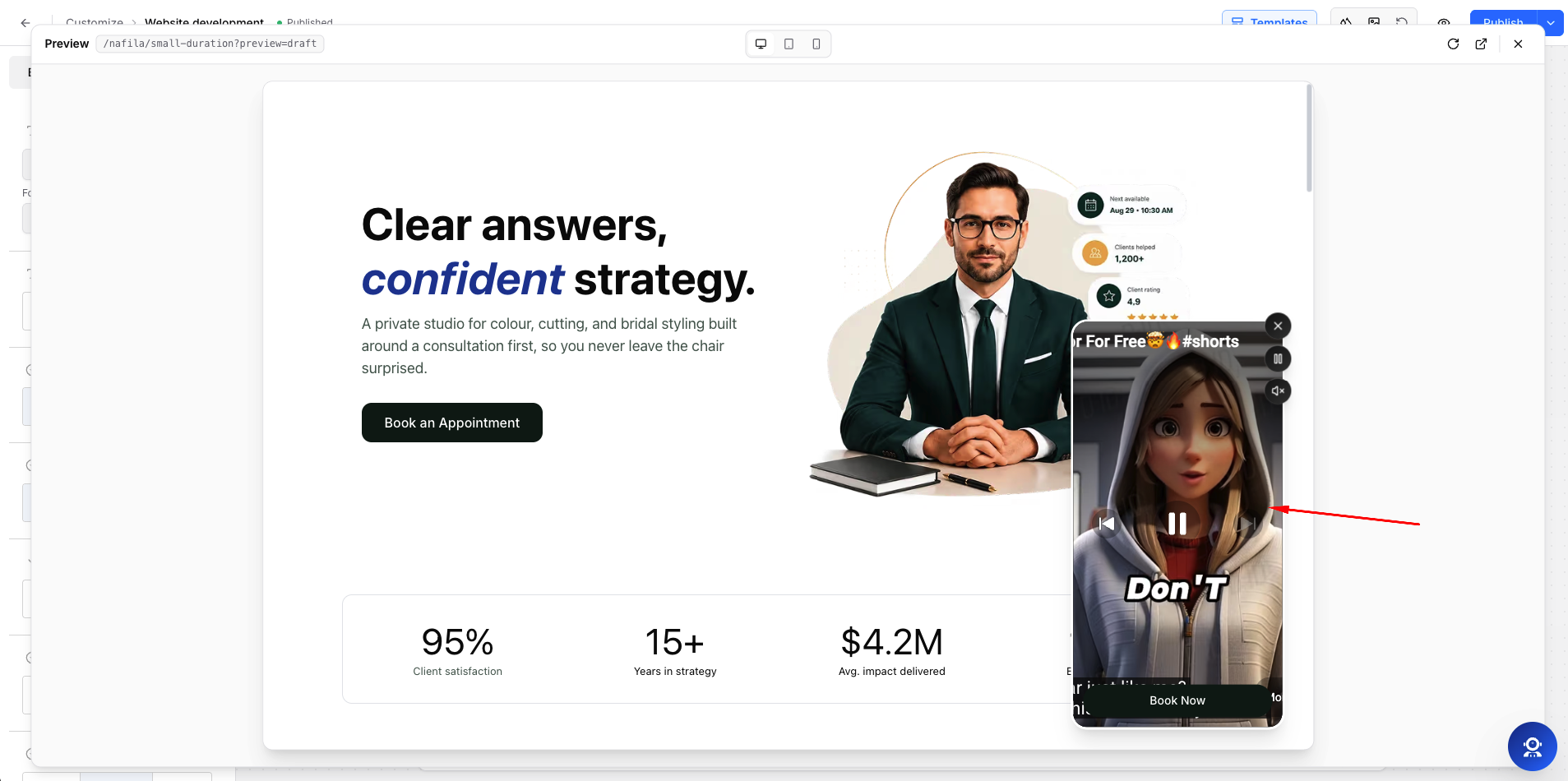
Click Publish, then open the live page to check the Video Popup in its final position.
Test both states:
- Click the video bubble or greeting to expand the card.
- Click the X button to collapse it again.
Controls Your Visitors Get
| Control | Where It Appears | What It Does |
|---|---|---|
| Greeting bubble | Beside the collapsed video | Opens the full card |
| Video thumbnail | Collapsed state | Opens the full card |
| X | Corner of the open card | Collapses the card back to the bubble |
| Play / Pause | Corner of the open card | Pauses and resumes the video |
| Mute / Unmute | Corner of the open card | Turns sound on or off |
| Progress bar | Bottom edge of the card | Shows playback position for direct video files only |
Field Reference
| Field | Default | Notes |
|---|---|---|
| Video URL | Sample YouTube clip | YouTube, Vimeo, Loom, or a direct video file |
| Position | Bottom right | Four corners available |
| Size | 260 × 500 px | Desktop ceiling; automatically scales down on mobile |
| Minimize on load | Yes | Starts collapsed as a bubble |
| Greeting text | Hi there! 👋 | Clear the field to hide the greeting bubble |
| Border radius | 20 px | Controls card corner rounding |
| Border width | 3 px | Works together with the border color |
| Border color | #ffffff | Clear the color to remove the border |
| Minimize style | Dark | Dark, Light, or Outline |
| Popup content | Book Now button | Button, Rich text, Heading, Card, Image, Spacer, or Divider |
Before You Start
- A Timetics plan that includes the page builder and Video Popup block
- A home page or booking page already set up in Timetics
- A video hosted on YouTube, Vimeo, Loom, or a directly accessible video file URL
- The video set to public or unlisted so visitors can load the embed
Notes
- The video starts muted while the popup is collapsed and automatically unmutes when a visitor expands it. The click is treated as a user gesture, which allows browsers to play audio. Collapsing the popup mutes the video again.
- Play, pause, and mute controls work with YouTube, Vimeo, and direct video files. Loom does not provide the same playback control access, so these buttons are hidden for Loom videos and the clip plays silently on loop.
- The video is not requested until the browser has finished loading the rest of the page, helping prevent the widget from slowing down the initial page display.
- Keep the video short, ideally around 10 to 30 seconds. The default popup is portrait-oriented, and shorter videos are generally better suited to a floating corner widget.
- One Video Popup per page is recommended. Multiple floating widgets positioned in the same corner can overlap each other.