What is guest pricing?
A one-to-one calendar can allow guests to bring additional people and charge for them. The Pricing tab contains the guest limit and per-guest price.
Why do you need this?
Use this when a booking may include more than one attendee and the price should reflect the group size.
Prerequisites
- A one-to-one calendar you can update.
- A connected payment option for paid bookings.
Step-by-step instructions
Step 1: Open Pricing
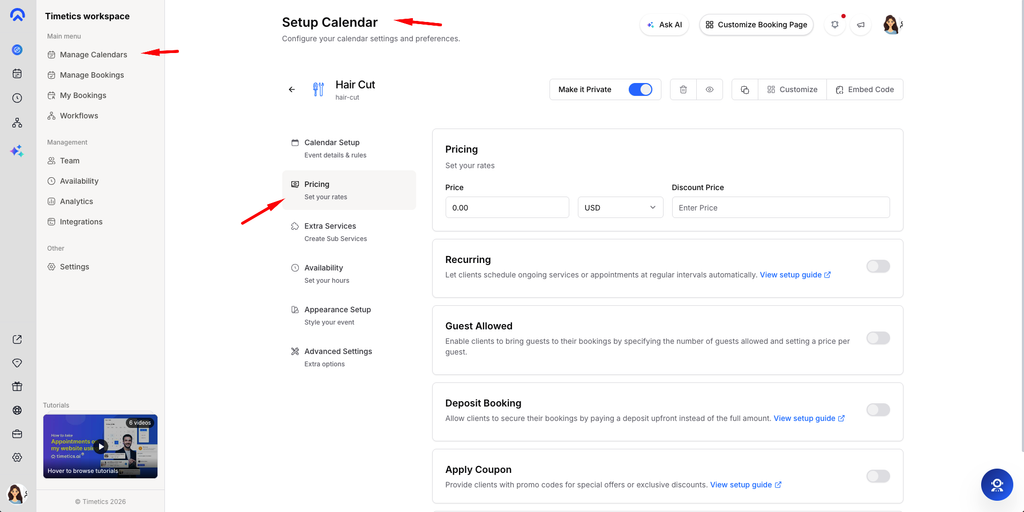
Go to Dashboard → Manage Calendars, open a one-to-one calendar, and select Pricing.
Step 2: Allow guests
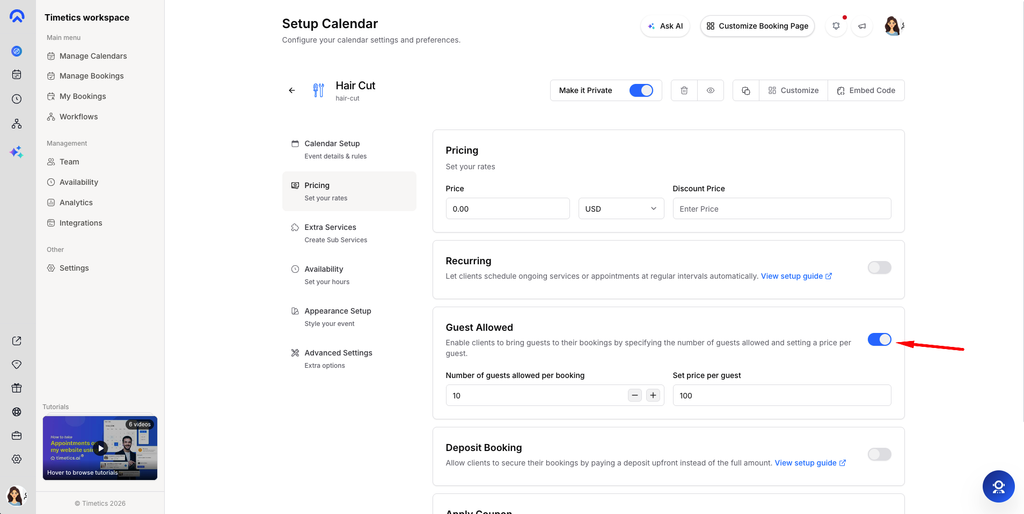
Enable the guest booking option and set how many guests may be added to one booking.
Step 3: Set the price
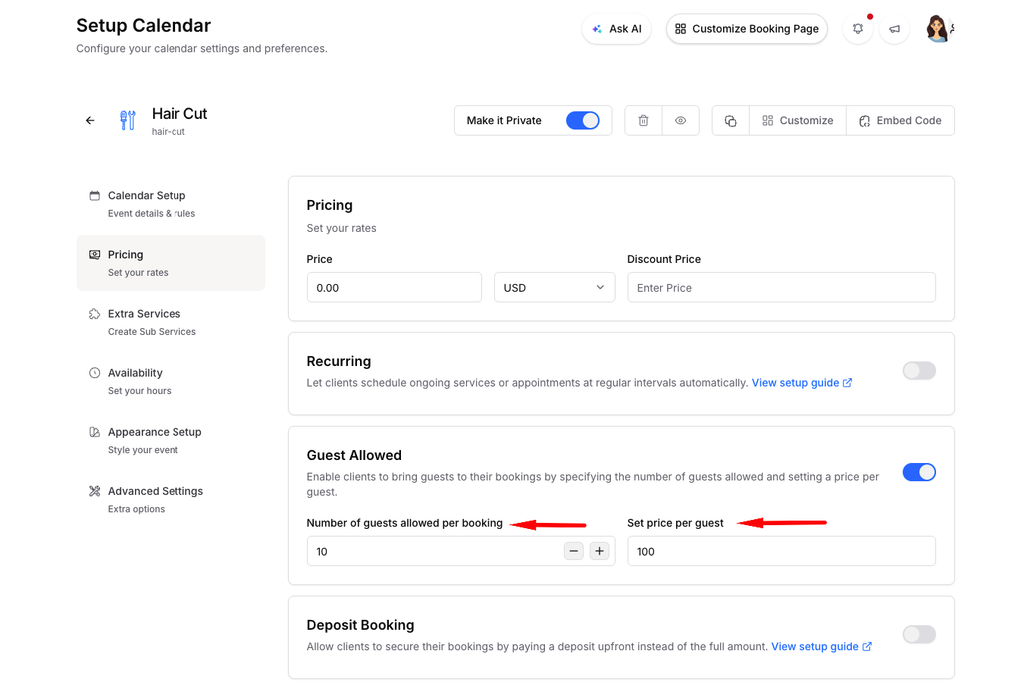
Enter the additional price per guest if your service charges for extra attendees.
Step 4: Review the public form
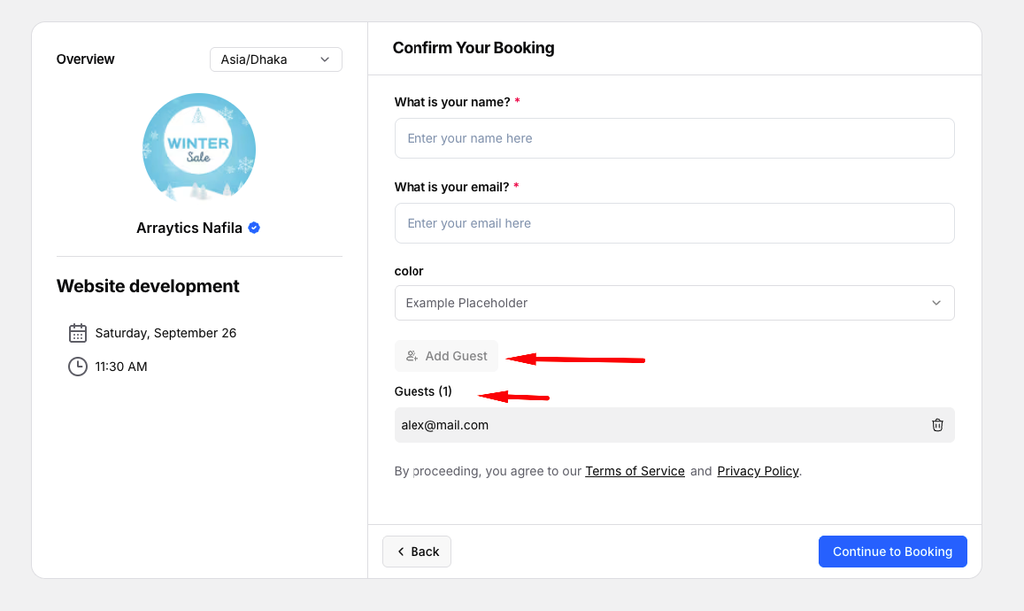
Open Preview and check the Add Guest control and cost summary before sharing the link.
Important notes
- The per-guest amount is separate from the base booking price.
- Consultation Types may control the base price when enabled.
Frequently asked questions
Can guests choose zero additional people?
Yes. The primary booker remains the first attendee.
Conclusion
A one-to-one calendar can allow guests to bring additional people and charge for them. The Pricing tab contains the guest limit and per-guest price.