What Is Timetics AI MCP?
Timetics AI MCP (Model Context Protocol) allows AI assistants like Claude, Cursor, and Codex to connect directly to your Timetics workspace and manage scheduling tasks using natural language. It enables you to check availability, manage bookings, update calendars, review analytics, and handle team tasks through your preferred AI assistant.
Setup takes about two minutes, and you do it once per app. This guide covers what you can ask for, how to connect, and exactly what the assistant is and isn’t allowed to do.
Before you start
- A Timetics plan that includes the MCP Connector. If the tab isn’t in your settings, your workspace owner can check the plan.
- An AI app that supports MCP — Claude Code, Claude Desktop, Cursor, Codex, Cline, Continue, VS Code, Zed and others all do.
- Two minutes.
What you can actually ask for
You don’t learn commands. You type the way you’d speak, and the assistant works out which part of Timetics to reach for. Here’s the ground it covers, with real examples and what comes back.
1. See what’s on your plate
Your bookings for any day or date range, with the guest’s name, the calendar it came through, the time in your own timezone, and its status. You can filter by calendar, by guest, by status, or ask for your team’s bookings instead of only your own.
- “What’s on my calendar next Tuesday?”
- “Show me everything booked through the Discovery Call calendar this month.”
- “Do I have anything with Rahim coming up?”
- “Pull up tomorrow’s 10am — what did they answer on the booking form?”
- “How does next week look across the whole team?”
What happens: it reads and answers. Nothing changes. For one specific booking you get the full record — guest details, host, times, status and their answers to your booking questions.
2. Find open time
Two different questions, and the assistant knows which is which. “When am I free?” searches a calendar’s genuinely open slots. “When could we move this to?” searches alternatives for a booking that already exists, on its own calendar and duration.
- “Find me three free 30-minute slots this week — mornings only.”
- “When’s my next opening on the Strategy Session calendar?”
- “I need to move Thursday’s call. What else is open that week?”
- “Am I free at all on the 14th?”
What happens: it reads and answers, in your timezone. Slots already taken, outside your working hours, or blocked by an override won’t appear.
3. Book, move and cancel
This is where the assistant stops and checks with you. It shows exactly what it intends to do, and nothing happens until you say go.
- “Book Rahim in for 45 minutes on Thursday at 10 — his email is [email protected].”
- “Move my 2pm discovery call to Friday morning.”
- “Cancel tomorrow’s 4pm — something’s come up.”
- “I don’t know when I’m free next week. Send them a link to pick a new time themselves.”
What happens: guest and host are emailed, the same as any booking change made in the dashboard. Cancelling a recurring booking cancels its future instances too, and the assistant tells you how many before you confirm.
That last example is a genuinely useful move: rather than guessing at a time, it emails a reschedule link and leaves the booking untouched until the guest picks.
On paid calendars: a booking created this way takes no payment — it’s a host booking, like one you’d add yourself in the dashboard. The assistant warns you before confirming. For a guest who should pay, send them your booking link instead.
4. Set up and tidy your calendars
Create meeting types, change them, duplicate one as a starting point for the next, hide one from the public page, or put a team member on a service calendar as a host.
- “Create a 45-minute ‘Design Review’ calendar on my usual hours, and keep it private for now.”
- “Duplicate the Discovery Call calendar and make the copy 60 minutes.”
- “Put the Strategy Session up to $150.”
- “Hide the Beta Onboarding calendar — we’re not taking those any more.”
- “Add Nadia as a host on the Consultation calendar.”
- “Which of my calendars are public right now, and what do they cost?”
What happens: immediately, and everything here is reversible from the dashboard. A private calendar simply can’t be booked from your public page — it isn’t deleted, and its existing bookings are untouched.
5. Manage your working hours
Availability schedules are the working-hours templates your calendars sit on. You can create them, edit the weekly pattern, copy one, and override a single date — a holiday, a travel day, one afternoon that’s different.
- “Set up ‘Summer Hours’ — Monday to Thursday, 9 to 2.”
- “Block out the 23rd, I’m travelling.”
- “On the 30th I’m only free after 3pm.”
- “Copy my default hours and shift the whole thing an hour later.”
- “What working-hours schedules do I have, and which is the default?”
What happens: immediately. A date override beats the weekly pattern for that one day and leaves every other day alone.
6. Ask your numbers
The figures behind your Analytics screen, reachable in a sentence — over a week, a month or a year.
- “How did last month go?” — total bookings, revenue and new customers
- “Show me revenue week by week this quarter.” — the trend, dated
- “Which calendars are actually earning?” — ranked, best first
- “How much of this year’s revenue came from repeat customers?” — the new-versus-returning split
- “How many bookings did I take in March, and how many were cancelled?”
What happens: it reads and answers. Because you’re in a conversation you can keep pulling the thread — “now compare that to last quarter”, “which of those were no-shows?” — without going back to build a new view.
7. Look after your team
See who’s in the workspace, invite people, change what they’re allowed to do, or pause someone’s access.
- “Who’s in the workspace, and who hasn’t accepted their invite yet?”
- “Invite [email protected] as a manager.”
- “Make Nadia an admin.”
- “Pause Karim’s access while he’s on leave.”
- “Give me a join link I can drop in the team chat.”
What happens: these all stop and ask you first — an invite email reaches a real person and a join link works for anyone holding it, so neither is something to fire off by accident.
You can never hand out more than you hold yourself. If your own role can’t change roles, neither can your assistant, and it will say so rather than fail quietly.
8. Find your way around Timetics
A small one that turns out to be the most-used. Ask where something lives and you get the page, not a guess.
- “Where do I change my timezone?”
- “How do I connect Google Calendar?”
- “Which video integrations do you support?”
- “Set the workspace currency to BDT.”
Connect it in three steps
Step 1 — Create a connector key
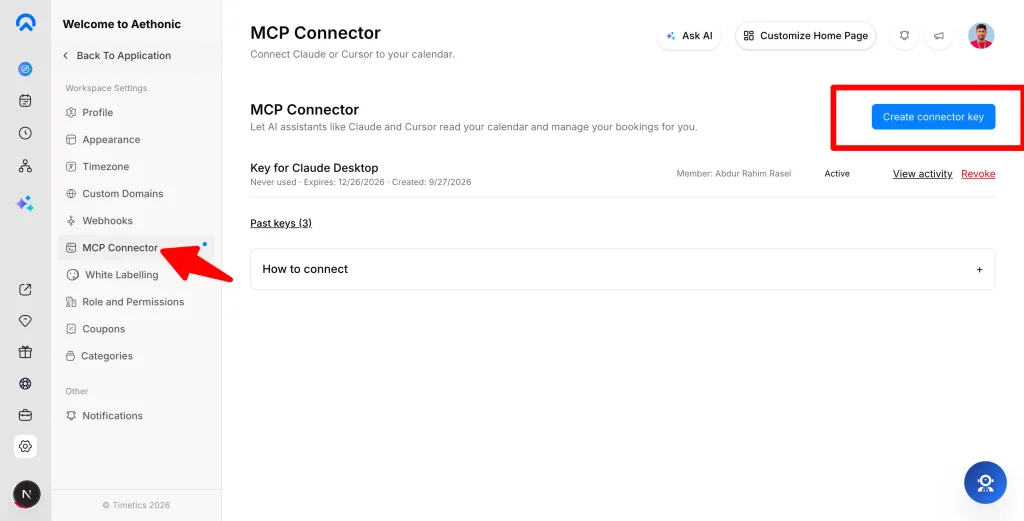
In Timetics, open Settings → MCP Connector and choose Create connector key. Name it after the app you’re about to connect — “Claude on laptop”, “Cursor at work” — so you can tell them apart later. Pick how long it should last; ninety days suits most people, and you can renew whenever you like.
Step 2 — Copy the key while it’s on screen
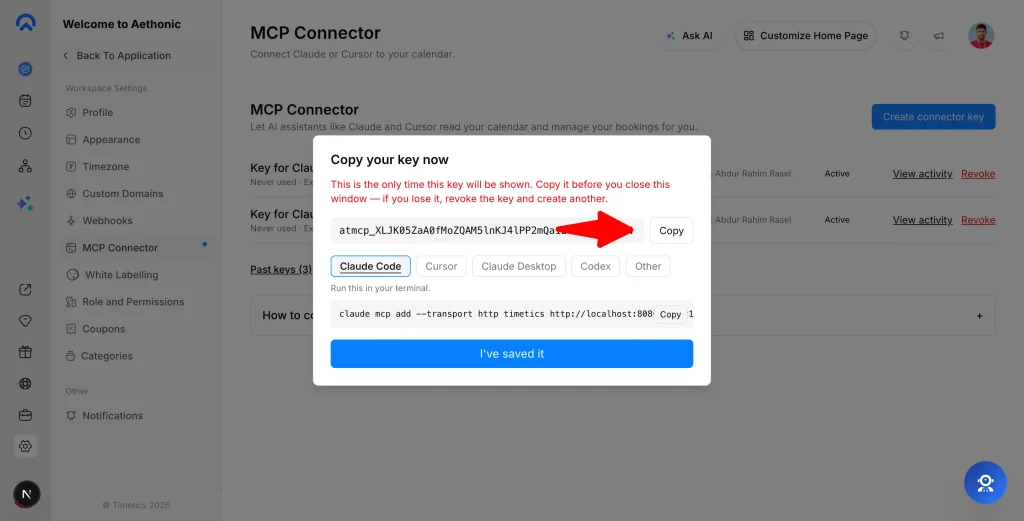
The key is shown once and never again. Timetics stores only a scrambled version of it, so nobody — not support, not you — can look it up afterwards. Copy it before you close that window. If you lose it, just revoke the key and make another; nothing is broken.
Step 3 — Paste the setup into your app
The same window gives you ready-made settings for each app, with your own address and key already filled in. Copy, paste, restart the app. Below is the shape of each, so you know what you’re looking at.
Claude Code
Run this once in your terminal.
claude mcp add --transport http timetics \
  https://app.timetics.ai/api/v1/mcp \
  --header "Authorization: Bearer YOUR_KEY"
Cursor
Save in ~/.cursor/mcp.json, then reload the MCP servers list.
{
  "mcpServers": {
    "timetics": {
      "url": "https://app.timetics.ai/api/v1/mcp",
      "headers": { "Authorization": "Bearer YOUR_KEY" }
    }
  }
}
Claude Desktop
Save in claude_desktop_config.json, then restart Claude Desktop.
{
  "mcpServers": {
    "timetics": {
      "command": "npx",
      "args": ["-y", "mcp-remote",
               "https://app.timetics.ai/api/v1/mcp",
               "--header", "Authorization:${MCP_AUTH_HEADER}",
               "--transport", "http-only"],
      "env": { "MCP_AUTH_HEADER": "Bearer YOUR_KEY" }
    }
  }
}
Codex
Save in ~/.codex/config.toml, then restart Codex. This works for both the Codex app and the command line.
[mcp_servers.timetics]
url = "https://app.timetics.ai/api/v1/mcp"

[mcp_servers.timetics.http_headers]
Authorization = "Bearer YOUR_KEY"
Any other MCP app
Anything that speaks MCP over Streamable HTTP and lets you set a header will work — Cline, Continue, VS Code, Zed, Windsurf and more. Give it these three things:
URL:       https://app.timetics.ai/api/v1/mcp
Transport: Streamable HTTP (POST)
Header:    Authorization: Bearer YOUR_KEY
ChatGPT on the web is the one exception today — it only accepts connectors that sign in through a login screen, which this connector doesn’t use yet.
Once you’ve restarted, ask it something — “list my Timetics calendars” — and you’ll know within seconds whether it took.
What it’s allowed to do
A connector key carries exactly the permissions you have in the workspace — never more. If you can’t remove a team member in Timetics, neither can your assistant.
| Group | What’s in it | How it behaves |
|---|---|---|
| Reads 14 actions | Calendars, bookings, availability, team, integrations, reporting figures, and where things live in the app | Happens straight away — nothing changes by looking |
| Creates & edits 9 actions | Calendars and availability schedules: create, edit, duplicate, date overrides, visibility, assigning a host | Happens straight away, and all of it is reversible from the dashboard |
| Asks you first 10 actions | Creating, moving or cancelling a booking; emailing a guest; inviting someone; changing a role; pausing access; workspace settings | Shows you exactly what it intends, then waits for you to confirm |
| Never by design | Deleting a calendar, an availability schedule, or a team member | Not available at all — deletion is done by a person, in the dashboard |
That last row is deliberate. Deleting something is the one action where you want to see what depends on it before it goes, so we’ve kept it where you can.
Cancelling a booking isn’t deleting it: it moves to cancelled, stays in your lists, and still counts in your reports.
Staying in control
See what a key has done
Every key has View activity beside it — each action it took, when, and whether it succeeded. Recent history is kept for about a week.
Revoke a key any time
Revoke stops a key instantly. Use it when a laptop goes missing, when you stop using an app, or if anything looks unfamiliar in the activity list. Create a fresh key and carry on.
Treat a key like a password
Anyone holding it can act as you in this workspace. Don’t paste it into a chat, a support ticket or a shared document. One key per app, per device, means you can revoke just the one that’s a problem.
Leaving the team ends access
When someone is removed from the workspace, their connector keys stop working in the same moment.
If something isn’t working
The app says it isn’t authorised
The key was mistyped, has expired, or was revoked. Check Settings → MCP Connector — if it’s sitting under Past keys, create a new one. Watch for a stray space after Bearer; there should be exactly one.
Your plan doesn’t include the MCP Connector
The connector is available on certain plans. Your workspace owner can check, or get in touch with us.
The assistant can’t find the tools
Most apps only read their settings at startup. Quit the app completely — not just the window — and open it again.
It says it can’t do something you can do
Two usual reasons: the action needs a permission your role doesn’t carry, or it’s a deletion, which is dashboard-only on purpose. The assistant will tell you which.
It slows down or stops mid-conversation
Each key has a fair-use limit per minute. It clears on its own within the minute — just ask again.
Ready when you are
Open Settings → MCP Connector, create your first key, and ask your assistant what’s on your calendar tomorrow. That’s the whole thing.