What is a booking calendar embed?
The calendar Embed action generates code for displaying a Timetics booking page inside another website. It offers HTML and React examples.
Why do you need this?
Embedding lets visitors book without first leaving your own site.
Prerequisites
- A calendar with a working public booking page.
- Access to edit the destination website.
Step-by-step instructions
Step 1: Open Embed
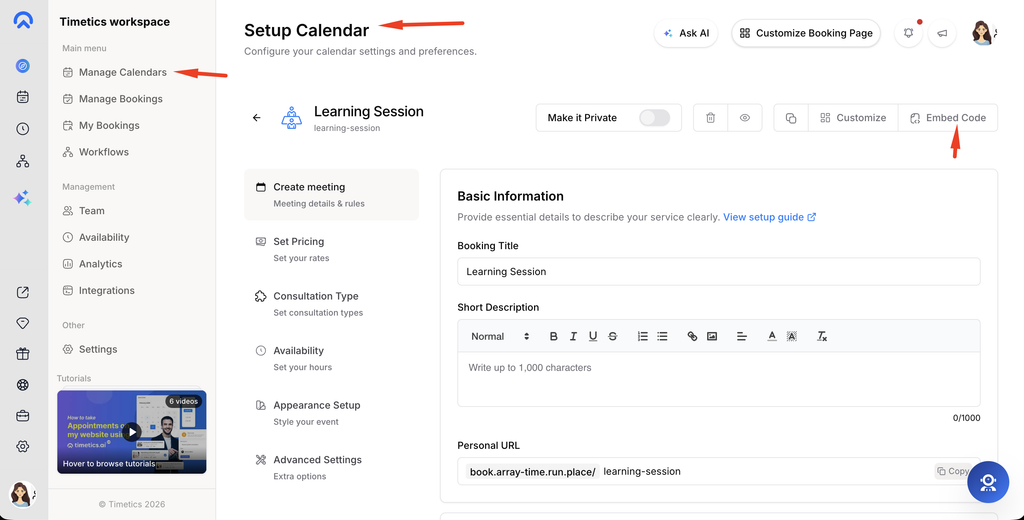
Go to Dashboard → Manage Calendars, open the calendar’s action menu, and choose Embed.
Step 2: Adjust colors
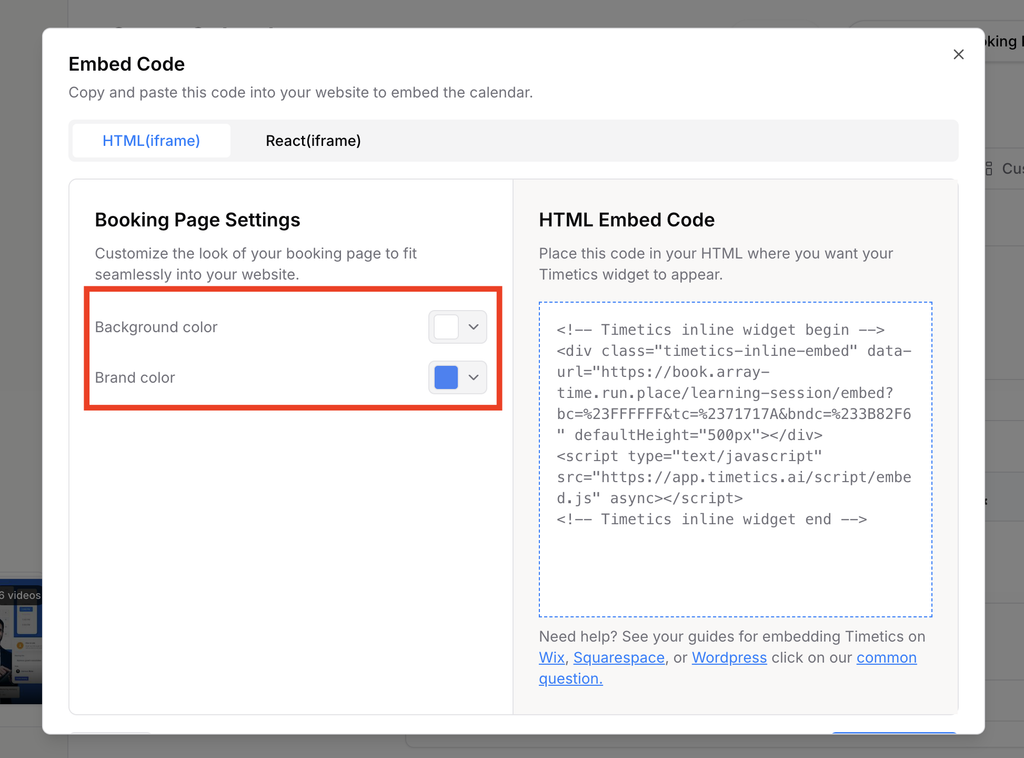
Set the background, text, and brand colors in the Embed dialog.
Step 3: Choose a code type
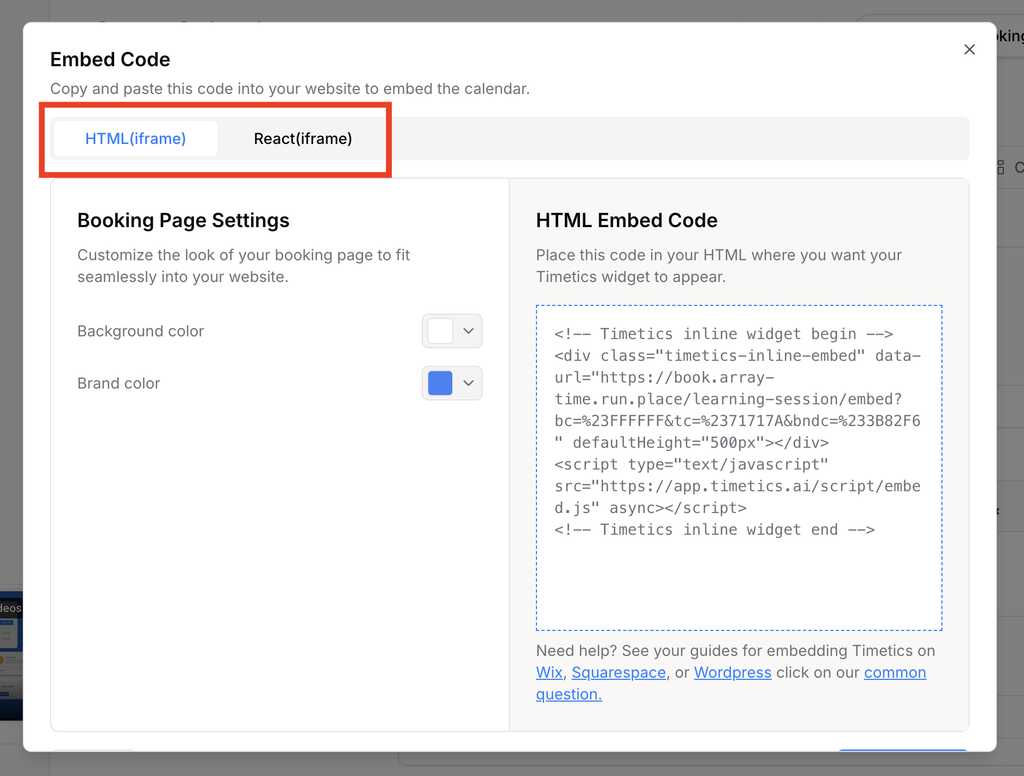
Select HTML for a regular website or React for a React application.
Step 4: Copy the code
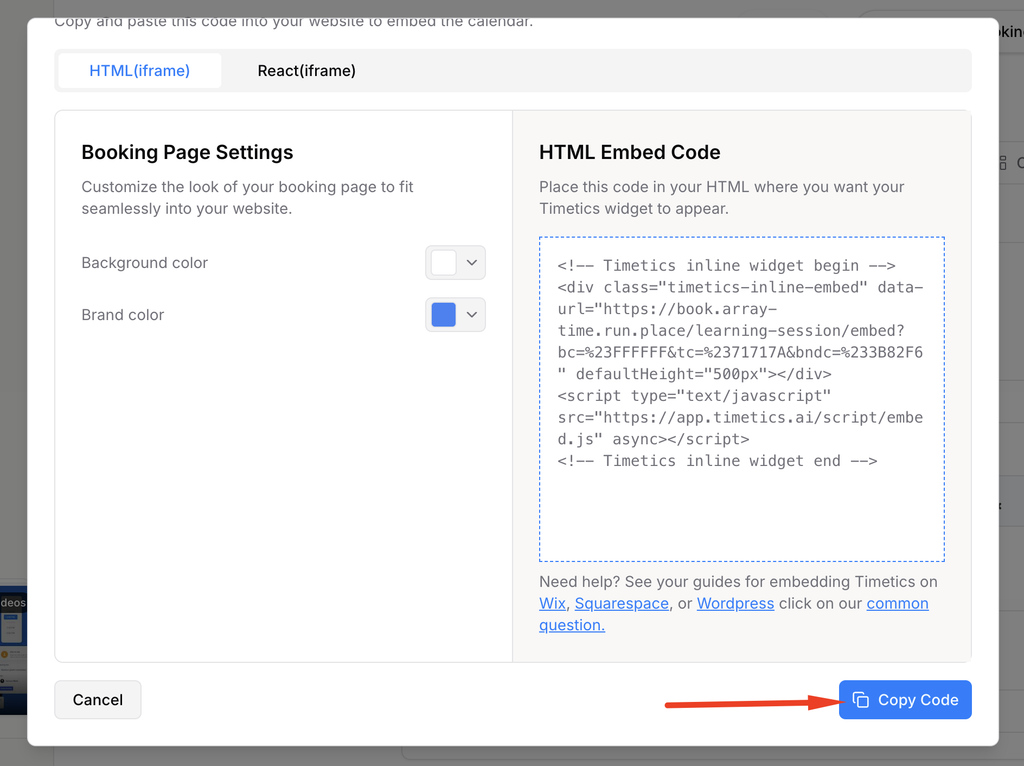
Use Copy Code and paste the snippet into the destination page where the booking experience should appear.
Step 5: Test the page
Load the website on desktop and mobile and complete a test booking.
Important notes
- The HTML example loads the Timetics embed script. The React example uses a responsive iframe package.
- The generated booking URL follows your calendar’s public or custom domain; the embed script is served from the main Timetics domain.
Frequently asked questions
Can I change colors later?
Yes. Generate and paste a new snippet with the revised colors.
Conclusion
The calendar Embed action generates code for displaying a Timetics booking page inside another website. It offers HTML and React examples.