Not every customer wants to pay by card. Some prefer a bank transfer. Others use a mobile wallet like bKash, Nagad, UPI, or GCash. With Manual Payment, you can list the ways you accept money, show customers exactly how to pay you, and ask them for proof like a transaction ID. Once you see the money in your account, you mark the booking as paid.
Timetics AI doesn’t move any money for you here. Your customer pays you directly, and you confirm it yourself.
Why Use Manual Payment?
- Accept local payment methods. Take payments through any bank or mobile wallet you already use, even ones Timetics AI doesn’t connect to directly.
- Works with any currency. Unlike some payment options, Manual Payment isn’t tied to one currency.
- Collect proof of payment. Ask customers for a transaction ID, the last digits of their account, a sender name, or anything else that helps you match their payment.
- Offer several methods at once. For example, “Bank Transfer”, “bKash”, and “UPI”, each with its own instructions.
- Stay in control. Nothing is marked as paid until you check it and confirm it.
Manual Payment vs. Pay On-Site
Both options let customers book without paying online, but they’re meant for different situations.
| Manual Payment | Pay On-Site | |
|---|---|---|
| When the customer pays | Before the appointment, by transfer or wallet | At the appointment |
| Several payment methods | Yes, each with its own instructions | No, one set of instructions |
| Asks the customer for details | Yes, you choose the questions | No |
| Who confirms the payment | You, from the booking | You, from the booking |
You can turn on both at the same time. Customers will see each one as a separate choice at checkout.
Before You Start
Make sure of the following:
- You have the right role. Only the workspace Owner, Admin, or Manager can set up Manual Payment. Members can see the Integrations page but can’t connect it.
- Your plan includes Manual Payment. If it doesn’t, the card shows an Upgrade button instead of Connect.
- Your calendar has a price. The payment page only appears for paid bookings. Free bookings skip payment completely.
- Your payment details are ready. Keep your bank account number, wallet number, or other details nearby so you can add them to the instructions.
How to Set Up Manual Payment
Step 1: Open the Integrations page
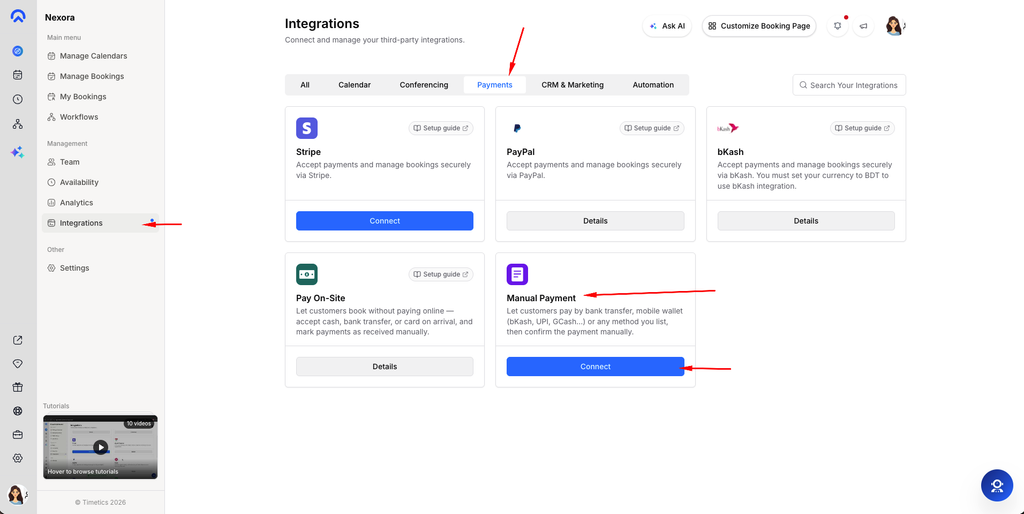
From the left menu, go to Integrations, then click the Payments tab. You’ll see a card called Manual Payment.
Step 2: Click Connect
Click Connect on the Manual Payment card. A setup window opens.
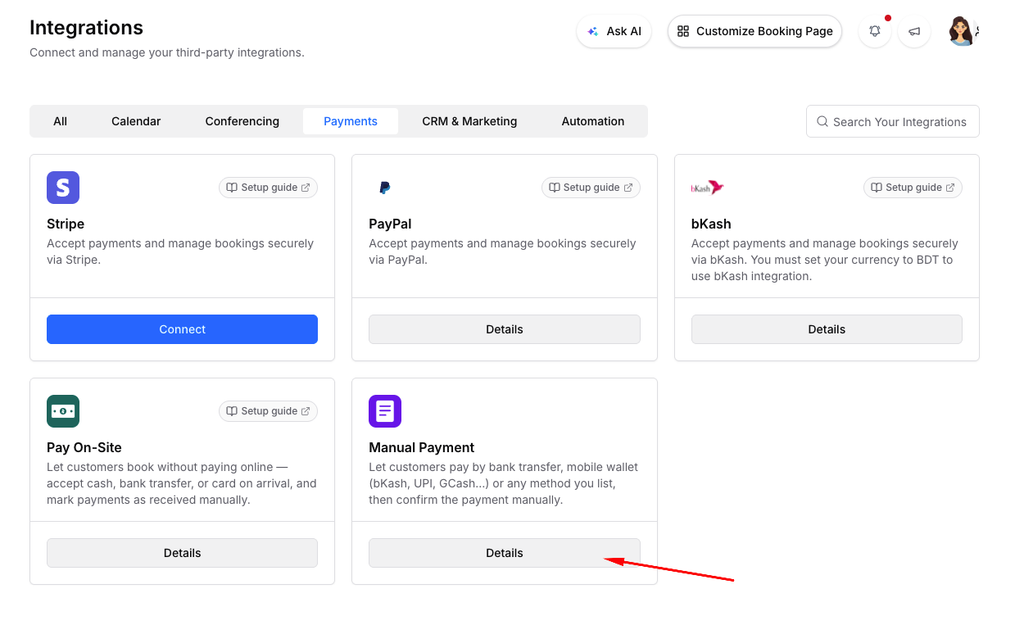
If you see Details instead of Connect, Manual Payment is already set up in your workspace.
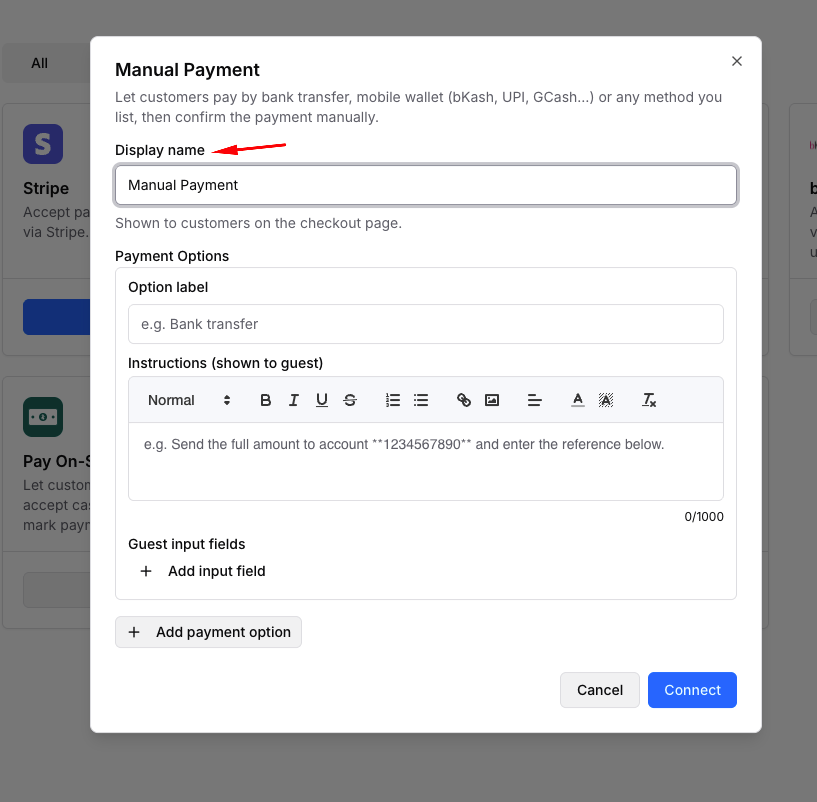
Step 3: Choose a display name
The Display name is what customers see as the name of this payment method on the checkout page. It starts as “Manual Payment”, but you can change it to something more familiar, like “Bank Transfer or bKash” or “Pay by Mobile Wallet”.
You can use up to 120 characters.
Step 4: Add your first payment option
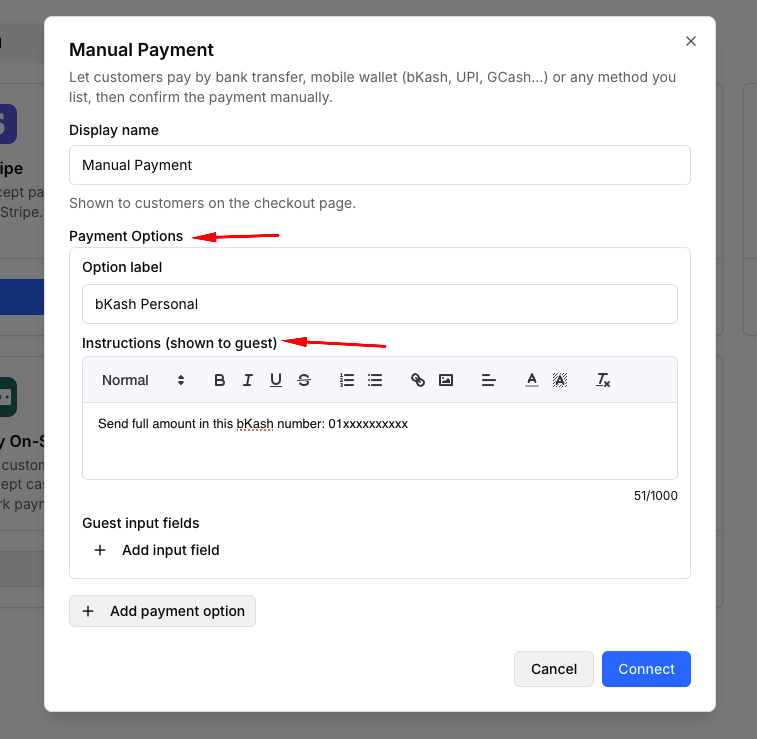
Under Payment Options, fill in the first option. Each option is one way a customer can pay you.
- Option label: The name of the method, like “Bank Transfer”, “bKash Send Money”, or “UPI”. This is required.
- Instructions (shown to guest): Tell the customer exactly how to pay. Include your account name, number, branch, the amount to send, and anything they should write in the reference. You can use bold text, lists, links, and images (for example, a QR code).
Example instructions for bKash:
Send the full amount to 01xxxxxxxx using Send Money (not Cash Out). Use your booking name as the reference. Then enter the transaction ID below.
Step 5: Ask for payment details (optional)
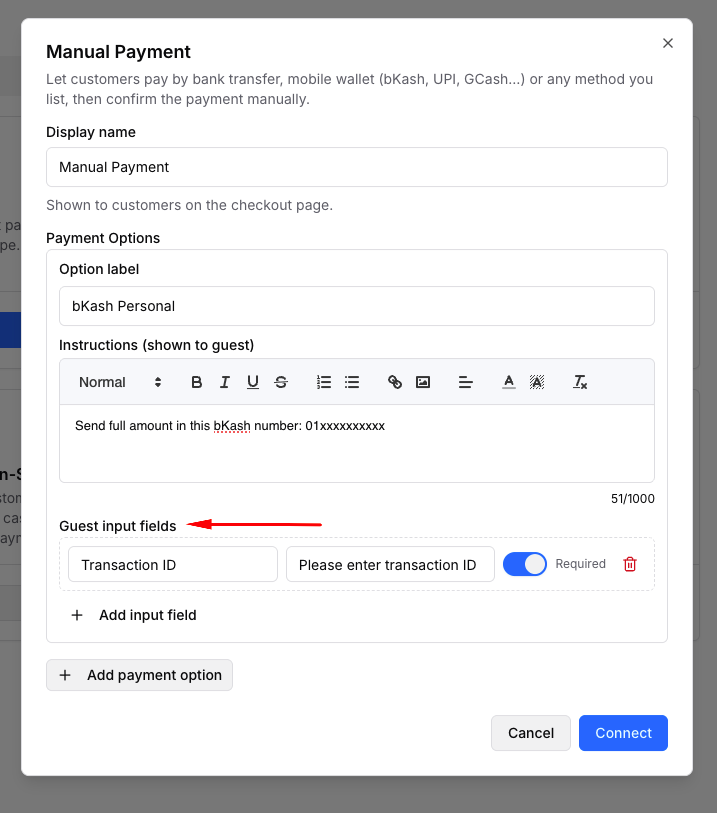
Under Guest input fields, click Add input field to ask the customer for information after they pay. For each field:
- Field label: The question, for example “Transaction ID” or “Sender’s phone number”.
- Placeholder: A light example shown inside the box, like “TXN123456”.
- Required: Turn this on if the customer must fill it in before they can confirm.
You can add up to 10 fields per option. To remove one, click the trash icon next to it.
💡 Tip: Ask for a transaction ID or reference number. It makes matching the payment in your bank or wallet app much faster.
Step 6: Add more payment options (optional)
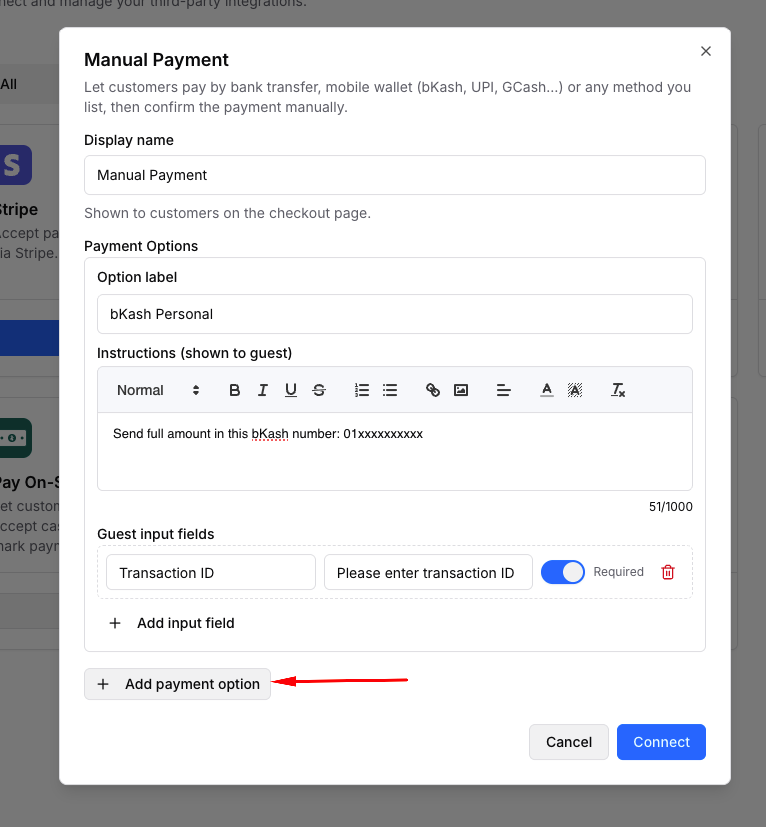
Click Add payment option to offer another method. Each option has its own label, instructions, and fields. You can add up to 20 options.
To remove an option, click the trash icon at its top right. You can’t remove the last one, since at least one option is always needed.
Step 7: Save
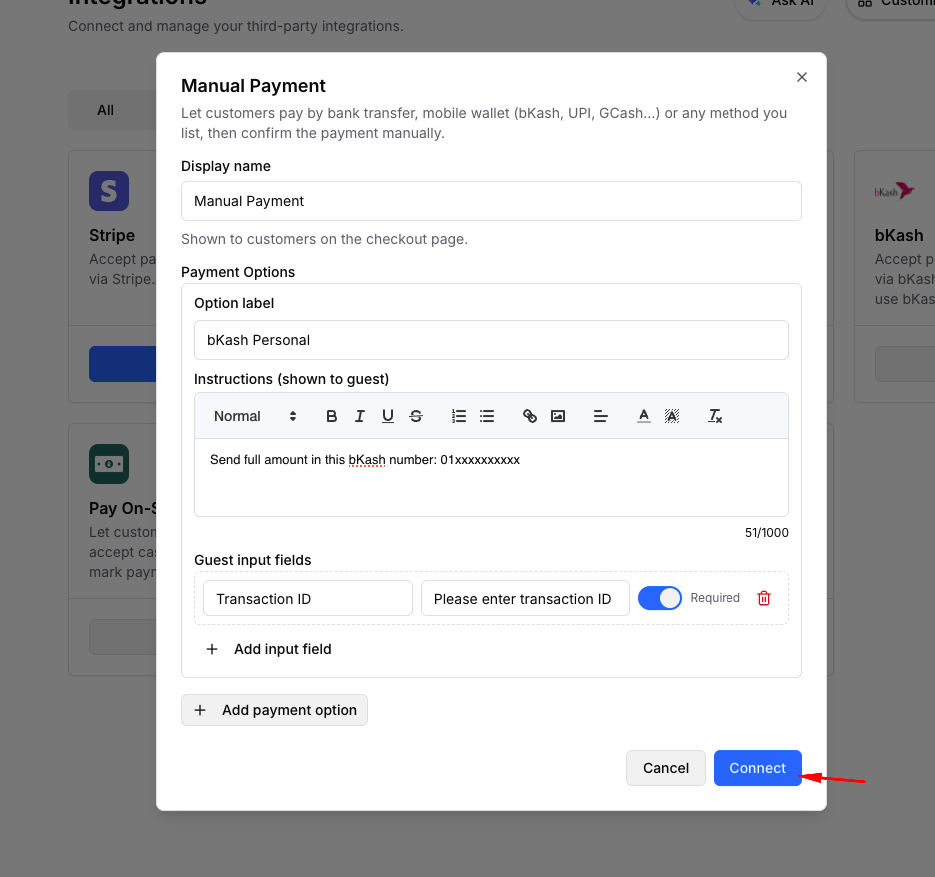
Click Connect. You’ll see a “Manual Payment saved” message, and the card on the Integrations page now shows Details.
From now on, every paid calendar in your workspace will offer Manual Payment at checkout.
What Your Customers See
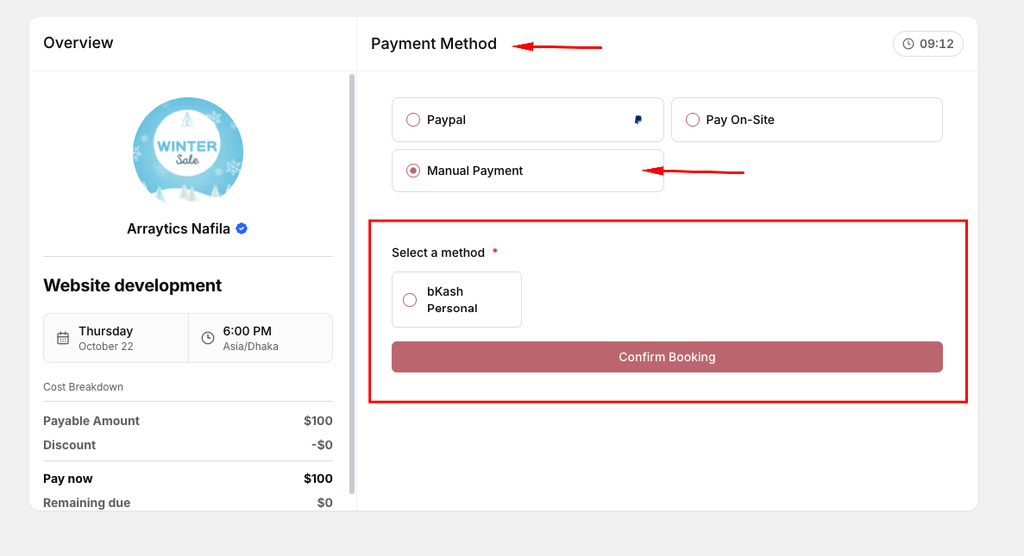
Here’s how the booking looks from the customer’s side:
- The customer picks a time and fills in the booking form.
- On the payment page, they see your display name (for example, “Bank Transfer or bKash”) next to your other payment methods. They choose it.
- Under Select a method, they pick one of your payment options.
- Your instructions and questions appear right below. The customer pays you using your instructions, then fills in the details you asked for.
- They click Confirm Booking and land on the booking confirmation page.
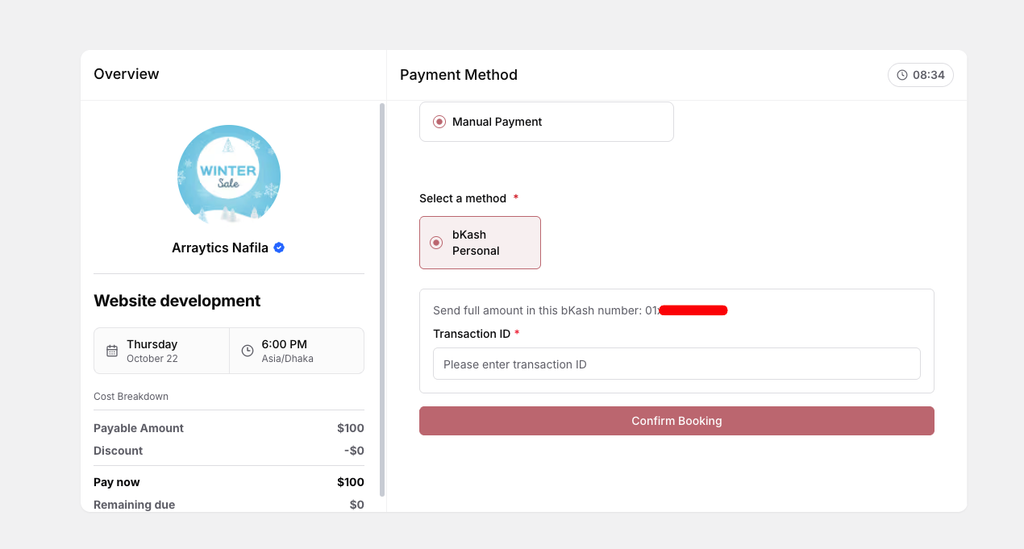
A few things that can happen at checkout:
- If they click Confirm Booking without picking a method, they’ll see “Please select a payment method first”.
- If they skip a required field, they’ll see “[Field name] is required” under that box.
- Answers can be up to 255 characters long.
What Happens After a Customer Books
As soon as the customer confirms:
- The time slot is saved for them. Nobody else can take it while you check the payment.
- The booking is confirmed right away, even though the payment still shows as pending. If you turned on booking approval for that calendar, the booking stays Pending instead, and you’ll get the usual approval email.
- The payment status is Pending until you mark it as paid.
How to Confirm a Payment
Always check your bank or wallet app first. Timetics AI can’t see whether the money actually arrived.
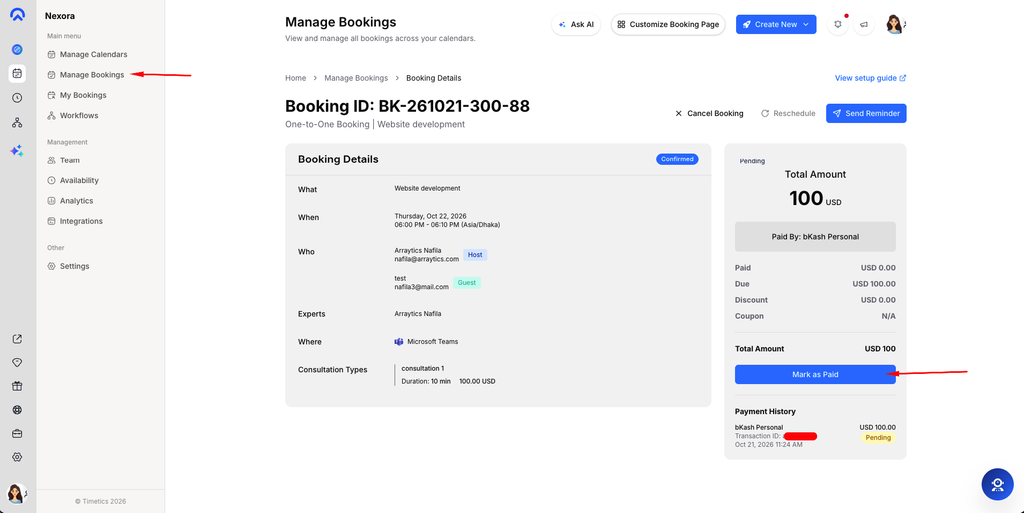
- Go to Bookings and open the booking.
- On the payment panel, look at Payment History. You’ll see the option the customer chose (for example, “bKash Send Money”) and everything they filled in, like their transaction ID.
- Find that payment in your bank or wallet app and check the amount.
- Click Mark as Paid.
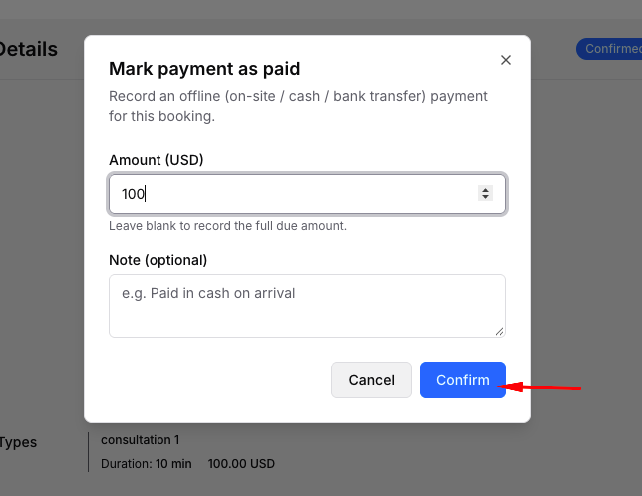
- In the window that opens:
- Amount: This is filled in with the full amount due. Leave it as it is, or clear it to record the full amount. Change it only if you received a different amount.
- Note (optional): Add anything you’d like to remember, such as “Checked in bank statement, 12 Oct”.
- Click Confirm.
After you confirm:
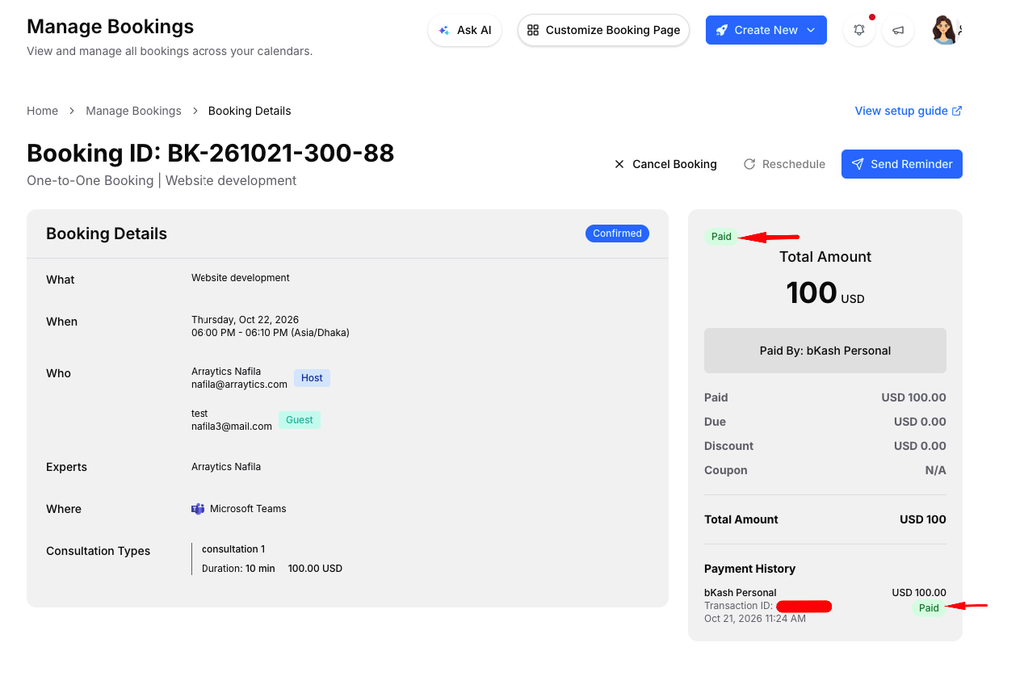
- The payment changes to Paid. If you entered less than the full amount, it changes to Partially Paid and shows the remaining balance under Due.
- The customer gets an email letting them know you received their payment.
- If the calendar uses booking approval, the booking still waits for your approval. Paying doesn’t approve it automatically.
Editing Your Payment Options
- Go to Integrations, then the Payments tab.
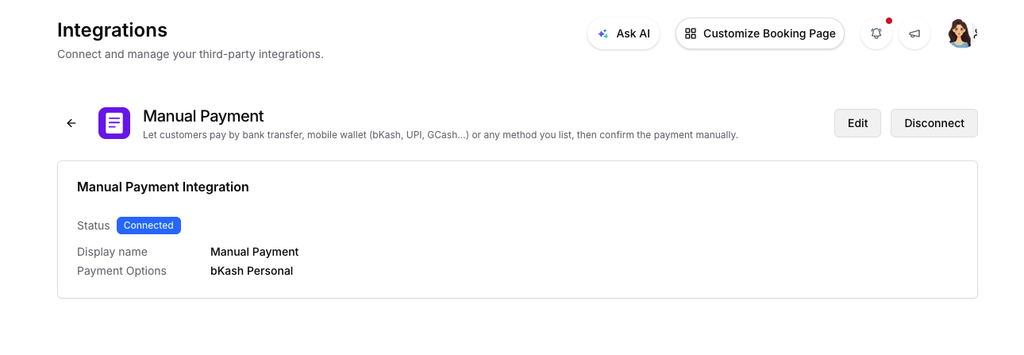
- Click Details on the Manual Payment card.
- Click Edit.
- Change the display name, options, instructions, or fields.
- Click Save.
Your changes show up for new customers right away. Bookings that were already made keep the option name and questions the customer saw when they booked, so your records stay accurate.
Turning Off Manual Payment
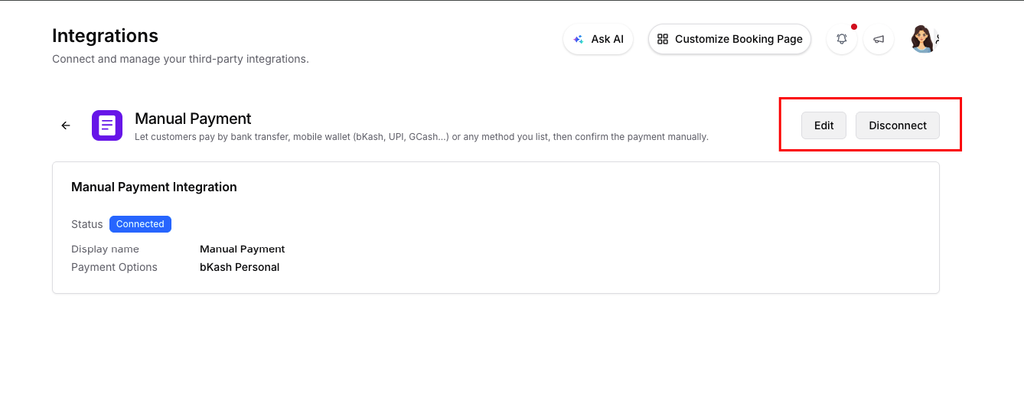
- Go to Integrations, then Payments, and click Details on the Manual Payment card.
- Click Disconnect.
What this does:
- Customers will no longer see Manual Payment at checkout.
- Your saved options and instructions are deleted. If you connect again later, you’ll need to set them up from scratch.
- Bookings that were already made stay as they are. You can still open them and mark their payments as paid.
Important Notes
- Check the money before you mark it as paid. Marking a payment as paid tells the customer you received it. Timetics AI trusts what you record.
- Customers have 10 minutes to choose a payment method. On the payment page, a timer holds the slot. If time runs out before they confirm, the slot is released and they’ll see “Time’s up, please book again”. Once they confirm with Manual Payment, the timer stops and the slot stays theirs.
- Customers can correct their details. If a customer goes back to the payment page before you mark it as paid and submits again (for example, to fix a typo in their transaction ID), the new details replace the old ones. You won’t get a second booking email.
- Record the full payment in one go. Mark as Paid works once for each customer submission. If a customer pays in two parts, wait until you have the full amount and then record it.
- Deposits. If your calendar asks for a deposit, the customer is asked to send the deposit amount. When you mark it as paid, enter the amount you actually received.
- Removing an option mid-checkout. If you delete a payment option while a customer is still on the payment page with that option chosen, their confirmation won’t go through. They’ll see a message asking them to contact you.
- Who can disconnect. Only the team member who first connected Manual Payment can disconnect it.
- No payment methods at all. If you turn off every payment method but your calendar still has a price, customers will see “No payment methods available” and won’t be able to finish booking.
Quick Limits
| Setting | Limit |
|---|---|
| Display name | Up to 120 characters |
| Payment options | 1 to 20 |
| Option label | Up to 255 characters |
| Instructions | Up to 5,000 characters |
| Input fields per option | Up to 10 |
| Customer’s answer per field | Up to 255 characters |
Frequently Asked Questions
What is Manual Payment?
It’s a way to let customers pay you directly by bank transfer, mobile wallet, or any other method you list. You confirm the payment yourself once you’ve received it.
Does Timetics AI check whether the customer actually paid?
No. Timetics AI shows you what the customer entered, like their transaction ID, but you need to check your own bank or wallet app before marking the payment as paid.
Can I offer more than one payment method?
Yes. Add up to 20 payment options, each with its own instructions and questions. The customer picks one at checkout.
Which currencies does Manual Payment support?
All of them. It works with whatever currency your calendar uses.
Is the booking confirmed before I mark it as paid?
Yes, unless that calendar requires booking approval. The slot is saved for the customer right away, and the payment shows as Pending until you confirm it.
Will the customer know when I’ve confirmed their payment?
Yes. They get an email as soon as you click Mark as Paid.
What if the customer sent the wrong amount?
Type the amount you actually received in the Mark as Paid window. The booking shows as Partially Paid with the remaining balance under Due. Talk to the customer about the rest, and record the payment once you have everything if you can.
What if the customer typed the wrong transaction ID?
They can open the payment page again and submit the correct details, as long as you haven’t marked it as paid yet. The new details replace the old ones.
Can I add a QR code to my instructions?
Yes. The instructions box supports images, so you can add a QR code for your wallet or bank.
If I change my payment options, do old bookings change too?
No. Each booking keeps the option name and questions the customer saw when they booked.
Why does the Manual Payment card show an Upgrade button?
Your current plan doesn’t include Manual Payment. Upgrade your plan to unlock it.
Why can’t I click Connect?
You need to be an Owner, Admin, or Manager in the workspace. Ask your workspace owner to change your role or set it up for you.
Conclusion
Manual Payment lets you accept money the way your customers already pay, whether that’s a bank transfer, a mobile wallet, or something local to your area. Set up your options once, give clear instructions, ask for a transaction ID, and confirm each payment from the booking once it lands in your account.