What Is a Consultation Type?
Consultation Types let you offer multiple sessions from a single One-to-One calendar, with each type having its own duration, price, description, thumbnail, and tags.
For example, you can offer a 15-minute Intro Call, a 45-minute Strategy Session, and a 90-minute Deep Dive from the same calendar. Guests can choose the consultation that best suits their needs when booking.
Consultation Types are available under the Consultation Type tab of a One-to-One calendar. Service-based calendars use Extra Services instead.
Why Do You Need It?
- Offer multiple consultation options from one booking page.
- Let guests compare session durations and prices before booking.
- Offer both free and paid consultations from the same calendar.
- Manage availability, booking questions, and other settings from one calendar.
Prerequisites
- A plan that includes Consultation Type.
- A One-to-One calendar.
- Permission to update calendars.
- A connected payment gateway if you offer paid consultations.
Add Consultation Types
Step 1: Open the Consultation Type Tab
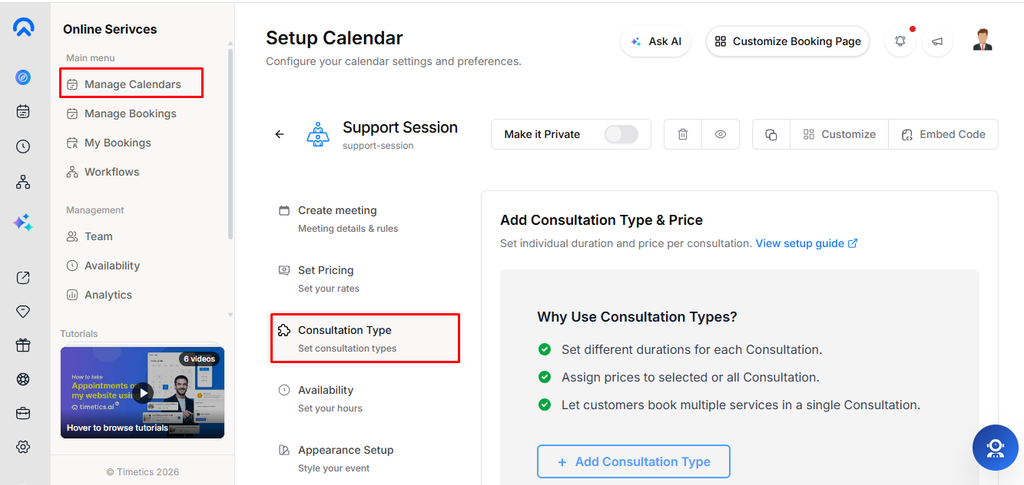
Go to Dashboard → Manage Calendars and open or create a One-to-One calendar. Then select Consultation Type from the left panel.
Step 2: Click Add Consultation Type
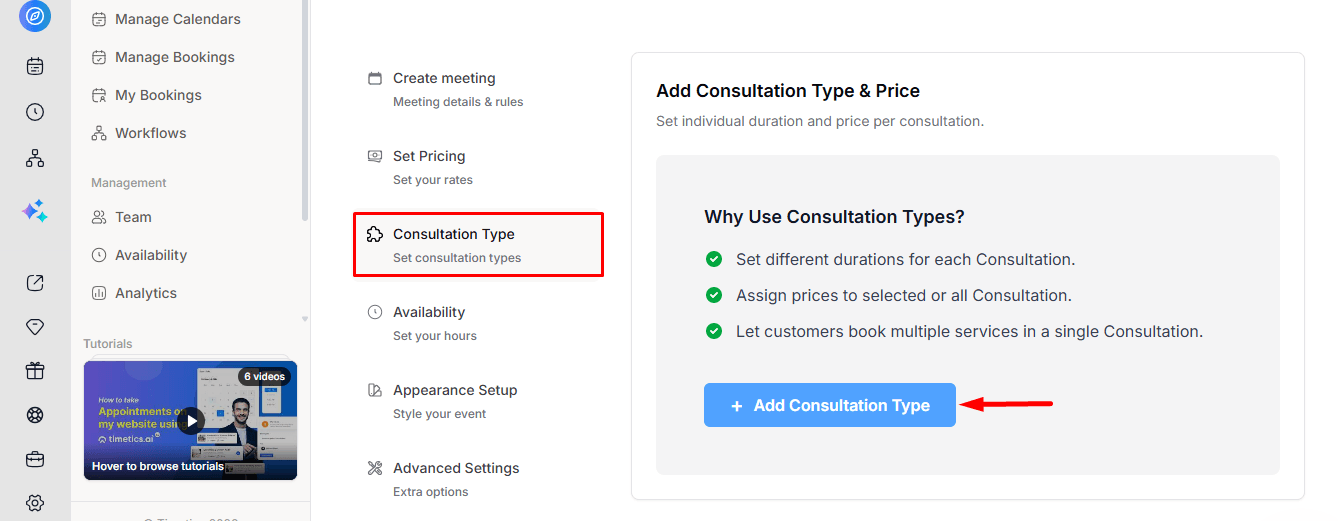
If the calendar does not have any consultation types yet, you will see an introductory card with an Add Consultation Type button.
If your current plan does not include Consultation Type, the button is replaced by an upgrade prompt.
Step 3: Fill In the Details
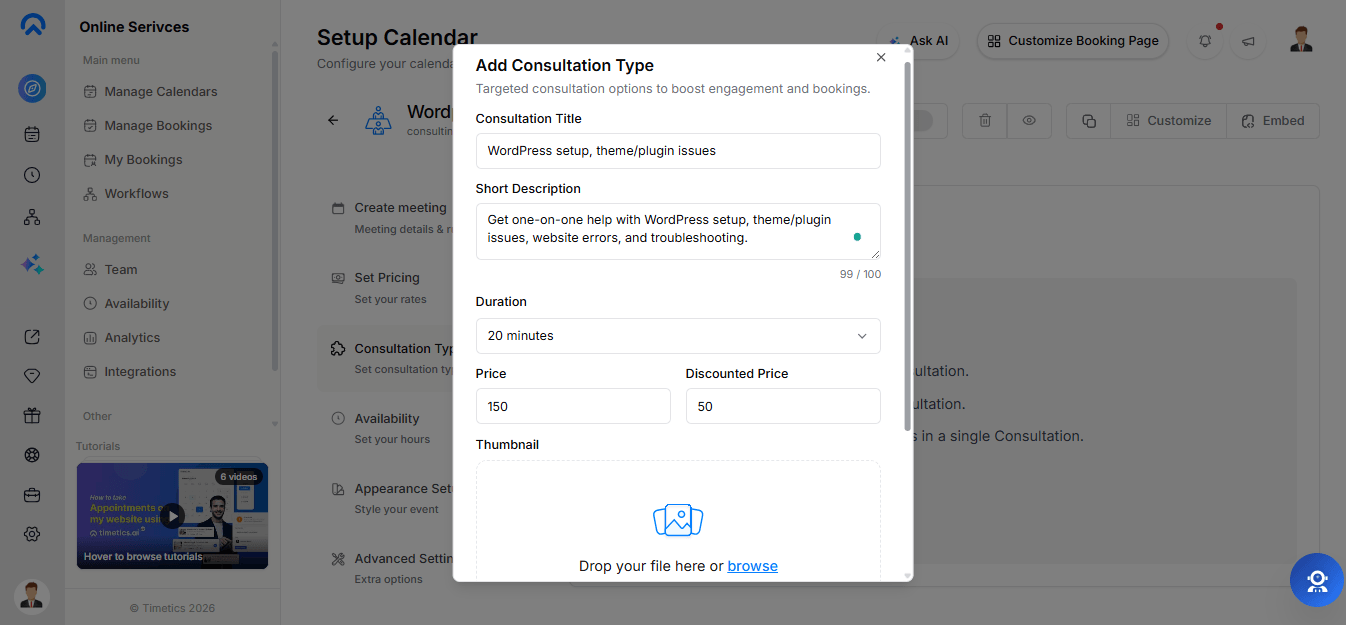
Enter the details for your consultation:
- Consultation Title: The name shown to guests.
- Short Description: A brief description of the consultation.
- Duration: The consultation length in minutes.
- Price: The consultation price. Enter 0 for a free consultation.
- Discounted Price: An optional discounted price.
- Thumbnail: An optional image shown on the consultation card. Maximum size: 500 KB.
- Tags: Add up to 5 tags, such as “Most Popular”.
Click Confirm to save the consultation type.
Step 4: Set the Currency
After at least one consultation type has been created, a Currency selector appears at the top of the list. The selected currency applies to every consultation type in the calendar.
The Currency selector appears here because Consultation Types take control of pricing, so the standard calendar Pricing fields are no longer used for the base price.
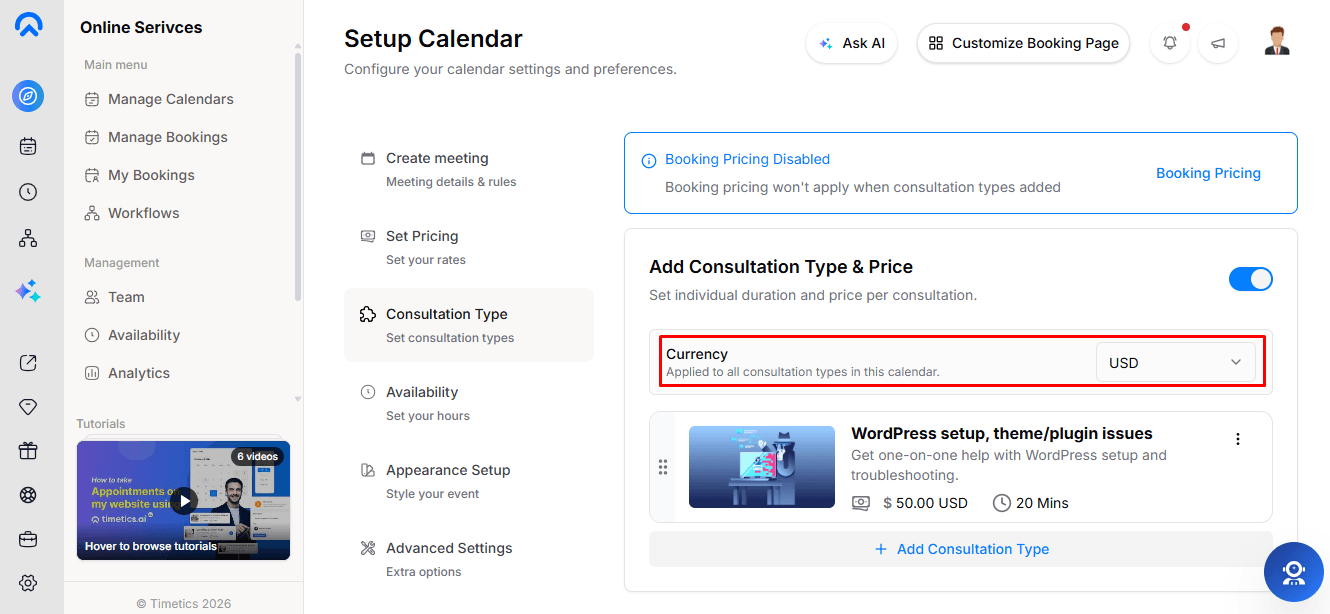
Now you can drag and drop consultation types to control their order on the booking page, use Edit to update an existing type, or Delete to remove one.
Step 5: Allow Multiple Types in One Booking
When a calendar contains two or more consultation types, a card called Multiple Consultation Types in One Booking becomes available.
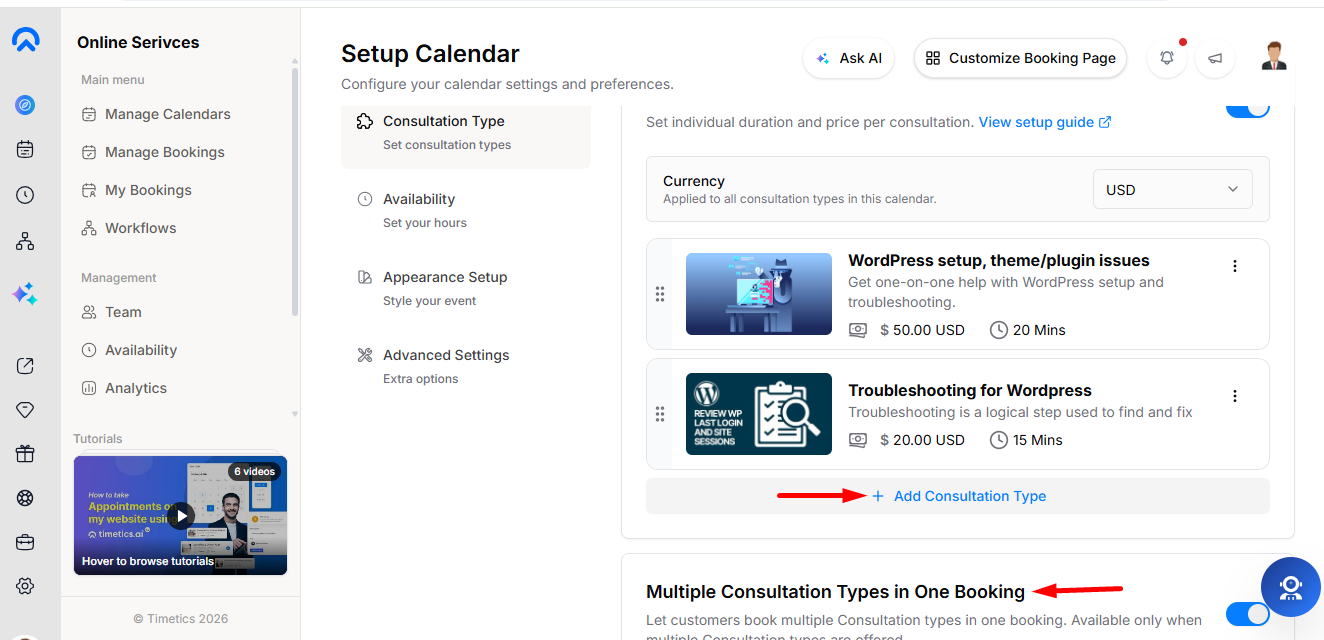
Enable it to let guests select several consultation types in one booking.
- The selected durations are added together.
- The selected prices are added together.
- The calendar searches for one continuous availability slot long enough to accommodate the combined duration.
When multiple selection is disabled, selecting a consultation type immediately moves the guest to the next booking step.
Step 6: Turn the Whole Feature Off
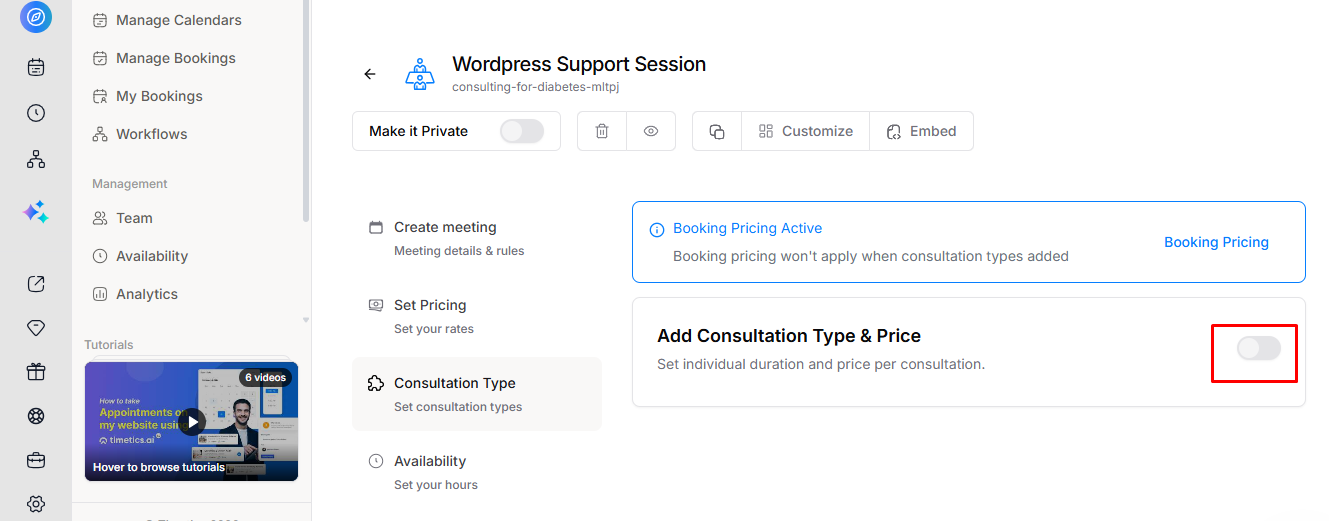
The Consultation Type list includes a main toggle.
Turning this toggle off keeps the consultation types stored but stops using them for new bookings. The calendar returns to its own price and duration settings.
What the Guest Sees
The booking page opens with a Choose your consultation step. Each consultation card displays the thumbnail, title, tags, description, price, and duration.
Free consultation types display Free in green instead of showing a zero price.
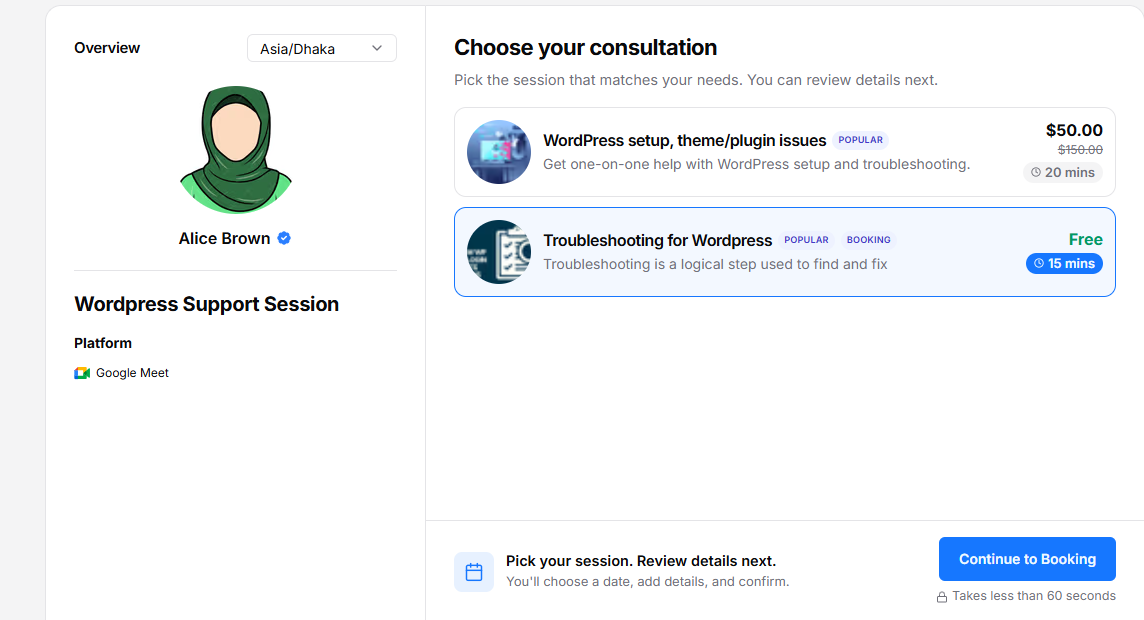
When multiple consultation types are disabled, selecting a card immediately moves the guest to the calendar step.
When multiple consultation types are enabled, cards can be selected or deselected and a Continue to Booking button remains disabled until at least one consultation type is selected.
Frequently Asked Questions
1. How is the booking duration determined?
The selected consultation type determines the booking duration. If multiple types are selected, their durations are combined.
2. How is the booking price calculated?
The total price is based on the selected consultation types. If a discounted price is available, it is used instead of the regular price. You can also offer free consultations by setting the price to 0.
3. Can guests select multiple consultation types in one booking?
Yes. Enable Multiple Consultation Types in One Booking to allow guests to select multiple types. Timetics then looks for one continuous time slot that can accommodate the combined duration.
4. Do consultation types have separate availability settings?
No. All consultation types share the parent calendar’s availability, including working hours, buffer time, minimum notice, booking timeframe, and meeting limits.
5. Do booking questions and other calendar settings apply to all consultation types?
Yes. Booking questions under Advanced Settings, along with recurring bookings, guest limits, deposits, coupons, and refunds, continue to work across consultation types.
6. Can I use Consultation Types with a Service-based calendar?
No. Service-based calendars use Extra Services instead.
7. What happens if I disable Consultation Types?
The consultation types remain saved, but new bookings use the calendar’s own price and duration again.
Conclusion
Consultation Types make it easy to offer multiple consultation options from one One-to-One calendar. You can give each option its own duration, price, description, thumbnail, and tags, while keeping availability and other booking settings managed from the main calendar.