What are calendar cancellation rules?
Each calendar has cancellation controls under Advanced Settings. The notice period decides how close to the start time a guest may cancel.
Why do you need this?
A clear cancellation policy helps guests manage bookings without leaving unexpected gaps in your schedule.
Prerequisites
- A calendar you can update.
- A plan that includes booking cancellation if the control is locked.
Step-by-step instructions
Step 1: Open the calendar
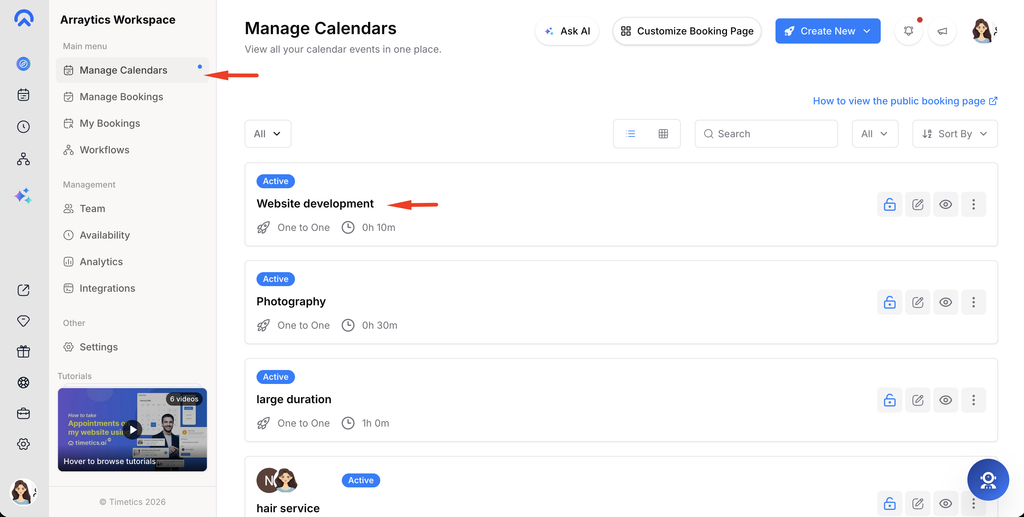
Go to Dashboard → Manage Calendars and select the calendar.
Step 2: Find cancellation settings
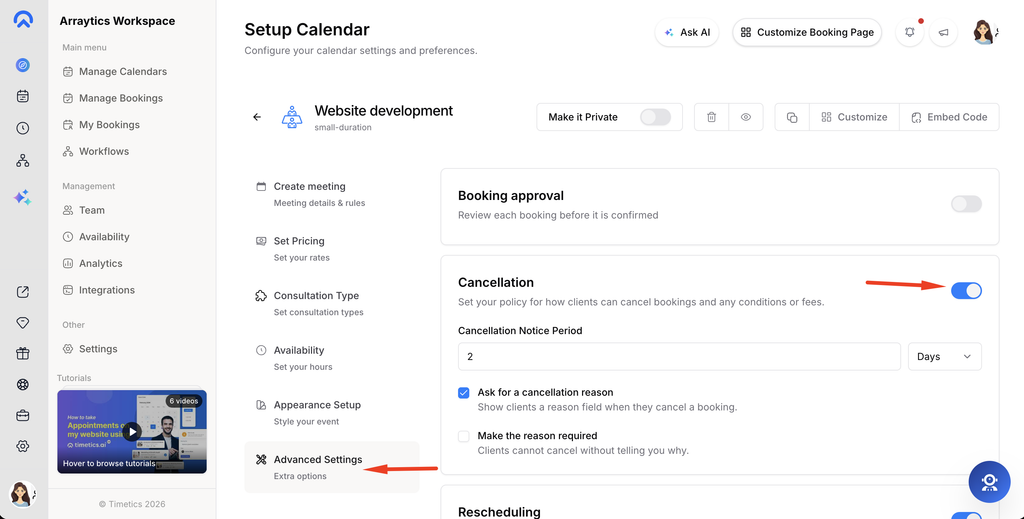
Open Advanced Settings and expand Cancellation.
Step 3: Set the notice period
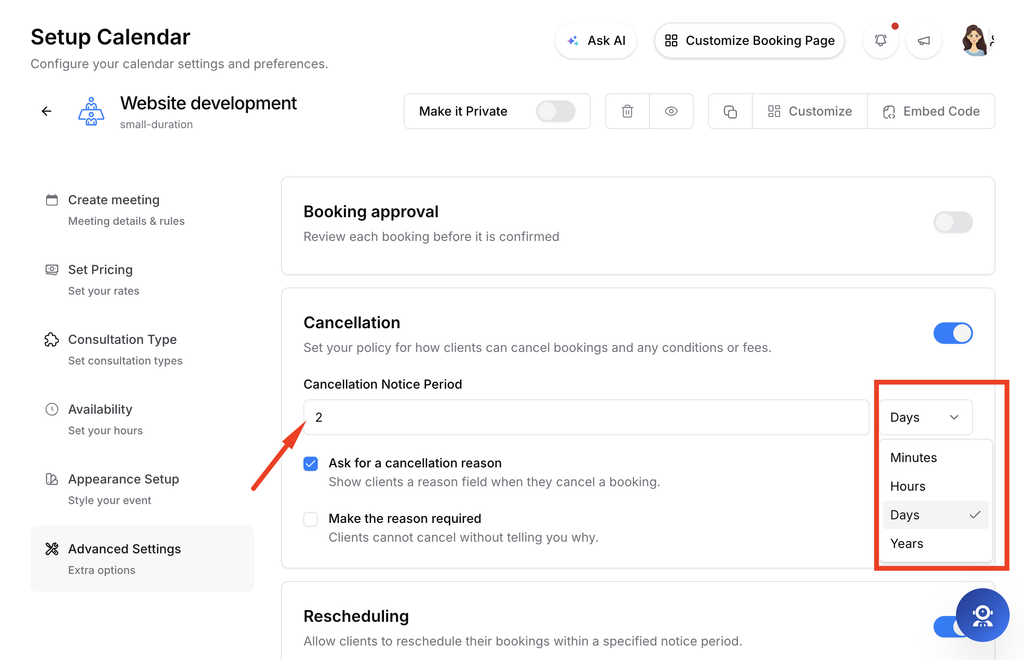
Enable cancellation and choose the notice period shown in the control.
Step 4: Save and test
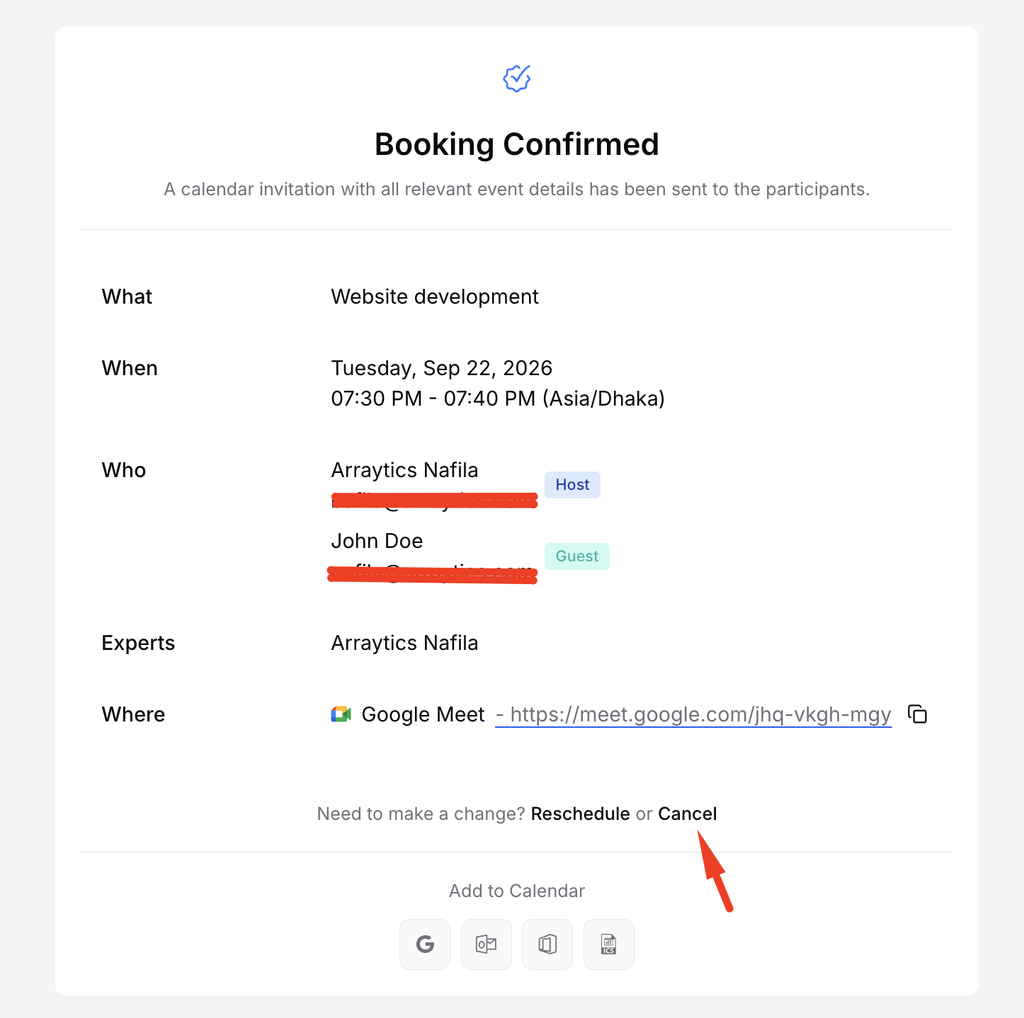
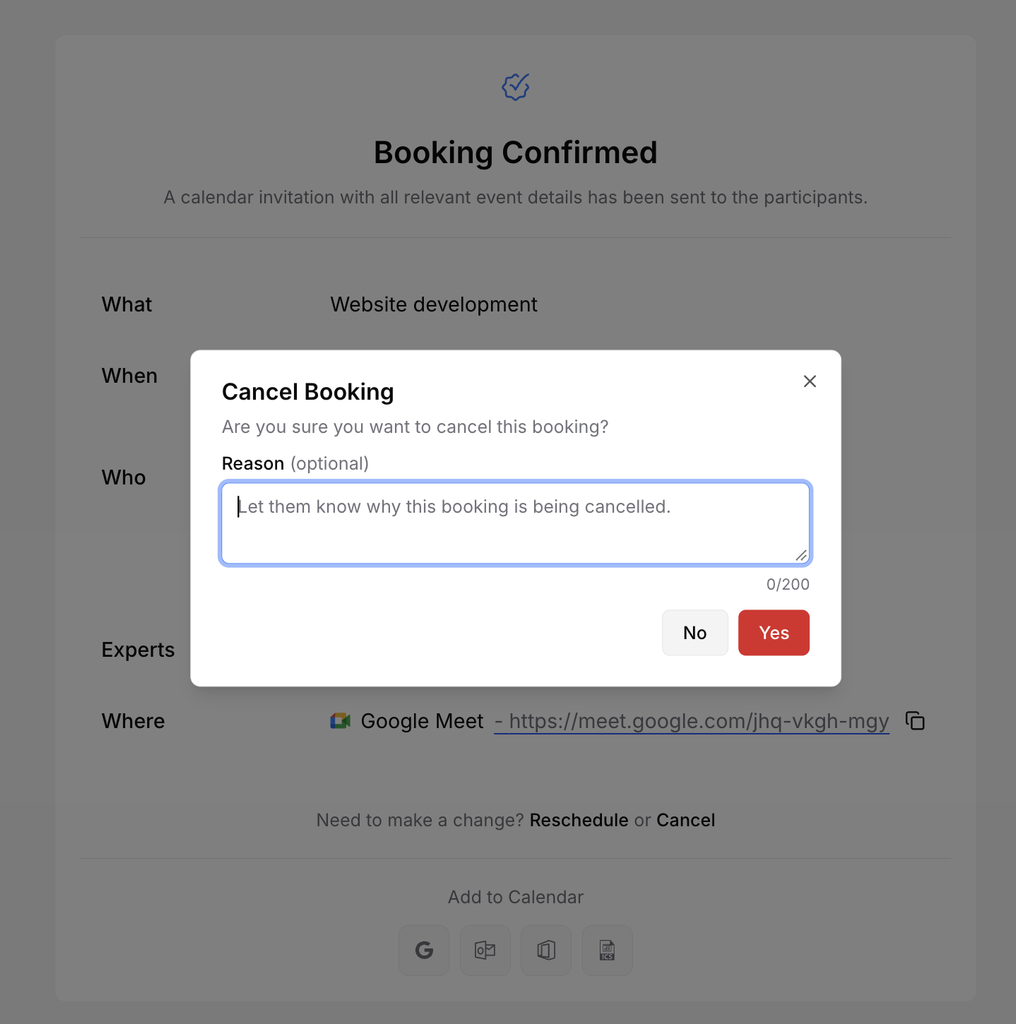
Save the setting, then review the guest management link from a test booking to confirm the policy.
Important notes
- The rule belongs to the individual calendar, so check each calendar separately.
- Guests can only cancel within the limits shown by the booking flow.
Frequently asked questions
Where does a guest cancel?
The booking confirmation or management link opens the guest cancellation flow.
Conclusion
Each calendar has cancellation controls under Advanced Settings. The notice period decides how close to the start time a guest may cancel.