Connect Zoho CRM with Timetics AI to automatically sync your confirmed bookings as contacts in Zoho CRM. This helps you manage booking guests in one place without manually adding their information.
What This Integration Does
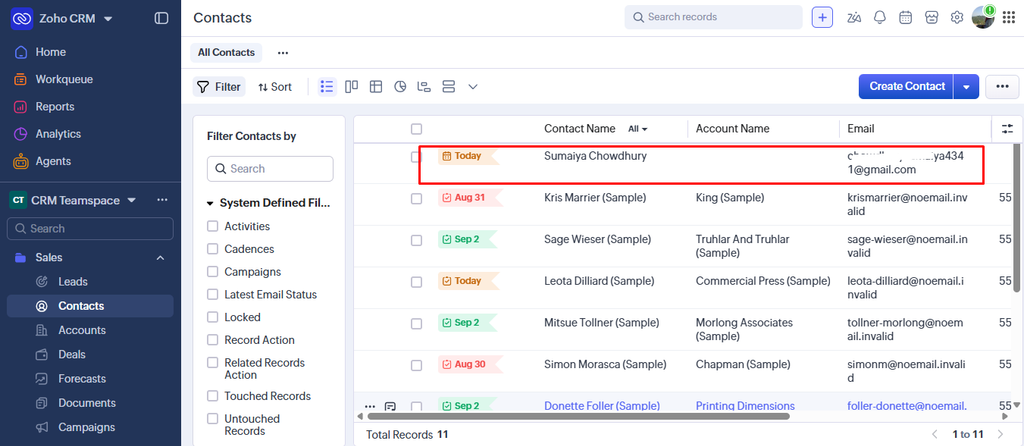
Once connected, Timetics AI automatically sends confirmed booking information to the Contacts module in Zoho CRM.
- New guests are created as contacts.
- Existing guests are updated instead of creating duplicates.
- Contacts are matched using the guest’s email address.
- Only confirmed bookings are synced.
Note: This is a one-way sync from Timetics AI to Zoho CRM. Cancelled bookings do not send updates back to Zoho CRM.
Before You Start
Make sure you have:
- An active Timetics AI account.
- A Zoho CRM account with permission to create and update contacts.
- Permission to authorize Timetics AI through Zoho OAuth.
How to Connect Zoho CRM
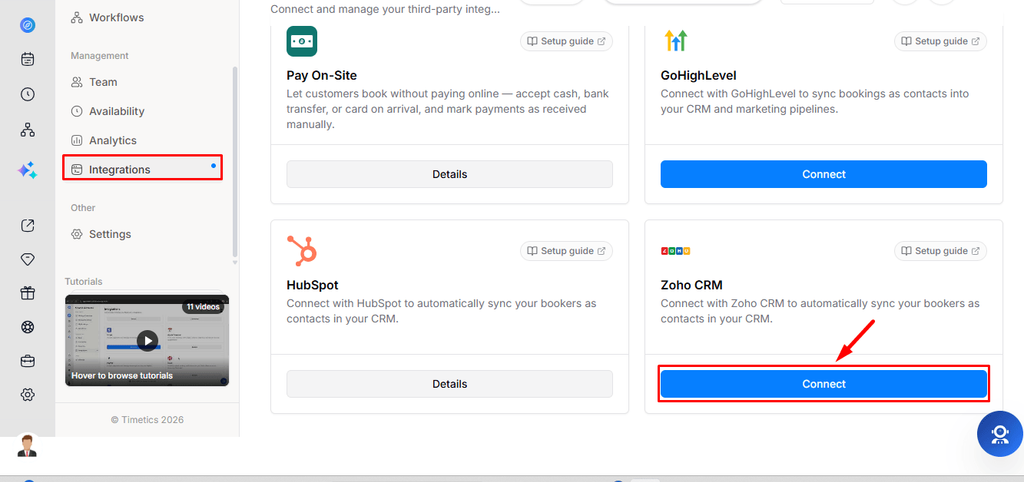
- Go to Dashboard → Integrations in Timetics AI.
- Find Zoho CRM under the CRM integrations.
- Click Connect.
- You will be redirected to the Zoho sign-in page. Sign in to the Zoho account you want to connect.
- Review and approve the requested permissions.
- Zoho will redirect you back to Timetics AI, and the connection will be completed automatically.
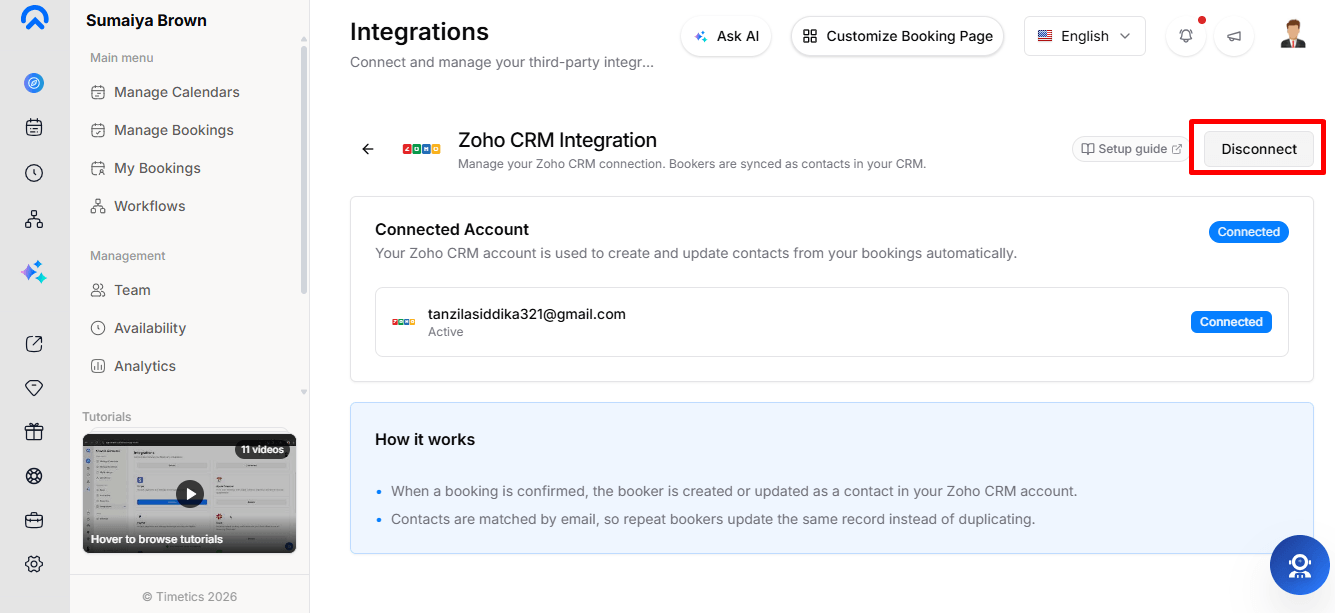
- Once connected, click Details to verify the connection. You will see the connection status and connected Zoho account email.
How Booking Data Syncs
When a booking is confirmed, Timetics AI sends the guest’s name and email to Zoho CRM.
- New guest: A new contact is created.
- Existing guest: The matching contact is updated.
- Matching method: Contacts are matched by email address.
Disconnect Zoho CRM
Go to Dashboard → Integrations → Zoho CRM → Details and click Disconnect.
Note: Disconnecting the integration does not delete existing Zoho contacts.
FAQs
- Will it create duplicate contacts?
No. Contacts are matched by email address, so an existing contact is updated instead. - Which bookings are synced?
Only confirmed bookings are synced. Cancelled bookings do not send updates to Zoho CRM. - Can I connect different Zoho accounts for different team members?
No. Zoho CRM is connected at the workspace level, so all bookings in the workspace sync to one connected Zoho account. - Do I need to enter an API key?
No. Timetics AI uses Zoho’s secure OAuth authorization, so you only need to sign in and approve access. - What happens if Zoho is temporarily unavailable?
The booking will still be completed. The sync failure is logged by Timetics AI and does not block the booking.
Conclusion
The Zoho CRM integration makes it easy to keep your confirmed booking guests organized. Once connected, Timetics AI automatically creates or updates Zoho CRM contacts, matches them by email, and identifies booking-sourced contacts with the Timetics Lead Source.