What Is Calendar Rescheduling and Guest Approval?
Calendar Rescheduling and Guest Approval Rules let you control how guests reschedule their bookings and how host-initiated schedule changes are handled. These settings help you manage booking changes and determine when guest approval is required for a proposed new time.
Why Do You Need These Rules?
- Control schedule changes: Manage how guests can reschedule their bookings.
- Request guest approval: Allow guests to approve or reject a new time proposed by the host.
- Avoid last-minute changes: Set clear rescheduling rules to help keep your calendar organized.
Prerequisites
- A calendar you have permission to update.
- A plan that includes booking rescheduling if the setting is locked.
Step-by-Step Instructions
Step 1: Open the calendar
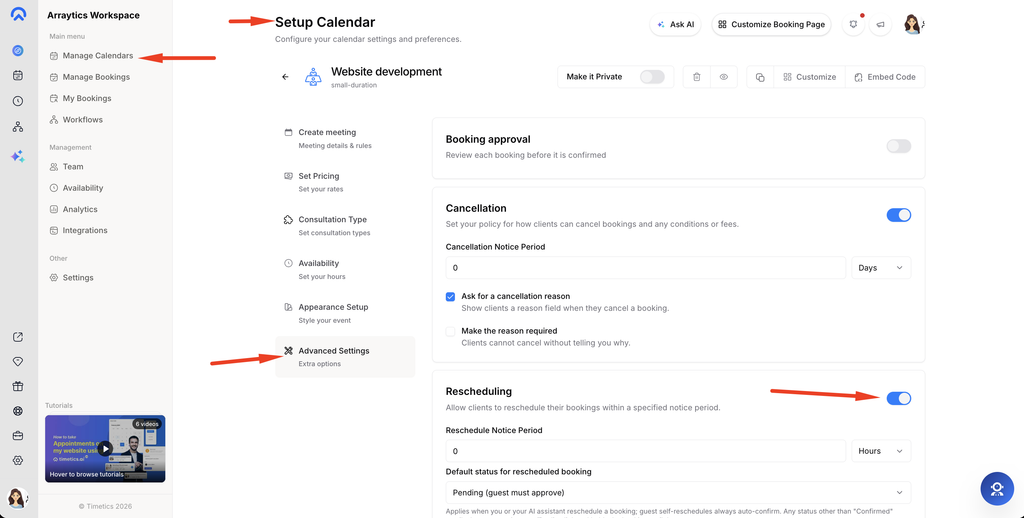
Go to Dashboard → Manage Calendars and open the calendar’s Advanced Settings.
Step 2: Set guest rescheduling
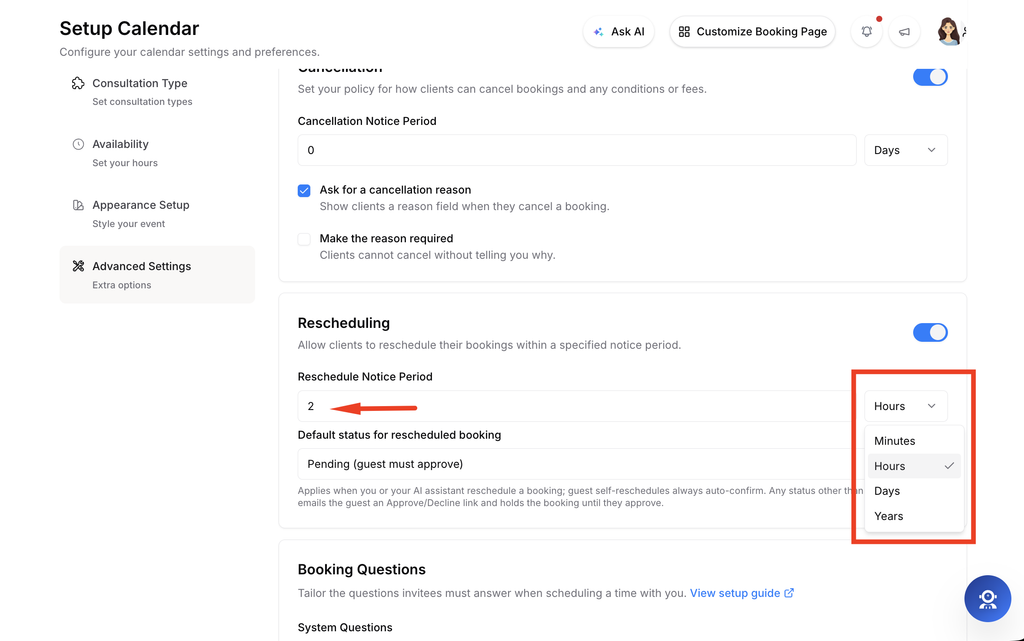
Expand Rescheduling, enable it, and set the notice period.
Step 3: Choose host reschedule behavior
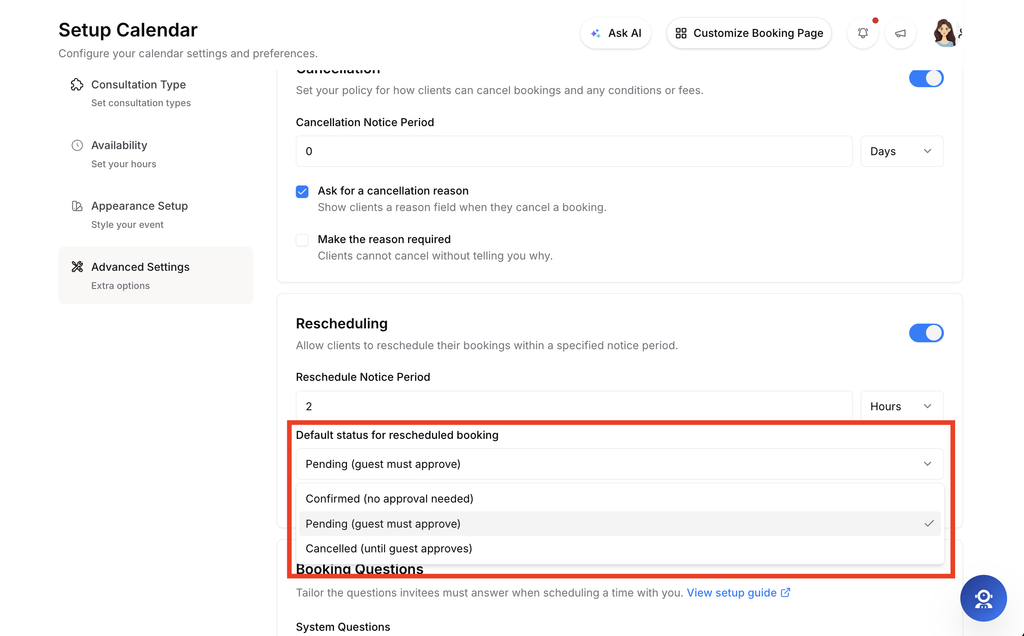
Select the status for a host or AI reschedule: confirmed immediately, pending guest approval, or cancelled until approval.
Step 4: Save and review
Save the settings and use a test booking to verify the guest email and management link.
Important notes
- The status choice affects host-initiated reschedules; guest self-service follows the notice rule.
- A pending proposal requires the guest to approve or decline through the link provided to them.
Frequently asked questions
Does every new time need approval?
Only when the calendar is configured to require it.
Conclusion
Advanced Settings lets you control guest rescheduling and how a host-initiated time change is handled.