What is an Agency Account?
An Agency Account is a Timetics AI account that lets agencies buy workspace packages and create, assign, claim, and manage multiple client or team workspaces from a single Agency dashboard. You can also track how much workspace capacity you have left.
This guide covers purchasing workspace slots, assigning workspaces, claiming existing workspaces, and managing them from the Agency dashboard.
Follow the video below for a complete step-by-step walkthrough.
Key Functionality
- Manage multiple client workspaces from one Agency dashboard.
- Purchase and assign workspace slots through Agency packages.
- Create, claim, and manage client workspaces.
- Track available workspace capacity through the active contract.
Prerequisites
- Active Timetics AI account.
- Enabled Agency Account.
- Active Agency package with available workspace slots.
- Access to the Agency dashboard.
Note: Each package has a fixed workspace limit. Additional capacity is required when all slots are used. The agency owner can change the primary workspace at any time.
Step-by-Step Instructions
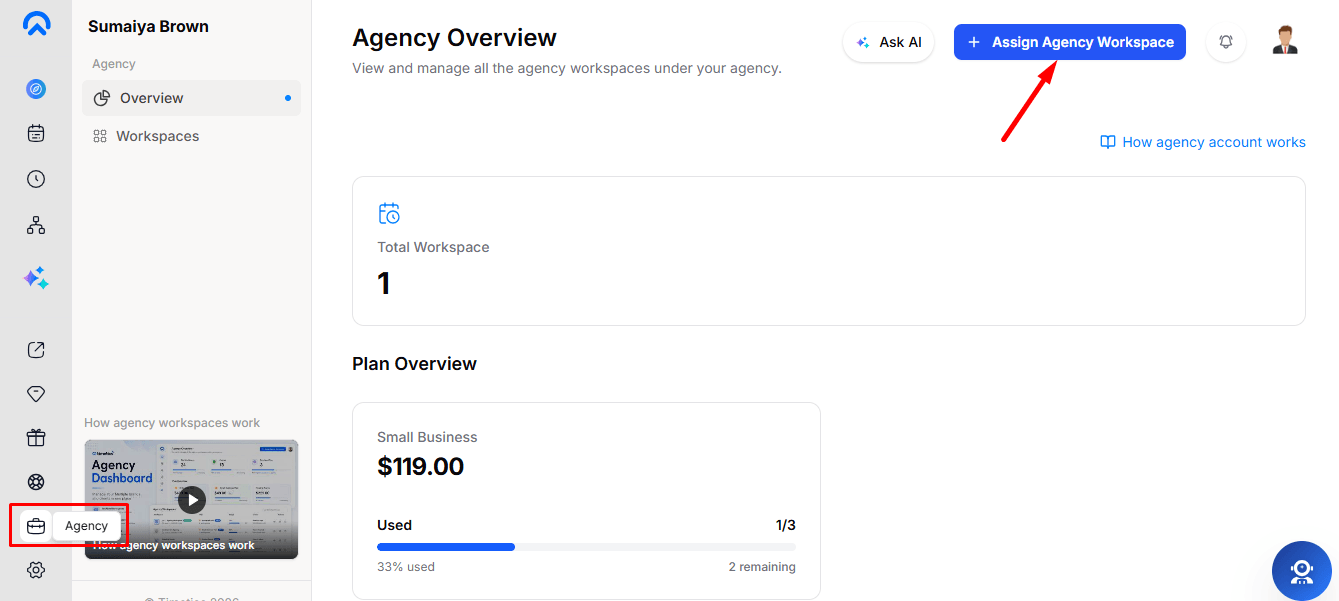
1. Access the Agency Dashboard
Go to the Agency shortcut from your dashboard, or open Profile Image → Agency.
Note: The Agency Dashboard requires an active Agency Plan.
2. Assign a Client Workspace
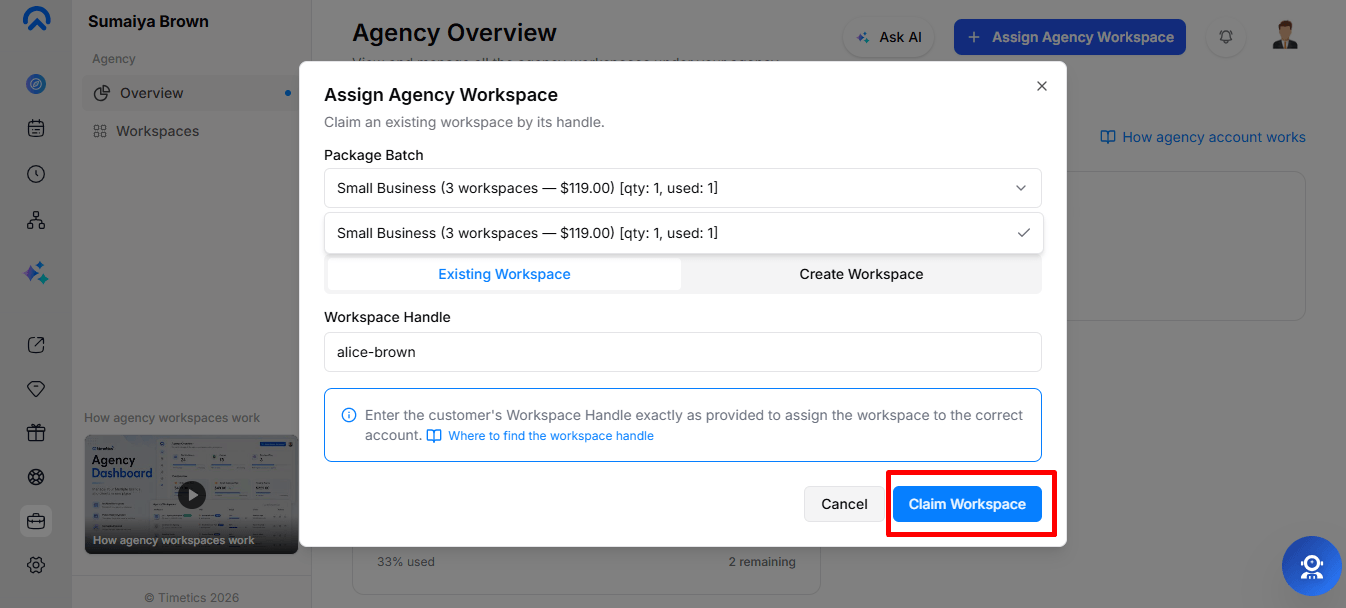
Go to Agency → Workspace → Assign Agency Workspace, then:
- Select an Available Package.
- Choose Existing Workspace or Create Workspace.
- For an existing workspace, enter the client’s Workspace Handle.
- For a new workspace, enter the Username, Email, Password, and Workspace Name.
- Complete the process to assign the Agency license.
3. Manage Client Access
After assignment, the client receives the assigned Agency Pro access and can independently manage their workspace, calendars, meeting types, team members, and schedules.
4. Unclaim a Workspace
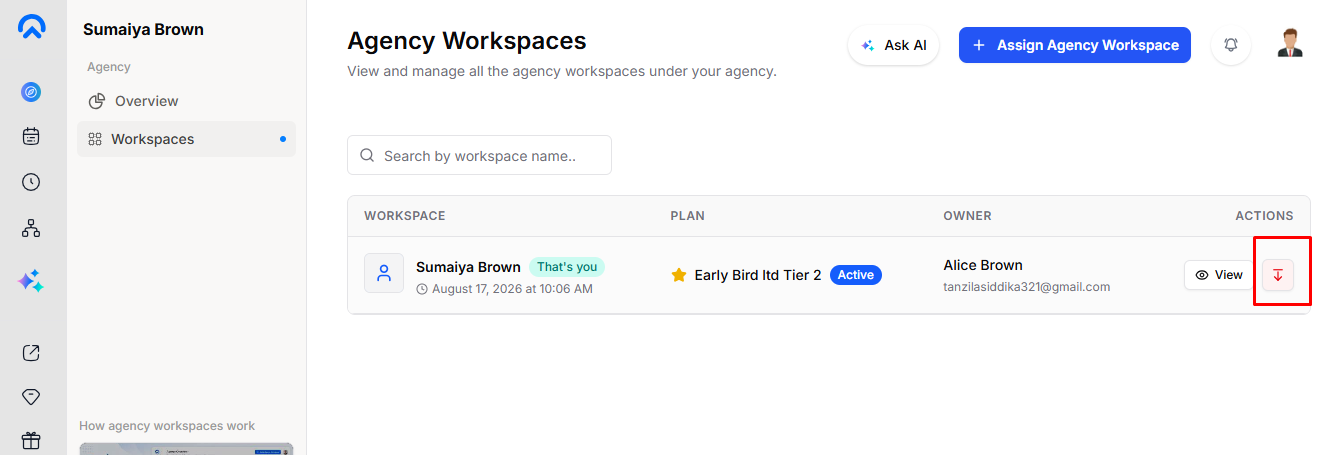
To release a license, go to Agency → Workspace, find the workspace, and click Unclaim. The license becomes available for reassignment.
Use the Overview section to check your Agency plan, active workspaces, and available workspace capacity.
Conclusion
The Agency Dashboard provides a simple way to manage multiple client workspaces, assign and release Agency licenses, and monitor workspace capacity from one place. By following this guide, you can efficiently manage your agency clients and their workspaces.