What is calendar conflict checking?
Calendar conflict checking compares requested booking times with events on your active connected calendars. When Timetics AI finds that you are already busy, it keeps the overlapping time from being offered to guests.
Why do you need this?
Use conflict checking to reduce double-bookings when you manage appointments across Timetics AI and external calendars such as Google Calendar or Microsoft Outlook.
Prerequisites
- A Google Calendar or Microsoft Outlook account connected to Timetics AI.
- At least one calendar enabled for conflict checking in the integration’s details.
- A calendar you can review in Manage Calendars.
Step-by-step instructions
Step 1: Connect an external calendar
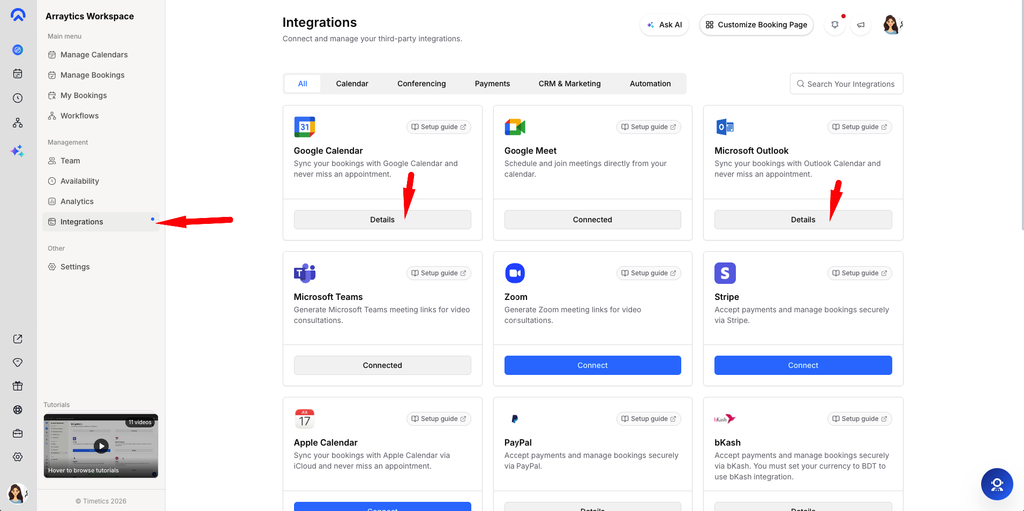
Go to Dashboard → Integrations and connect Google Calendar or Microsoft Outlook. Complete the provider’s authorization process.
Step 2: Choose calendars to check
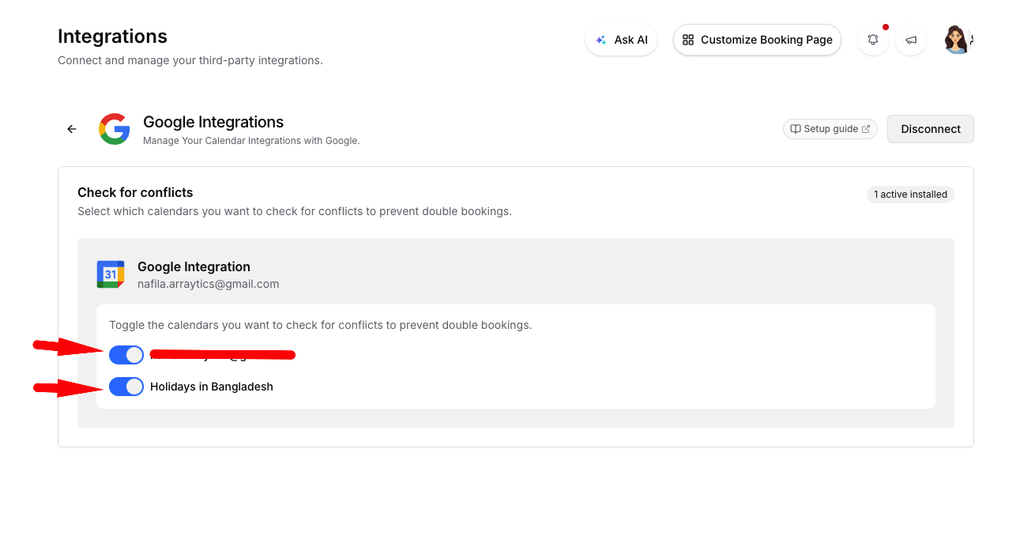
Open the connected integration’s Details view. Turn on each external calendar whose busy events should be checked when Timetics AI calculates available booking times.
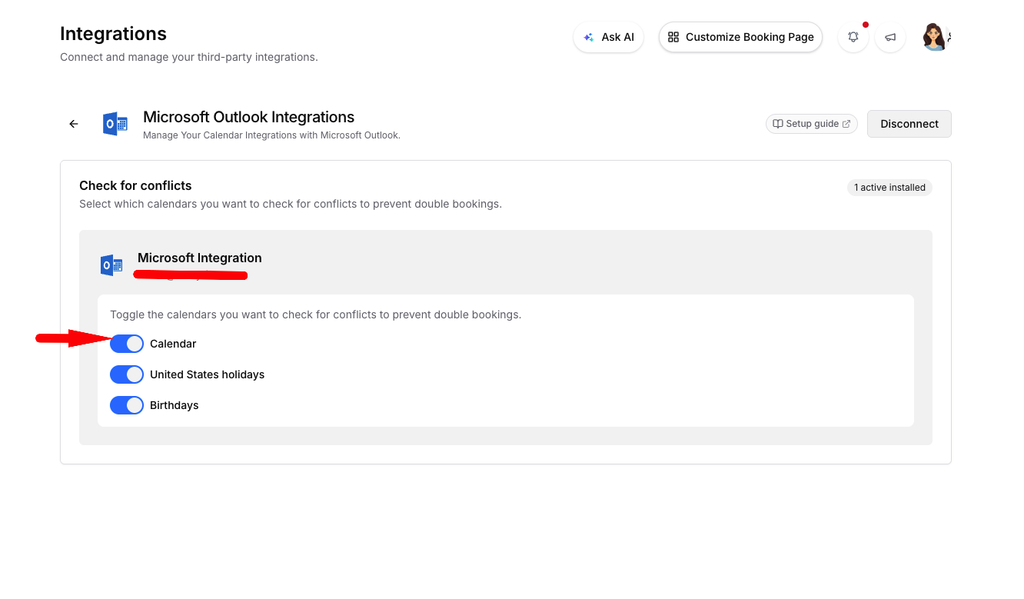
Step 3: Open the Timetics AI calendar
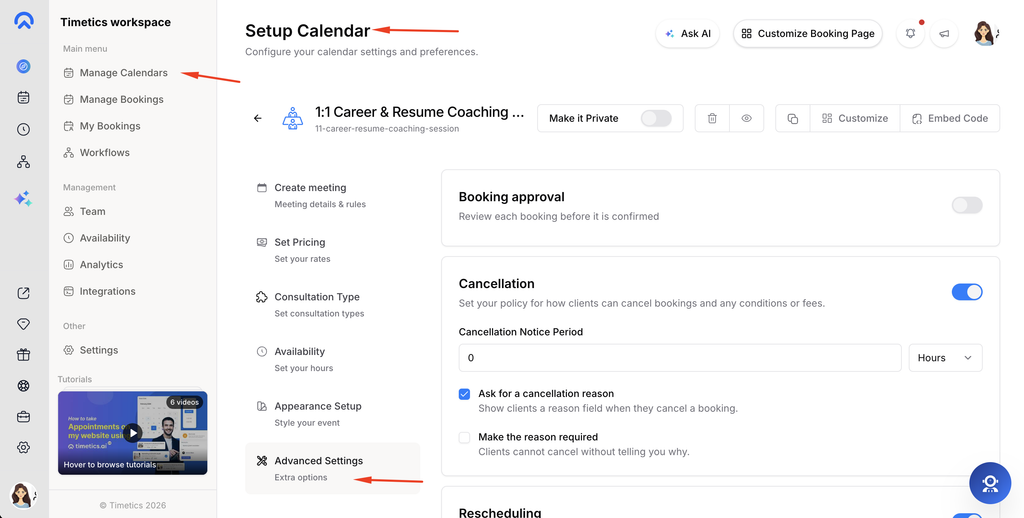
Go to Dashboard → Manage Calendars, open the calendar you want to review, and select Advanced Settings.
Step 4: Review Check for conflicts
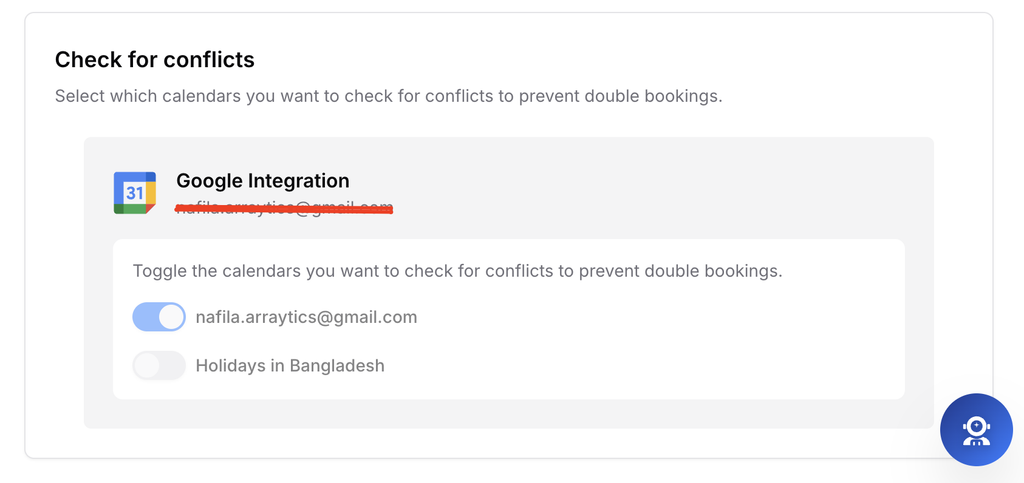
Scroll to Check for conflicts. Confirm that the correct connected account and active calendars are listed.
Step 5: Test for an overlapping time
Create a busy event on an active external calendar, then open the public booking page and verify that the overlapping time is not available.
Important notes
- The Check for conflicts section in Advanced Settings is a read-only summary. Manage active calendars from Integrations → Details.
- Conflict checking and availability are different. Availability defines your normal booking hours; conflict checking removes times when an active external calendar shows you as busy.
- Only calendars enabled in the integration’s Details view participate in conflict checking.
- Calendar synchronization may take a short time, so refresh the booking page before testing again.
Frequently asked questions
Why is a connected calendar not listed?
Open the integration’s Details view and confirm that the correct account is connected and the calendar is active.
Can I change the conflict calendars from Advanced Settings?
No. That section shows the current configuration. Use Dashboard → Integrations → Details to enable or disable individual calendars.
What is the difference between availability and conflict checking?
Availability specifies when you normally accept bookings. Conflict checking blocks otherwise available times that overlap busy events on connected calendars.
Conclusion
Connect your external account, activate the calendars you want Timetics AI to check, and use the Advanced Settings summary to verify the configuration. This helps prevent guests from booking times when you are already busy.