What is calendar visibility?
Manage Calendars lets you set a calendar to public or private using the lock control on its card.
Why do you need this?
Change visibility when you want to control whether guests can find the calendar’s booking page.
Prerequisites
- A calendar in your workspace.
- Permission to update calendars.
Step-by-step instructions
Step 1: Open Manage Calendars
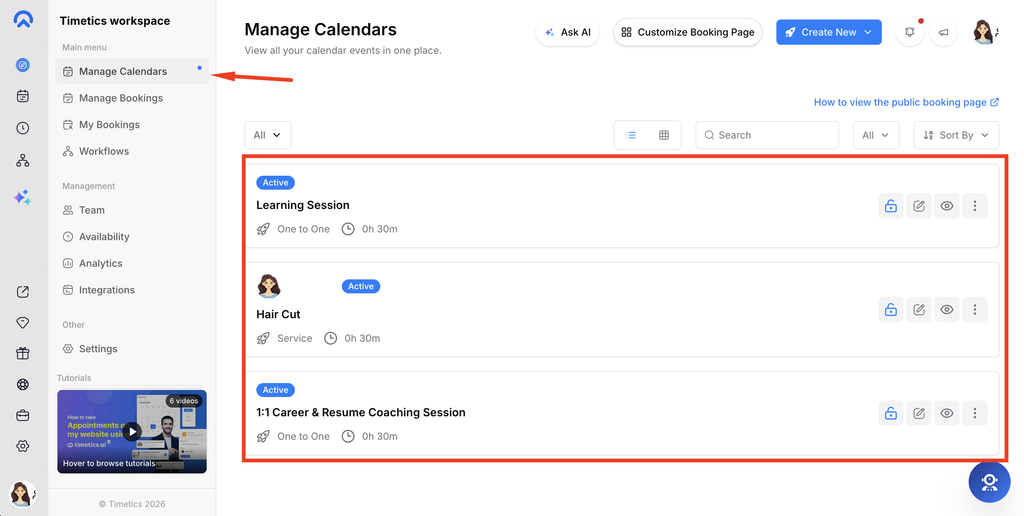
Go to Dashboard → Manage Calendars and find the calendar card.
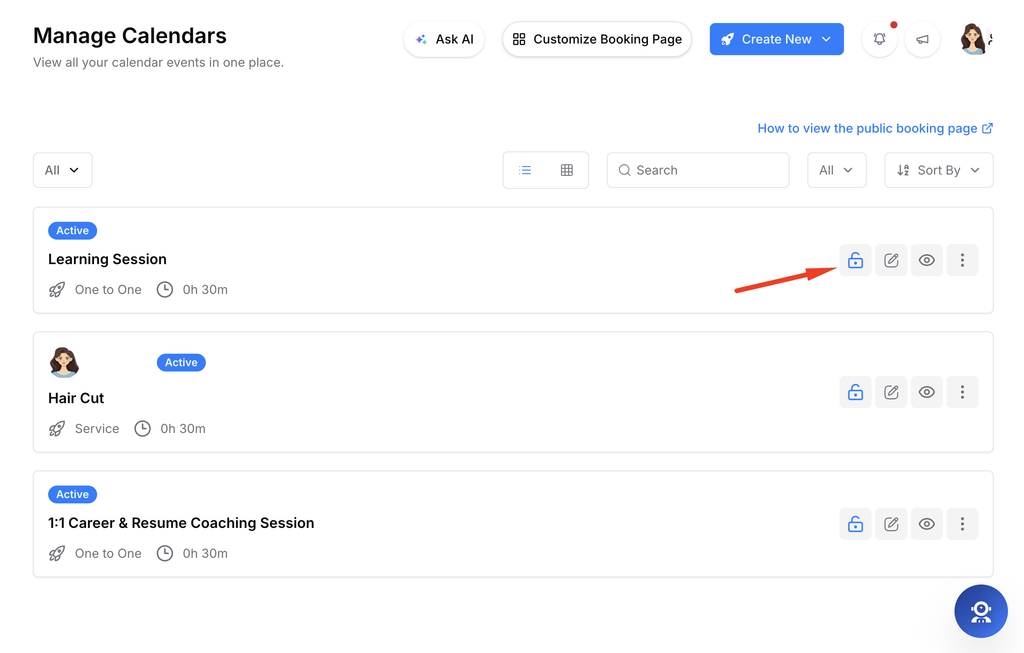
Step 2: Check its visibility
Check the lock icon on the calendar card. The tooltip identifies the calendar as public or private.
Step 3: Change visibility
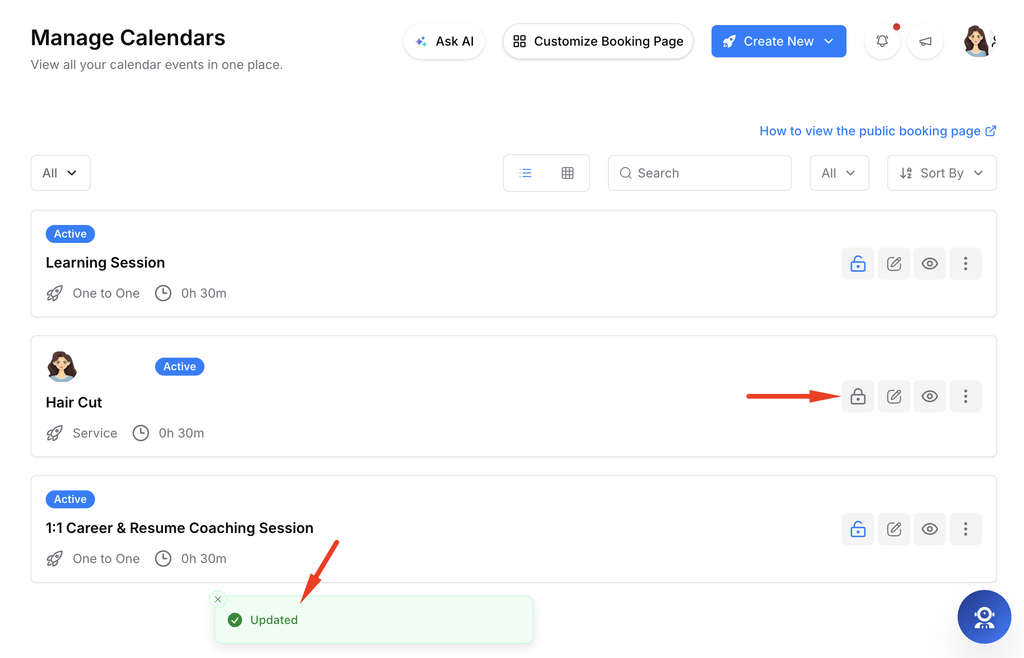
Use the lock control on the card to toggle between public and private. Wait for the success message.
Step 4: Review the result
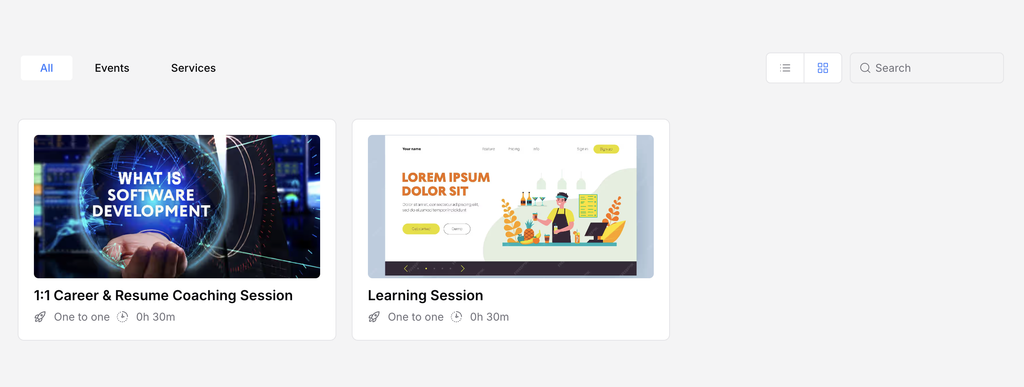
Open the calendar’s public page or preview to confirm the guest experience.
Important notes
- Changing visibility does not change the calendar’s status badge or delete the calendar.
- The lock control appears only if your role can update calendars.
Frequently asked questions
Why can’t I see the lock control?
Your workspace role may lack calendar update permission.
Conclusion
Use the lock control in Manage Calendars to switch a calendar between public and private visibility.