What are host rescheduling and booking reminders?
A host can open booking details to propose a different time or send a reminder to the guest.
Why do you need this?
Use these actions when an appointment time changes or a guest needs the booking details again.
Prerequisites
- Access to the booking details.
- Rescheduling ability on the workspace plan for host-side changes.
Step-by-step instructions
Step 1: Open booking details
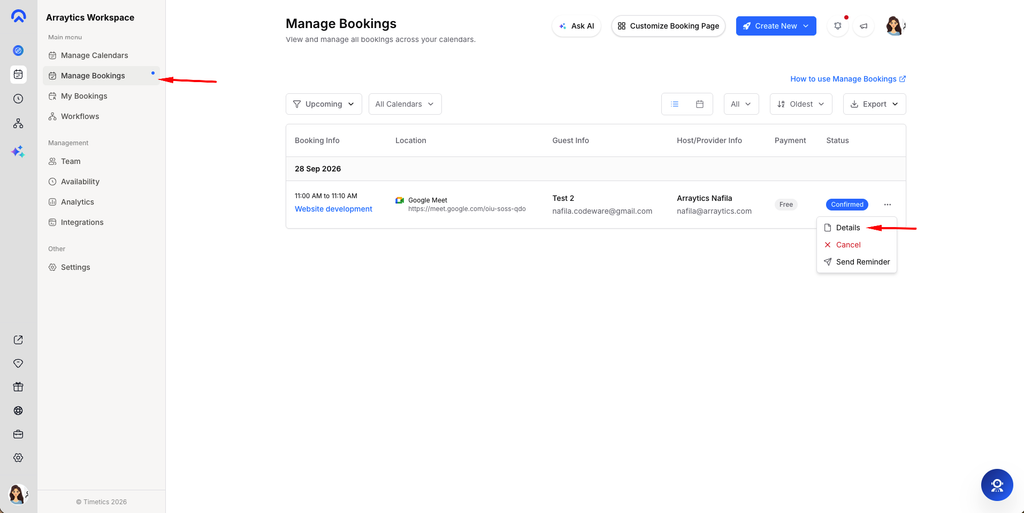
Go to Dashboard → Manage Bookings and select the appointment.
Step 2: Reschedule if needed
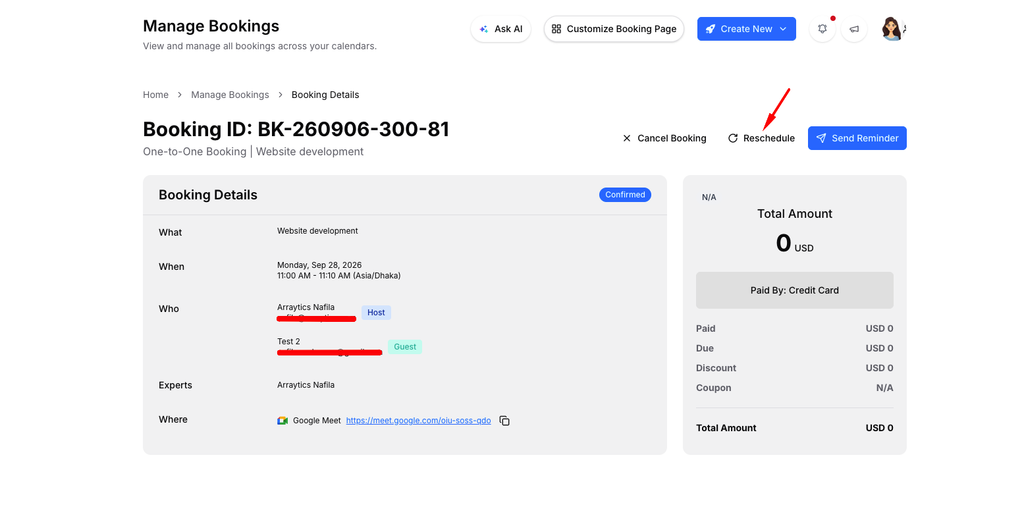
Select Reschedule, choose a valid date and time, and submit the change. The calendar’s rescheduling setting determines whether guest approval is required.
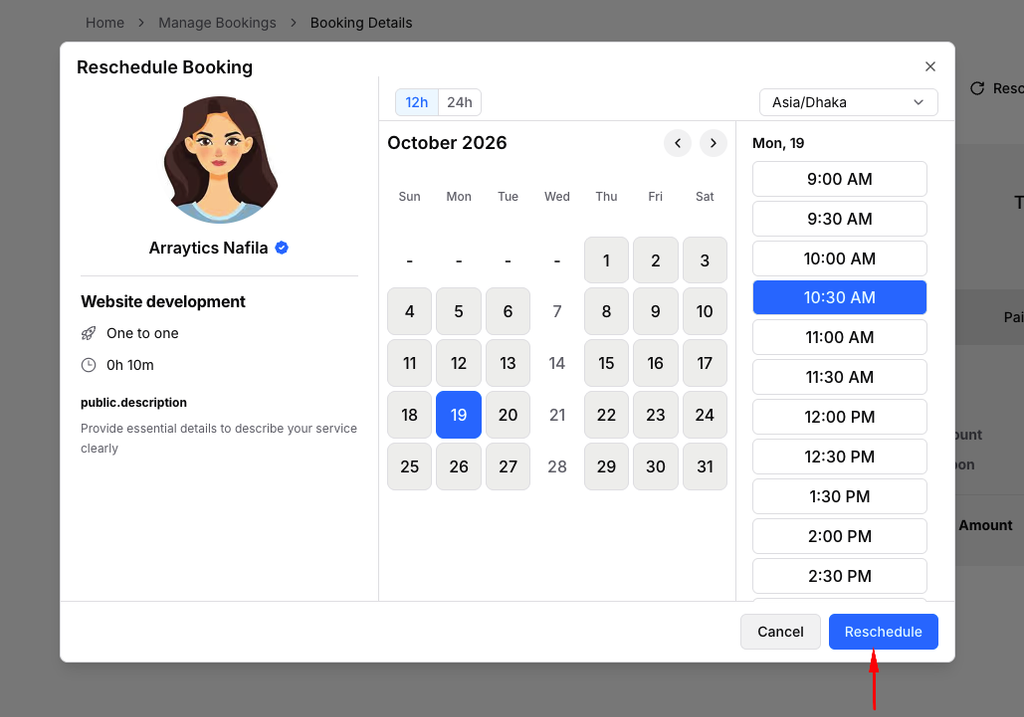
Step 3: Send a reminder
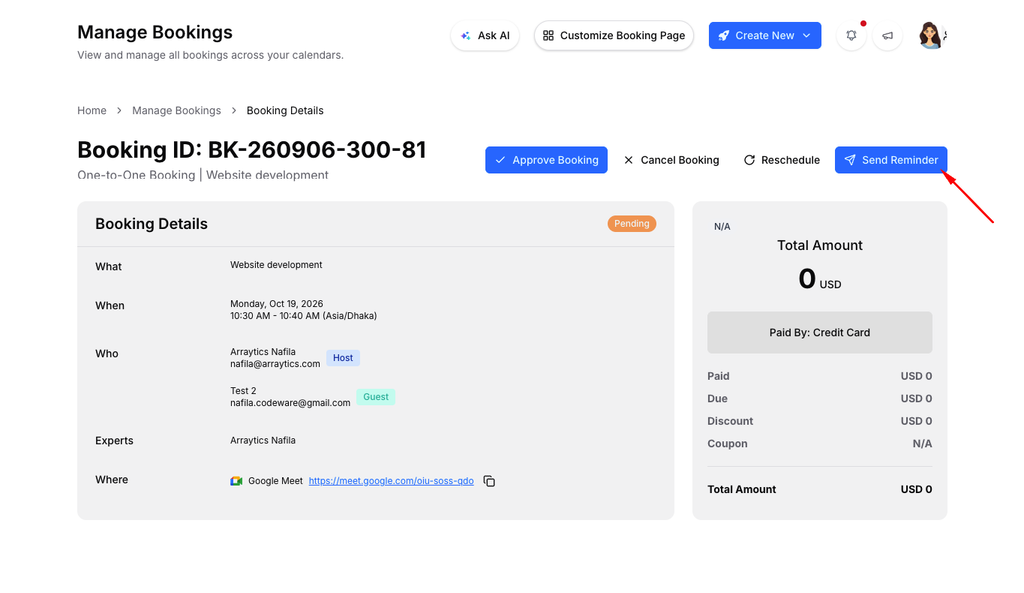
Use Send Reminder on the booking detail page when you want the guest to receive the appointment information again.
Step 4: Check the status
Return to the booking details and confirm the time and status after the action.
Important notes
- Cancelled bookings do not offer the normal reminder action.
- A reminder is an email; connecting Twilio does not make this reminder an SMS.
Frequently asked questions
Why is Reschedule unavailable?
Check the plan feature and the booking’s current status.
Conclusion
A host can open booking details to propose a different time or send a reminder to the guest.