Your Workspace Handle is the unique identifier displayed in the Personal URL section of your workspace settings. It is used to identify your workspace.
Step-by-Step Instructions
1) Find the workspace handle by the workspace dashboard
Step 1: Open Workspace Settings
Log in to your Timetics AI account and open the workspace you want to use.
Step 2: Go to Settings
From the dashboard, navigate to the Workspace menu.
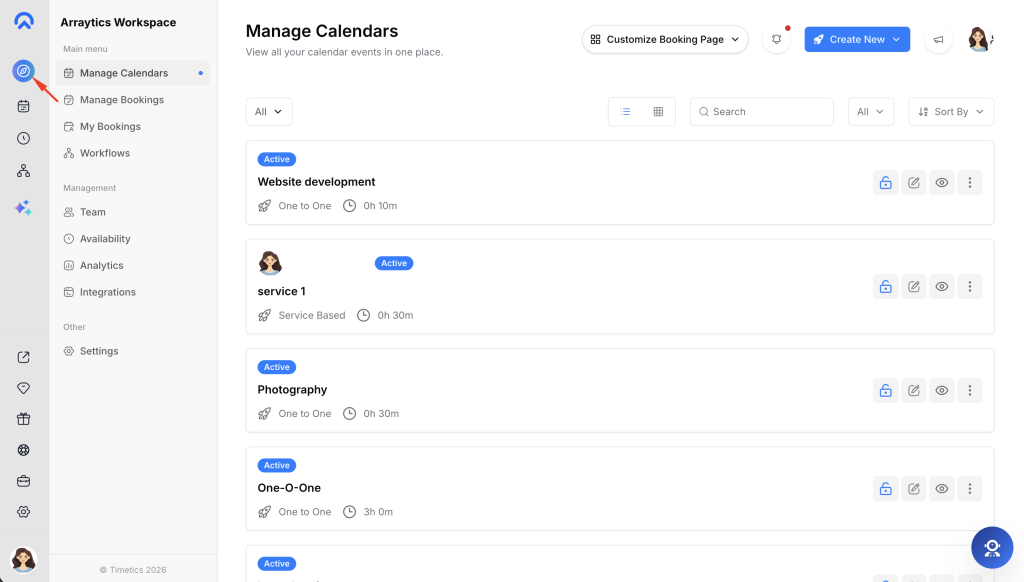
Step 3: Copy the Handle
In the Workspaces menu, you’ll find all of your workspaces. Below each workspace name is its Workspace Handle. Copy the handle for the workspace you want the agency to purchase or upgrade on your behalf and share it with the agency administrator.
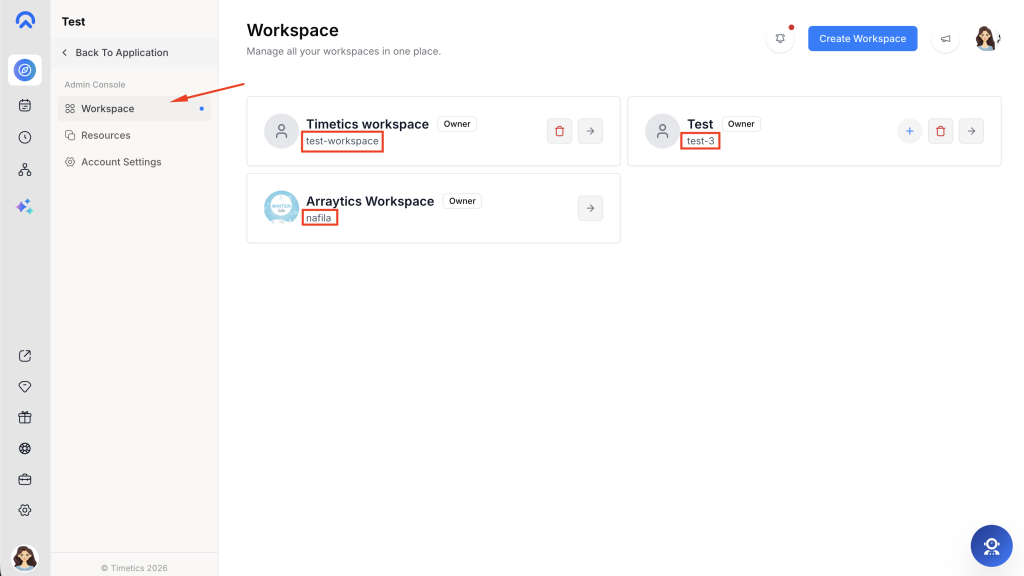
2) Or find the workspace handle of your current workspace in the profile settings
Step 1: Go to Settings
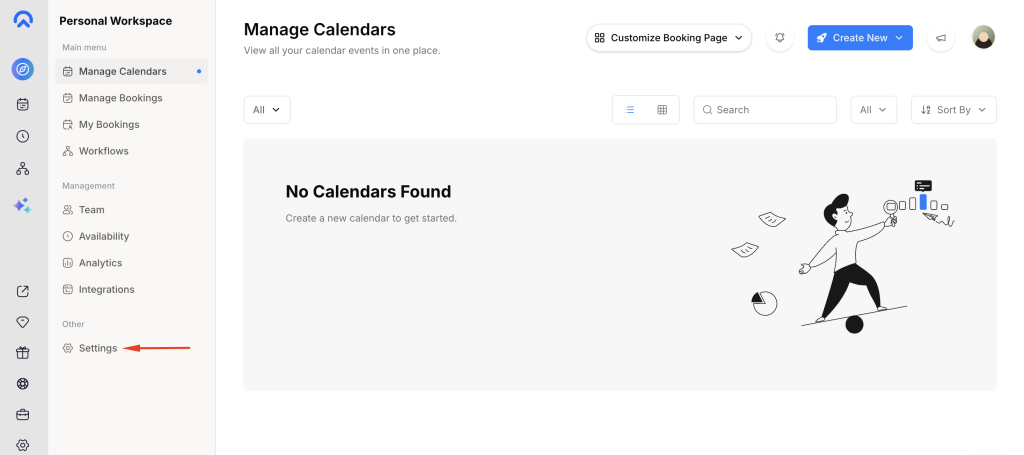
From the dashboard, open the Settings section.
Step 2: Find Your Personal URL
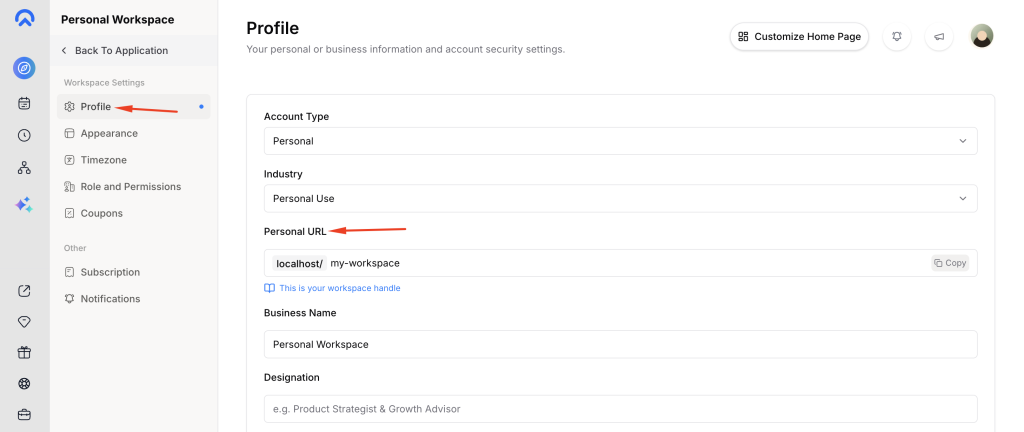
In the Settings page, look for the Personal URL field. This value is your Workspace Handle.
Step 3: Copy the Handle
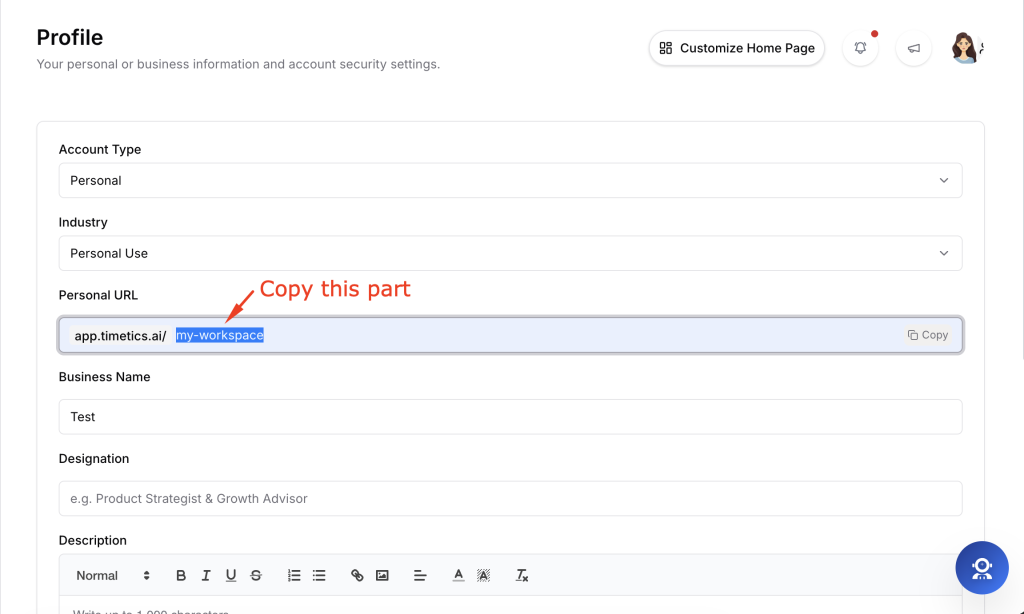
Copy the handle and share it with your agency or admin when they need to assign your workspace.
Notes
If an agency is purchasing or assigning a workspace on your behalf, they will ask for this handle. Simply copy the exact value from your Personal URL and share it with the agency administrator. The handle must match exactly, as it is used to link the purchased workspace to your account.
Example:
- Personal URL:
https://app.timetics.ai/john-design - Workspace Handle:
john-design
Important: Only share the handle (e.g. john-design), not the full URL, unless specifically requested.