What Is the Timetics AI Agent?
The Timetics AI Agent is an AI-powered assistant that helps users manage scheduling tasks using natural language text and voice commands. It allows users to create booking calendars, manage availability, navigate workspace settings, and get step-by-step guidance without manually searching through the dashboard.
Choose How You Interact
- Type a command
- Speak a command
Here’s what the AI Agent can do:
🔹 Manage Calendars
Users can create and update booking calendars directly through the AI assistant.
For example:
“Create a 1:1 Product Strategy calendar for 30-minute meetings.”
The AI Agent will automatically:
- Create the booking calendar
- Set the meeting type as 1:1
- Configure the meeting duration
- Generate the booking page
Users don’t need to manually go through multiple settings pages — the AI handles the setup instantly.
🔹 Manage Availability
The AI can automatically adjust working hours and availability slots.
For example:
“Block my Tuesday availability.”
The AI Agent will automatically mark Tuesday as unavailable.
Another example:
“Set my Friday availability from 10 AM to 4 PM.”
The AI updates the schedule instantly without manual configuration.
🔹 Find & Navigate
Users can quickly navigate to any Timetics page or setting without searching through the dashboard manually.
For example:
- “Take me to payment settings”
- “Open booking management”
- “Go to calendar integrations”
The AI redirects users directly to the correct page.
🔹 How-To Guides with Direct Links
If users need help configuring features, the AI provides step-by-step guidance along with direct documentation or setup links.
For example:
“How do I enable payments?”
The AI instantly explains the setup process and provides the relevant guide link, helping users solve problems faster and reducing support dependency.
How to Use Voice Commands with the Timetics AI Agent
Timetics AI Agent lets you manage calendars, update availability, find settings, and get help using natural voice commands. Instead of typing a message, you can speak naturally and listen to the AI Agent’s response.
Your voice conversation is also saved in the chat, so you can return to Chat view and review it later.
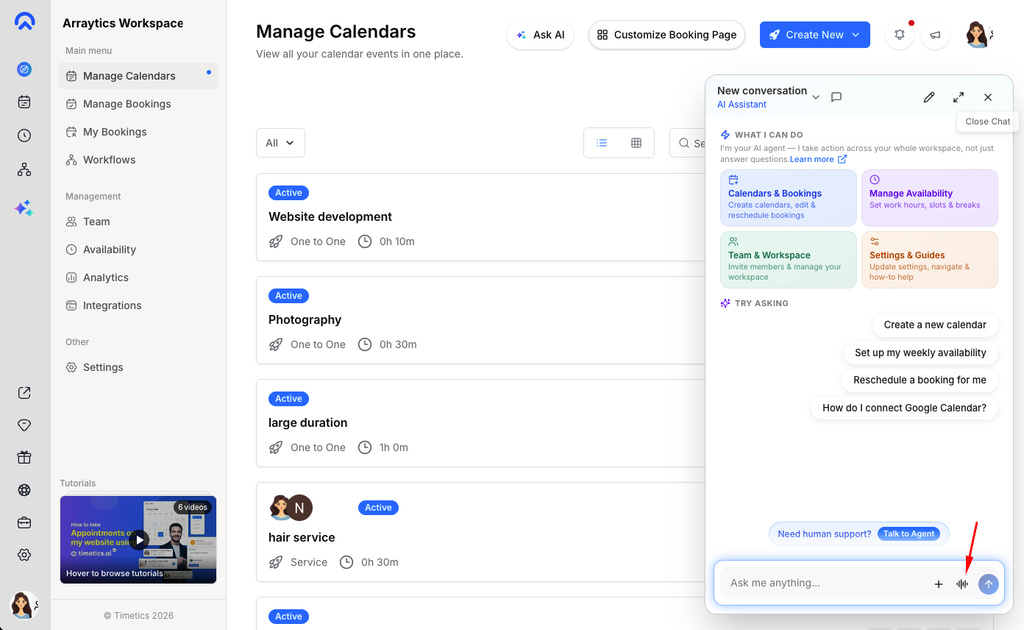
Open Voice Mode
- Open the Timetics AI Agent from your dashboard.
- Find the Voice mode icon in the message toolbar.
- Select the icon to open the voice-call screen.
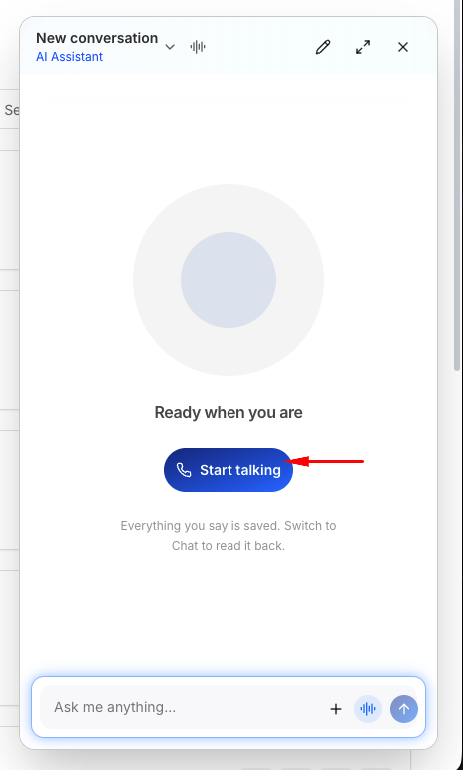
The screen will display Ready when you are and a Start talking button.
Allow Microphone Access
The first time you start a voice conversation, your browser may ask for permission to use your microphone.
Select Allow to continue. Timetics AI Agent cannot receive voice commands if microphone access is blocked.
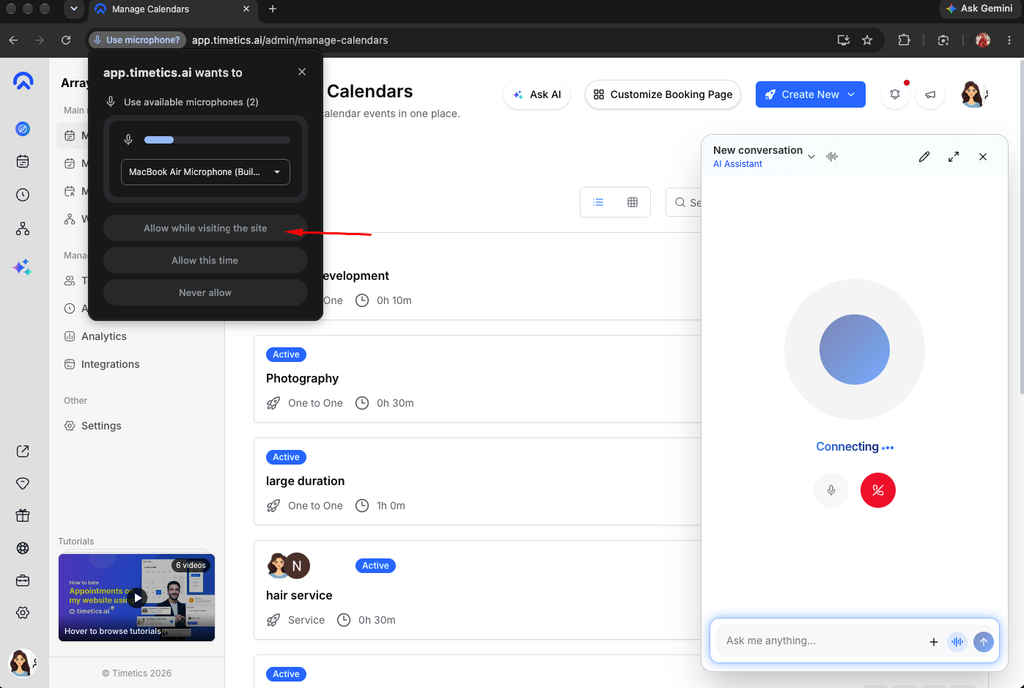
After permission is granted, the status will change from Connecting to Listening.
Speak a Command
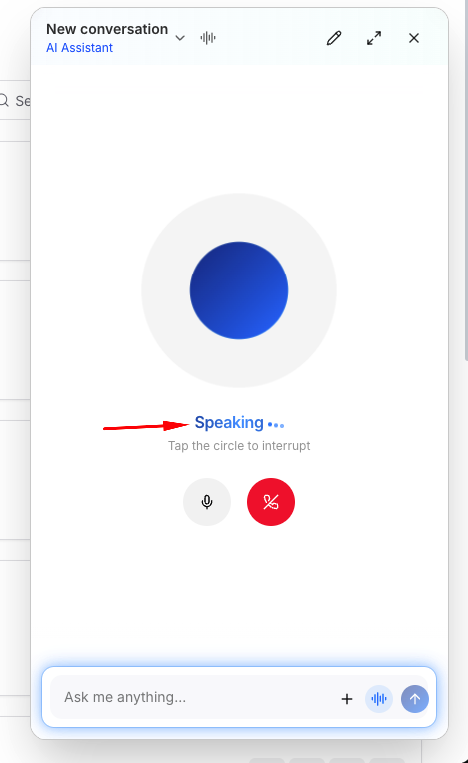
You do not need to press another button before speaking.
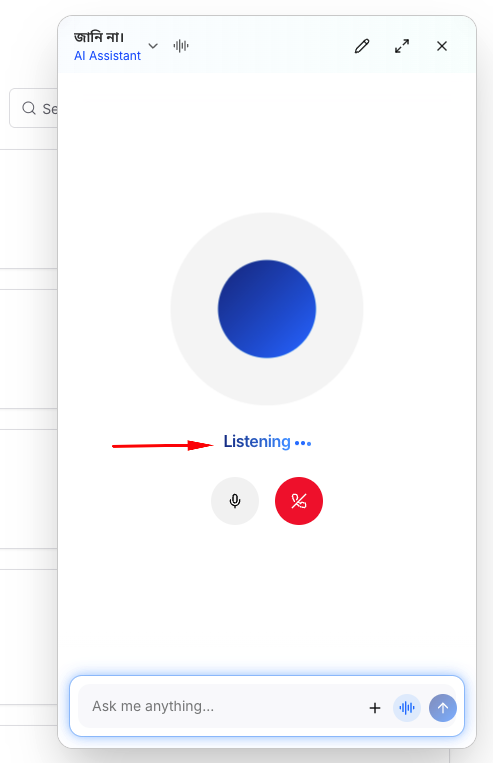
When the screen displays Listening, speak your request naturally.
For example, you can say:
- “Create a one-to-one consultation calendar for 30-minute meetings.”
- “Set my Friday availability from 10 AM to 4 PM.”
- “Block my availability next Tuesday.”
- “Take me to payment settings.”
- “How do I connect Google Calendar?”
When you finish speaking, pause briefly. The AI Agent will automatically recognize that you have finished and begin processing your request.
Listen to the Response
The status on the voice screen shows what the AI Agent is doing:
- Listening: The AI Agent is receiving your voice command.
- Thinking: Your request is being processed.
- Speaking: The AI Agent is responding.
- Muted: Your microphone is temporarily disabled.
- Call ended: The voice conversation has ended.
After answering, the AI Agent automatically returns to listening for your next command.
If the response includes a relevant Timetics page, the AI Agent may take you directly to that page after finishing its spoken response.
Mute or Unmute Your Microphone
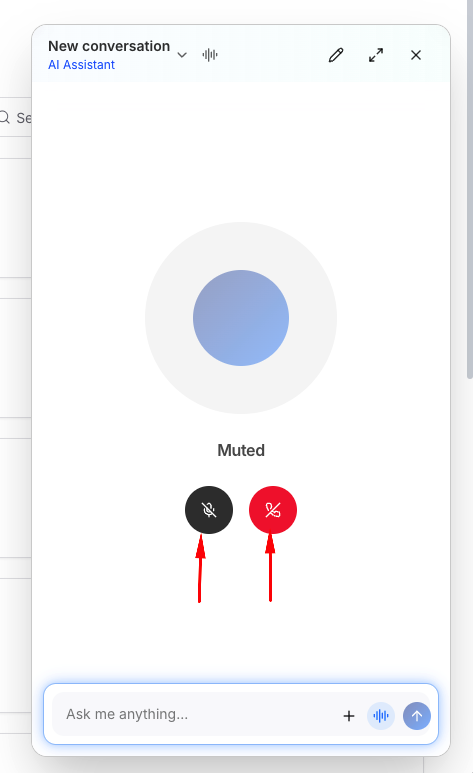
During an active voice conversation, select the microphone button to mute yourself. The status will change to Muted.
Select the button again to unmute your microphone and continue speaking.
Review the Conversation in Chat
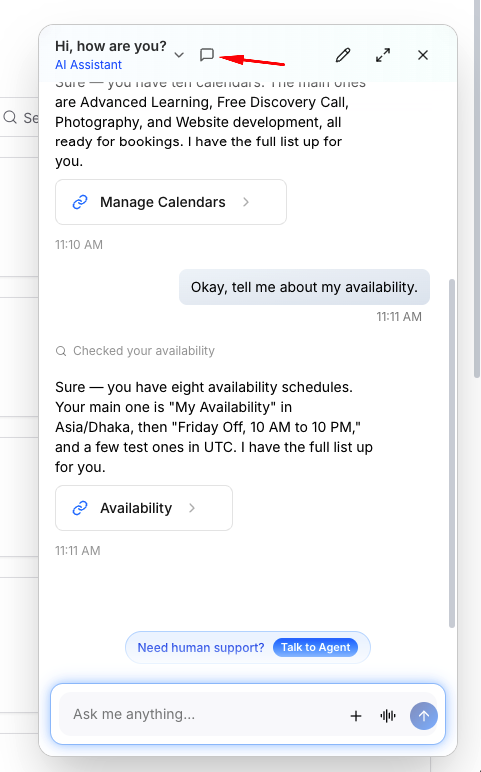
Voice commands and AI responses are added to your conversation history.
To review them, select the Back to chat icon in the message toolbar. You can then read the conversation and continue by typing or return to Voice mode.
If an answer cannot be played aloud, the response will still be available in the chat.
Troubleshoot Microphone Problems
The browser did not ask for microphone permission
Select the site information or lock icon beside the browser address bar. Find Microphone, change the permission to Allow, and reload the page.
The microphone is blocked
Confirm that microphone permission is enabled for Timetics AI in both your browser and your device settings.
The AI Agent cannot understand the command
Try the following:
- Speak clearly and at a natural pace.
- Reduce background noise.
- Move closer to your microphone.
- Keep each request direct and specific.
- Try the command again using different wording.
Voice mode is not visible
Voice mode requires a browser and device that support microphone recording. Make sure you are accessing Timetics AI through a secure HTTPS connection and using an up-to-date browser.
The call ends automatically
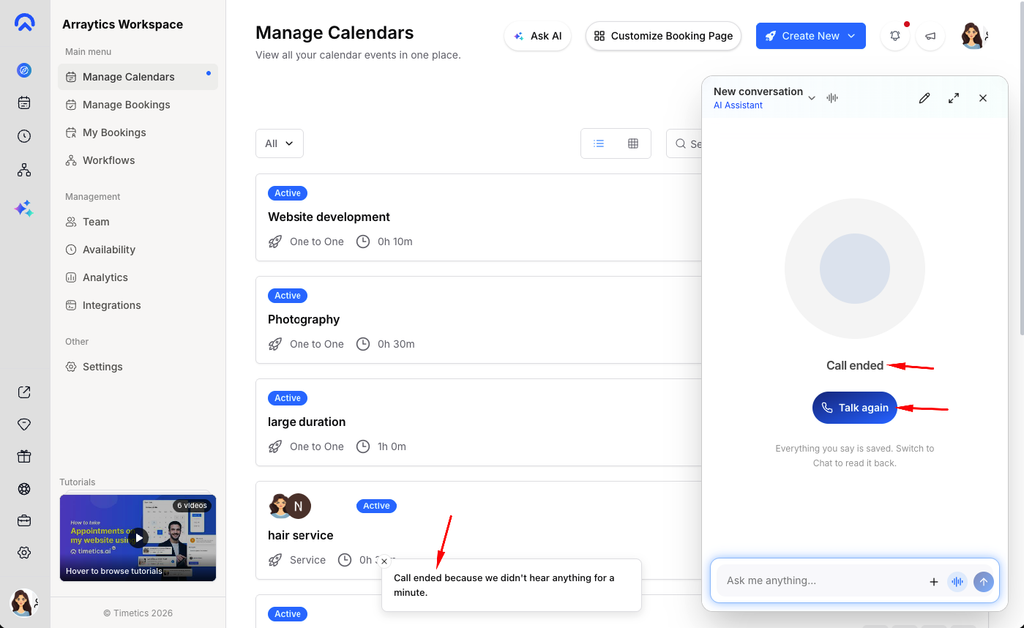
If the AI Agent does not hear anything for approximately one minute, the voice conversation may end automatically. Select Talk again to restart it.
Tips for Better Voice Commands
For the best results:
- Include important details such as the calendar type, duration, date, or time.
- Give one clear request at a time.
- Use exact days and times when updating availability.
- Review the chat transcript if you want to confirm what the AI Agent understood.
For example, say:
“Create a one-to-one product consultation calendar with 30-minute meetings.”
Instead of:
“Create a calendar.”