Integrate Zoom with Timetics AI to automatically create Zoom meeting links when a booking is confirmed. The integration uses OAuth 2.0, so you can securely connect your Zoom account without creating a separate Zoom app.
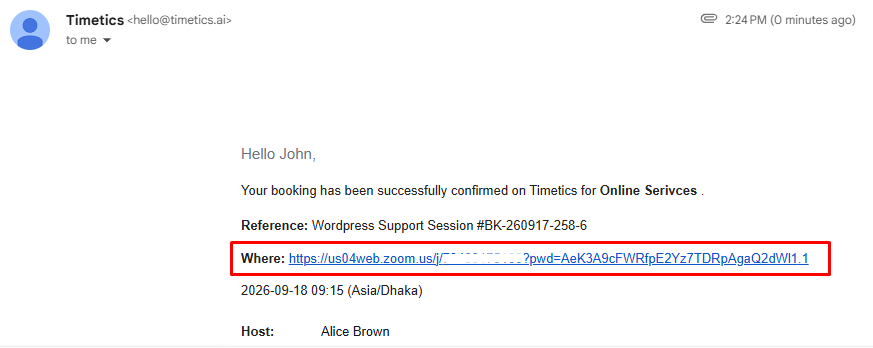
Once connected, Timetics automatically generates a Zoom meeting for eligible bookings and includes the meeting link in the booking notifications.
Why Use Zoom Integration?
- Automatically create Zoom meetings for confirmed bookings.
- Send the meeting link to the host and guest.
- Keep meeting details connected to the booking.
- Use your existing Zoom account and meeting features.
- Reconnect or disconnect your Zoom account at any time.
How to Connect Zoom
Step 1: Open Zoom Integration
- Log in to your Timetics Dashboard.
- Go to Workspace → Settings → Integrations → Zoom.
- Click Connect Zoom.
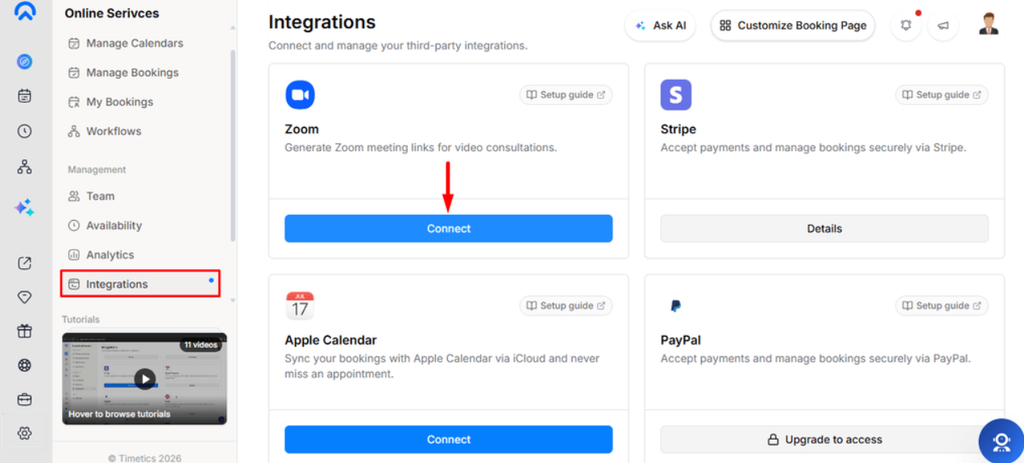
Step 2: Authorize Your Zoom Account
After clicking Connect Zoom, you’ll be redirected to Zoom.
- Sign in to the Zoom account you want to connect.
- Review the permissions requested by Timetics.
- Click Allow to authorize the connection.
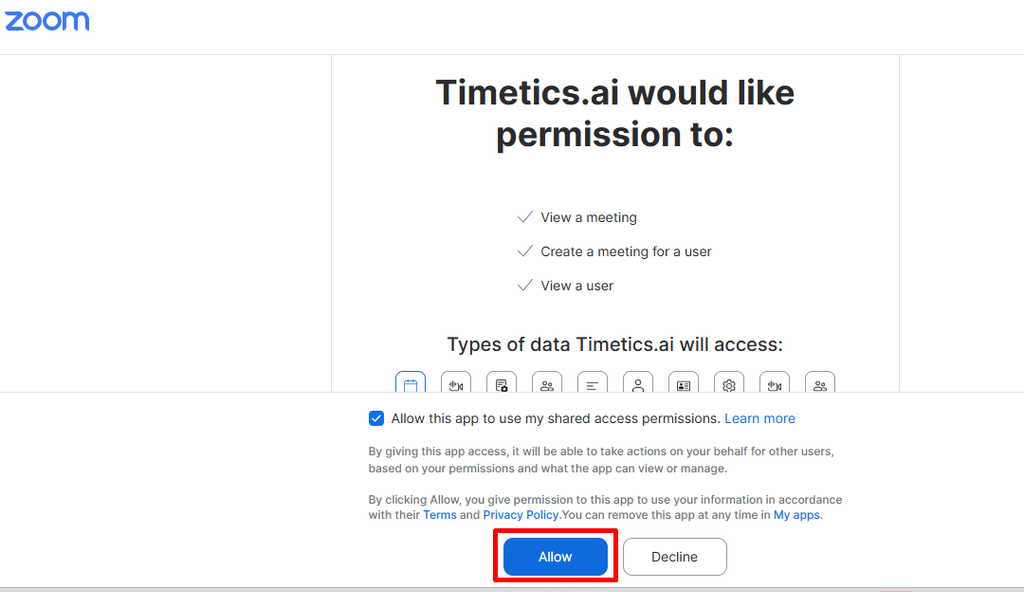
Timetics uses the authorization to create and manage Zoom meetings for bookings.
Step 3: Confirm the Connection
After authorization, you’ll be redirected to Timetics.
- Check that the Zoom integration status shows Connected.
- Your Zoom account is now linked to Timetics.
- New eligible bookings can automatically generate Zoom meeting links.
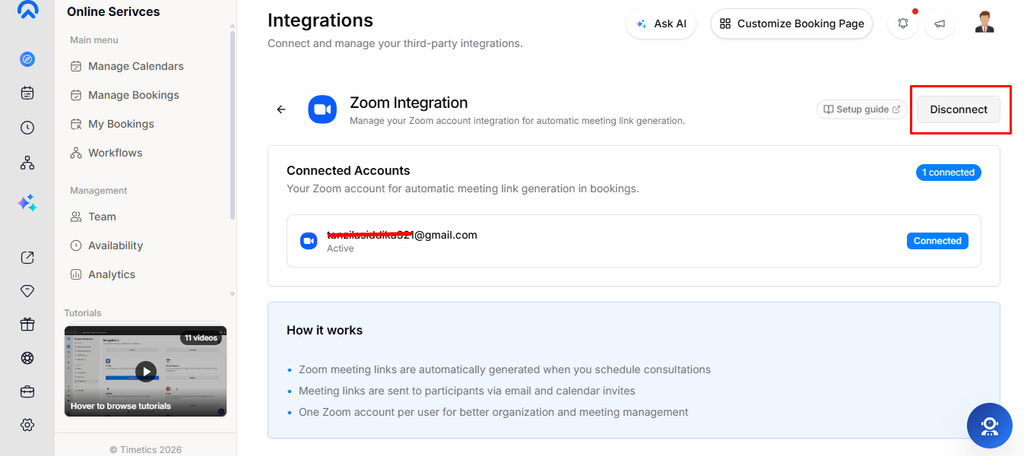
That’s it! Your Zoom integration is now ready to use.
Once Zoom is successfully connected, select Zoom when creating or editing a meeting in Timetics. When a booking is made for that meeting, Timetics automatically creates a Zoom meeting and generates the meeting link.
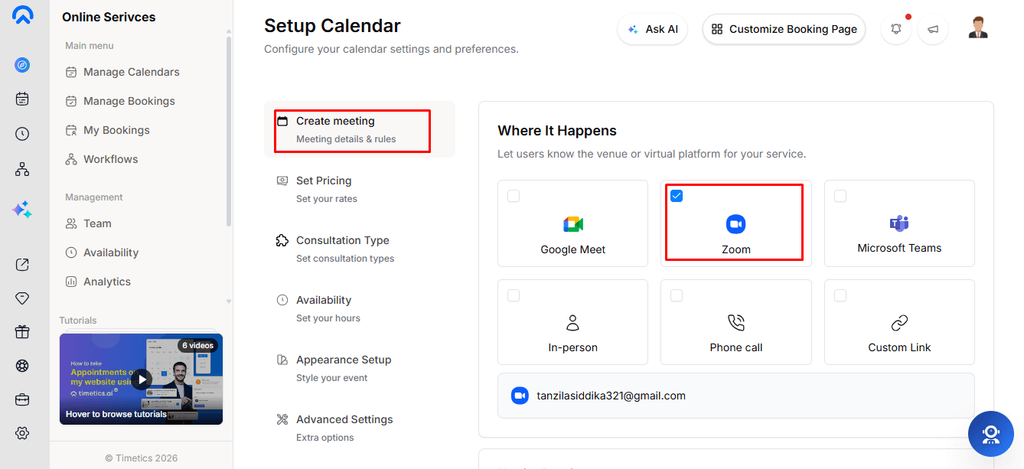
Guest books a meeting → Booking is confirmed → Zoom meeting is created automatically → Meeting link is added to the booking → Host and guest join using the Zoom link.
How to Disconnect Zoom
Go to Workspace → Settings → Integrations → Zoom, click Disconnect, and confirm.
After disconnecting, Timetics will stop creating Zoom meetings for new bookings. You can reconnect anytime.
FAQ
Q1: Do I need to create a Zoom app to use the integration?
A1: No. Timetics provides the Zoom integration, so you do not need to create a separate Zoom app.
Q2: What if I don’t have a Zoom account?
A2: You need an active Zoom account before using the integration.
Q3: Can I use a free Zoom account?
A3: Yes. You can connect an active Zoom account. Available Zoom features depend on your subscription.
Q4: Can multiple staff members use the same Zoom account?
A4: Yes, multiple staff members can use the connected Zoom account, depending on your Zoom account setup.
Q5: Can I switch to a different Zoom account?
A5: Yes. Disconnect the current account and connect the Zoom account you want to use.
Q6: Does Zoom integration support one-to-one meetings?
A6: Yes. You can use Zoom for one-to-one meetings.
Q7: Does Zoom integration support group meetings?
A7: Yes. Zoom meetings can be created for group bookings.
Q8: Does Zoom integration support recurring bookings?
A8: Yes. Recurring bookings are supported, with a Zoom meeting created for each booking instance.
Q9: Do guests need a Zoom account to join a meeting?
A9: No. Guests can generally join using the Zoom meeting link without a Zoom account, depending on the meeting settings.
Q10: Where can I find the Zoom meeting link?
A10: The Zoom meeting link is available with the booking and can be included in the relevant booking notifications.
Q11: Are Zoom recordings stored in Timetics?
A11: No. Zoom recordings are managed and stored through your Zoom account.
Q12: Can I use Zoom features such as screen sharing and recording?
A12: Yes. Standard Zoom features are available according to your Zoom subscription and meeting settings.
Q13: What happens if my Zoom subscription expires?
A13: You may not be able to create new Zoom meetings if your account no longer has the required access. Check your Zoom account status before creating new bookings.
Q14: What happens when a booking is cancelled?
A14: The associated Zoom meeting may also be cancelled depending on the booking and integration behavior.
Q15: Does Timetics need my Zoom password?
A15: No. Timetics uses Zoom’s authorization process to connect your account and does not require your Zoom password.
Conclusion
The Zoom integration simplifies online meeting management by automatically creating and linking Zoom meetings to confirmed bookings. Once connected, Timetics handles the meeting setup, making it easy for hosts and guests to access their scheduled meetings.