What Is SEO & Social Sharing?
SEO & Social Sharing lets you control how your booking page appears in search results and when the link is shared on platforms such as Facebook, LinkedIn, WhatsApp, Slack, and X.
You can customize the Meta Title, Meta Description, and Social Preview Image for each calendar. These settings are configured separately for each calendar from the Advanced Settings tab.
Why Do You Need It?
- Create clear and attractive booking link previews.
- Control how your booking page appears in search results.
- Add a custom title, description, and image when sharing your booking link.
- Keep your booking page presentation consistent with your brand.
How Do I Set Up SEO & Social Sharing?
Go to Dashboard → Manage Calendars, open the calendar you want to edit, and select Advanced Settings. Now, scroll to the SEO & Social Sharing card.
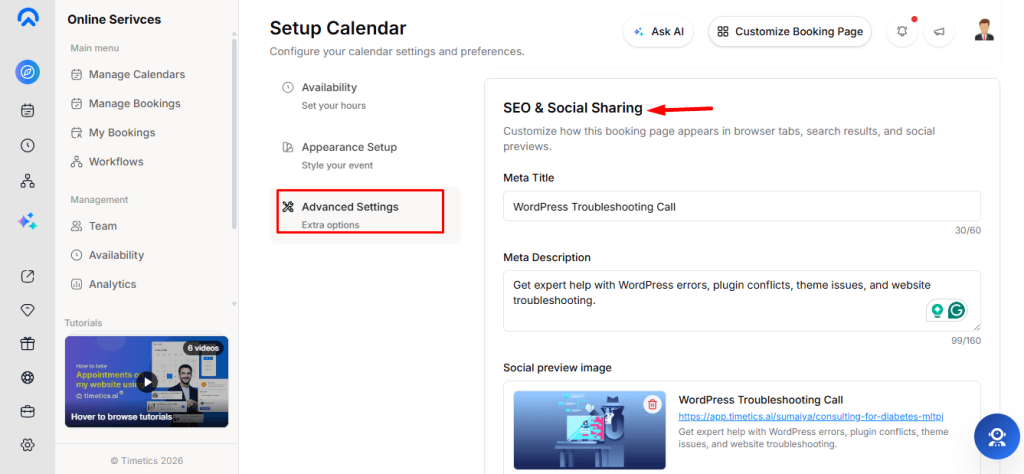
Meta Title:
Enter the title for your booking page. It appears in the browser tab, search results, and social link previews. The maximum length is 60 characters. If left blank, Timetics uses the calendar title and username.
Meta Description:
Add a short summary of your booking page for search results and link previews. The maximum length is 160 characters. If left blank, Timetics uses the calendar description. If no description is available, it uses:
Social Preview Image:
Upload the image you want to display when your booking link is shared.
- Recommended size: 1200 × 630 pixels (1.91:1)
- Supported formats: PNG, JPG, WebP
- Maximum file size: 500 KB
- You can replace or delete the image after uploading.
The SEO & Social Sharing card provides a live preview of your booking link, including the title, URL, description, and social preview image. The preview updates as you edit the fields.
Auto-Save: Your SEO settings are saved automatically when you leave each field. No separate Save button is required.
Limitations
- Social platforms cache shared-link previews, so changing the title, description, or image may not update previously shared previews immediately.
- The admin preview is an approximation. Individual platforms may crop images and truncate text differently.
- Removing the Social Preview Image leaves the booking page without a social image. It does not automatically fall back to your workspace logo.
- SEO & Social Sharing settings are stored separately for every calendar.
- If you manage many calendars, you need to configure each one individually or rely on the fallback title and description.
Platforms such as Facebook and LinkedIn may continue showing an older preview after you update your metadata. If you need an updated preview immediately, use the platform’s own link inspection or debugging tool to refresh the booking page preview.
Frequently Asked Questions
1. Where can I configure SEO & Social Sharing?
Go to Dashboard → Manage Calendars → Advanced Settings → SEO & Social Sharing. These settings are configured separately for each calendar.
2. What happens if I leave the Meta Title or Description empty?
Timetics automatically uses the calendar title and username for the Meta Title, and the calendar description or a default booking message for the Meta Description.
3. What image size should I use for the Social Preview Image?
The recommended size is 1200 × 630 pixels, with a maximum file size of 500 KB. PNG, JPG, and WebP formats are supported.
4. Why is my old social preview still showing after I update it?
Social platforms may cache previous previews. It can take some time for the updated title, description, or image to appear.
5. Can I use different SEO details for different calendars?
Yes. Each calendar has its own SEO & Social Sharing settings.
Conclusion
With SEO & Social Sharing, you can customize your booking page’s title, description, and social preview image to create a clear and professional appearance in search results and shared links.