What is a service calendar host?
A service-based calendar can include workspace team members as the people who provide the service. The Setup tab contains the Team Member selector.
Why do you need this?
Assign hosts so the service calendar is connected to the right people before guests book.
Prerequisites
- A service-based calendar.
- The people must already be members of the workspace.
- Permission to update the calendar and a plan that includes service members.
Step-by-step instructions
Step 1: Open the service calendar
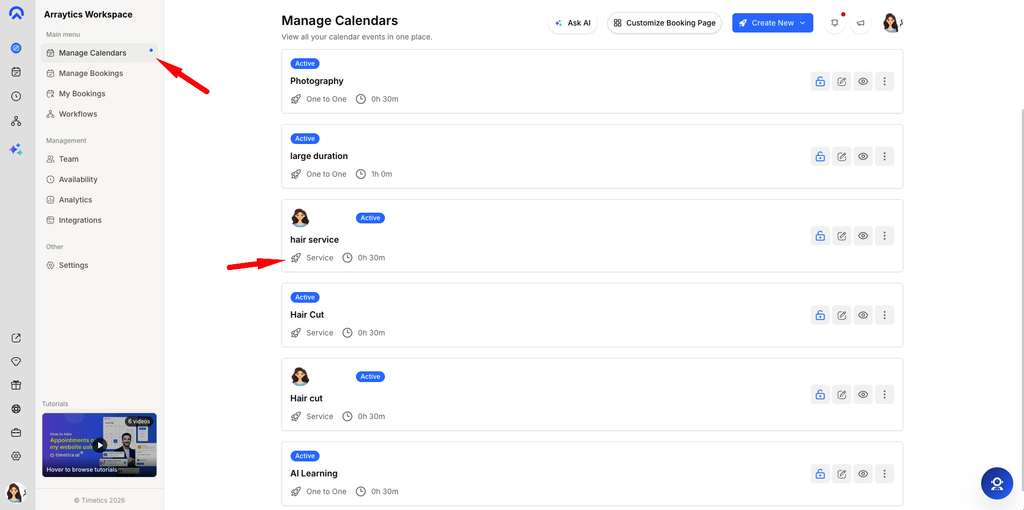
Go to Dashboard → Manage Calendars and select the service-based calendar.
Step 2: Open Setup
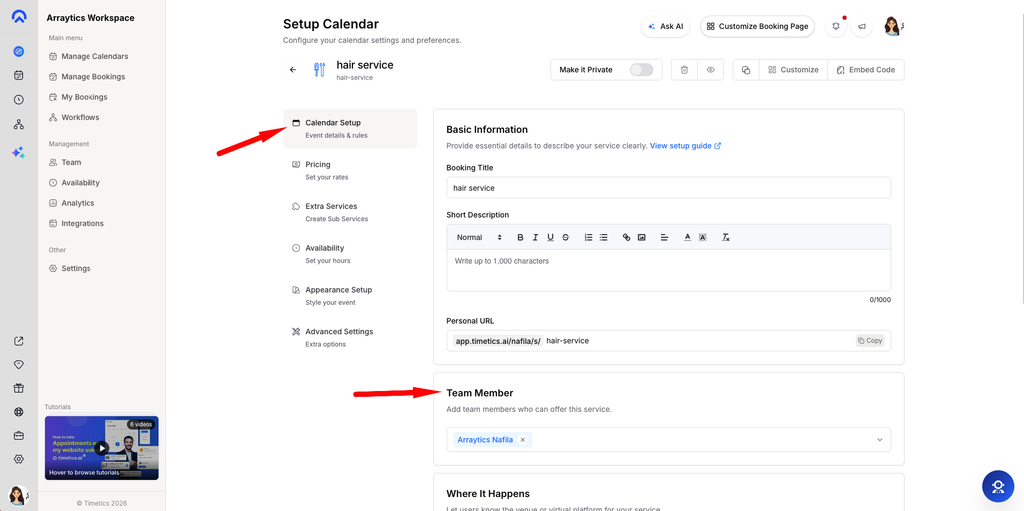
In calendar setup, find the Team Member card.
Step 3: Add hosts
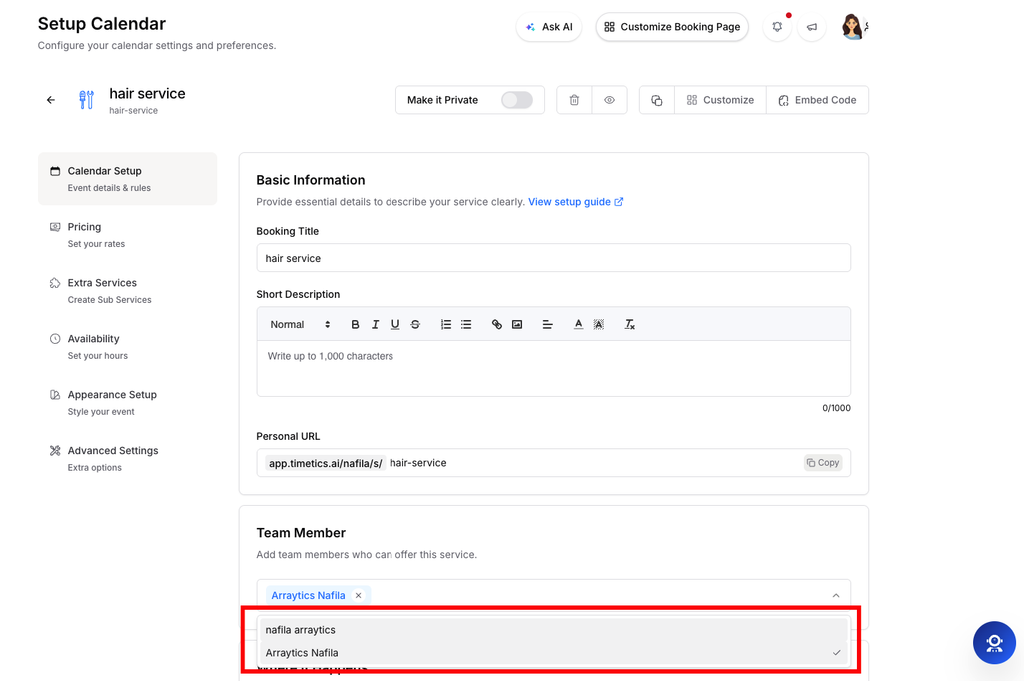
Choose one or more workspace members from the selector. The app saves each addition and shows a success message.
Step 4: Remove a host
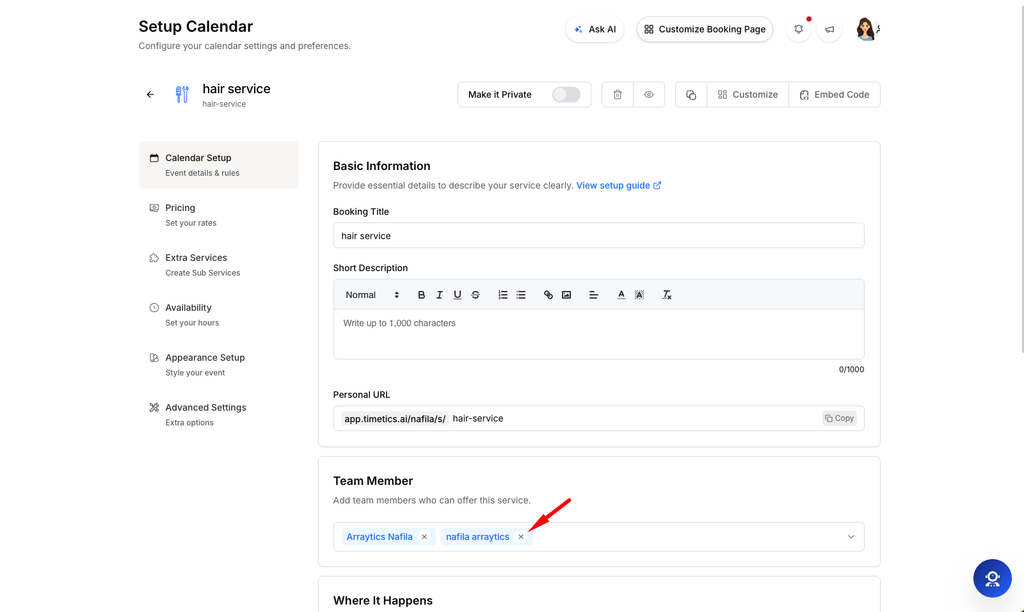
Use the remove control on a selected member when they should no longer be assigned.
Step 5: Review the calendar
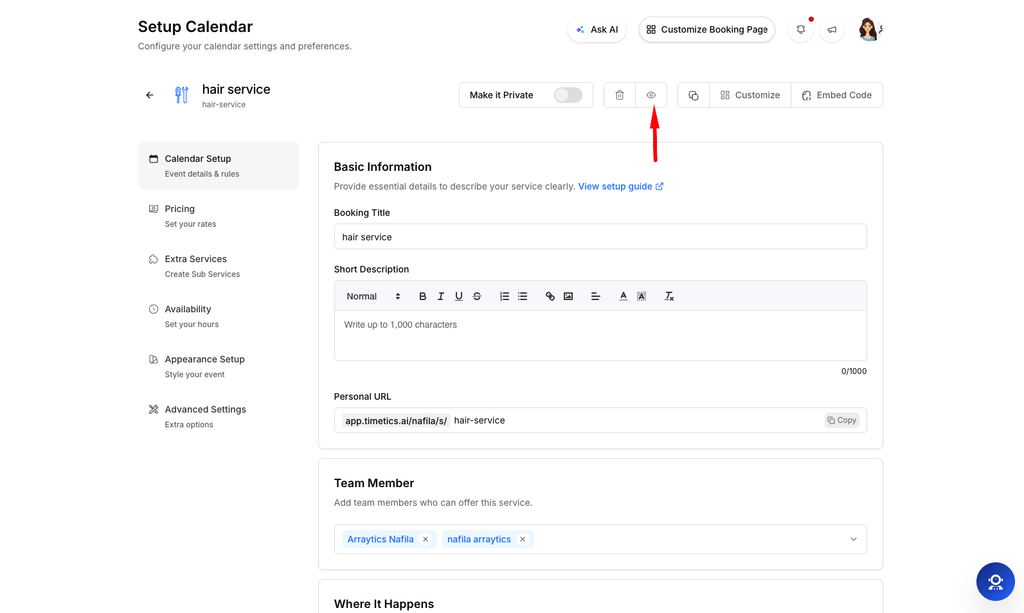
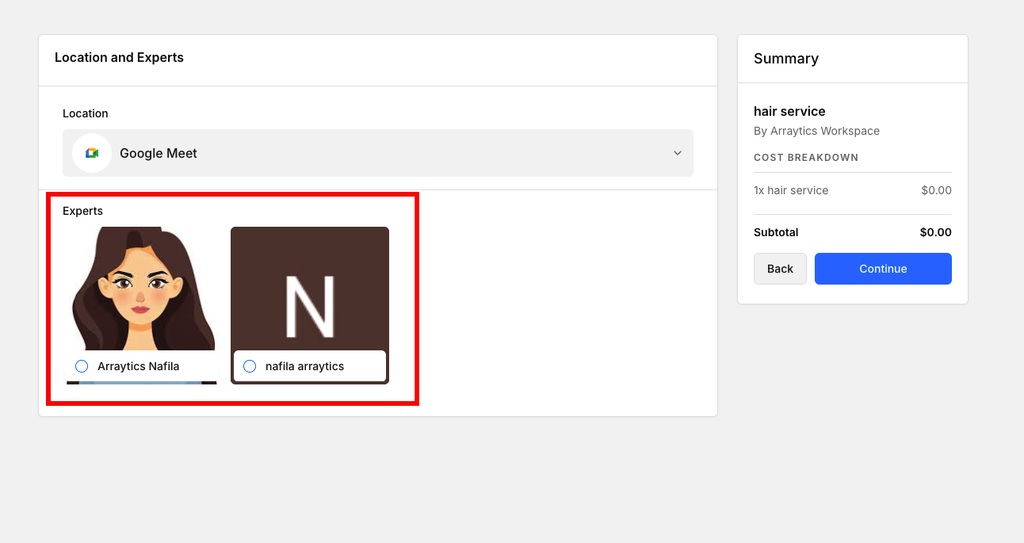
Check the selected members and preview the public booking flow.
Important notes
- This Team Member control appears on service-based calendars.
- If your plan does not include service members, the app shows an upgrade prompt.
Frequently asked questions
Why is a person missing from the selector?
Invite them to the workspace and wait until they appear in the member list.
Conclusion
A service-based calendar can include workspace team members as the people who provide the service. The Setup tab contains the Team Member selector.