What is calendar duplication and deletion?
A calendar card offers actions for copying an existing setup or permanently removing a calendar.
Why do you need this?
Duplicating is useful when a new calendar needs similar settings; deletion removes one you no longer need.
Prerequisites
– Permission to update or delete calendars, depending on the action.
Step-by-step instructions
Step 1: Open the action menu
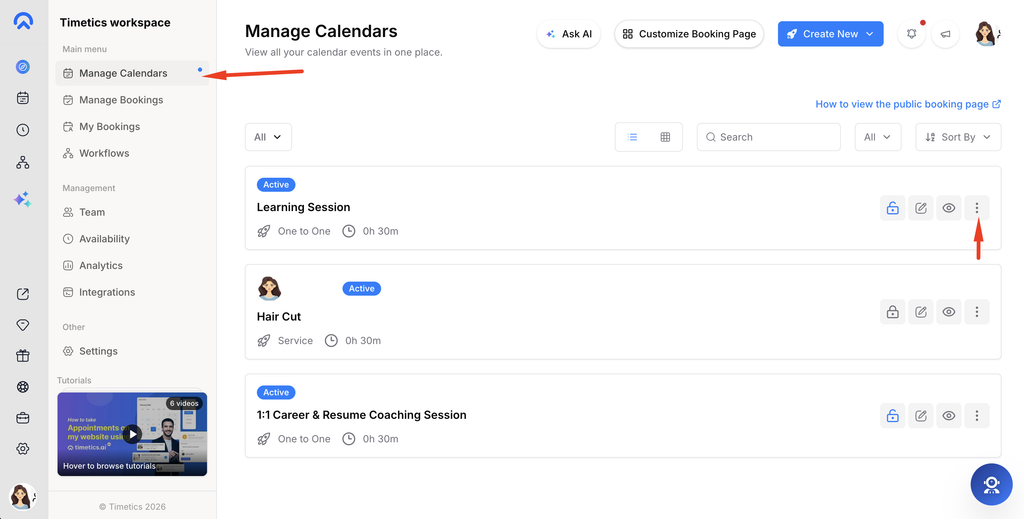
Go to Dashboard → Manage Calendars and open the three-dot menu on the calendar card.
Step 2: Duplicate the calendar
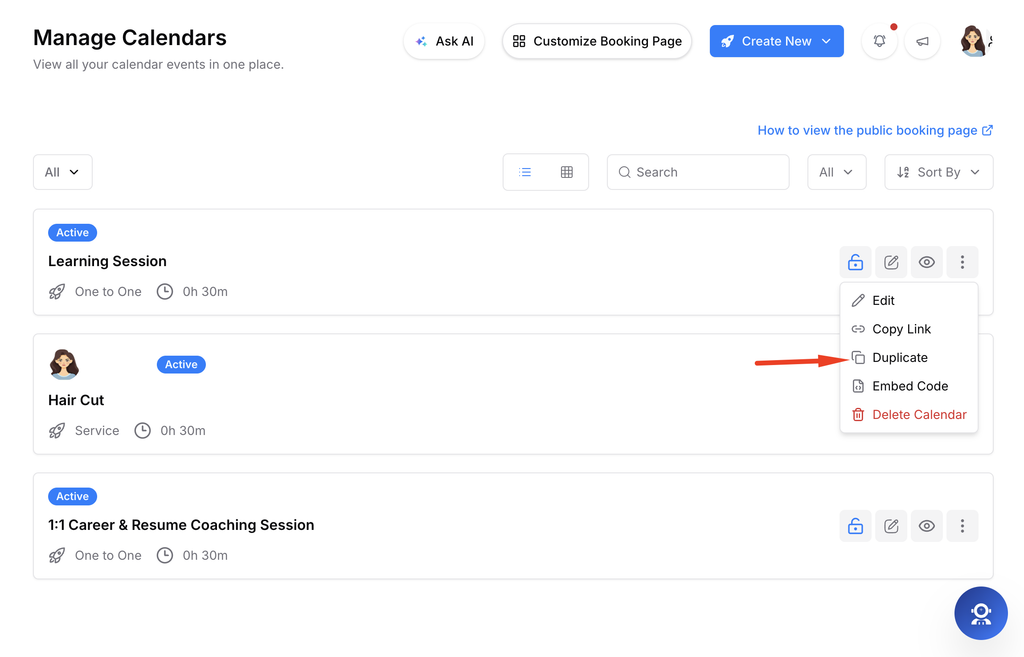
Select Duplicate. Timetics creates a copy and opens it for editing. Review its title, availability, location, and pricing before sharing it.
Step 3: Delete a calendar
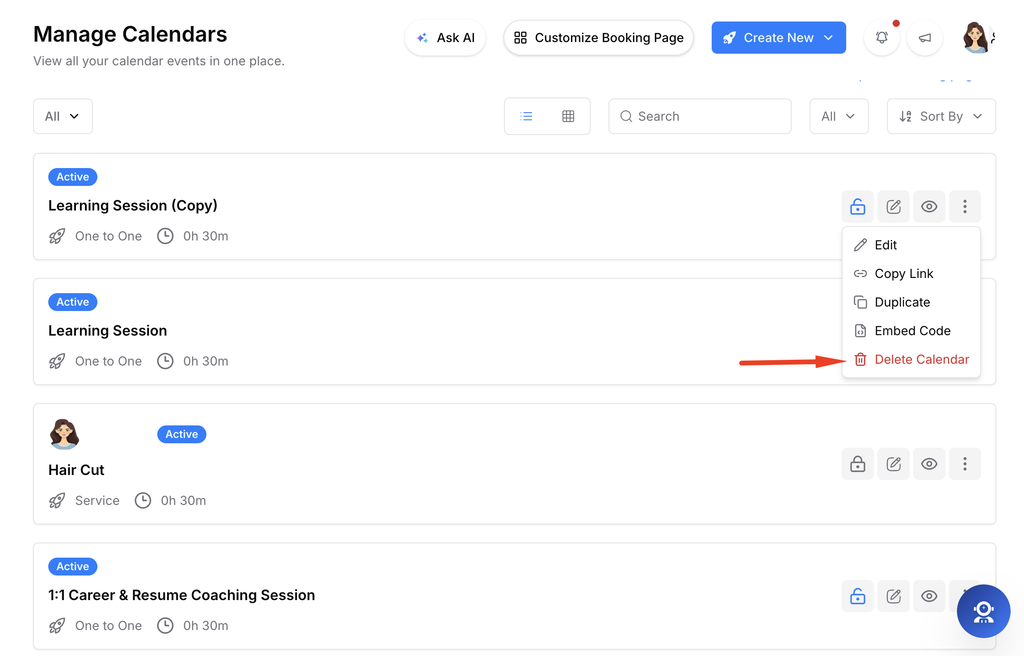
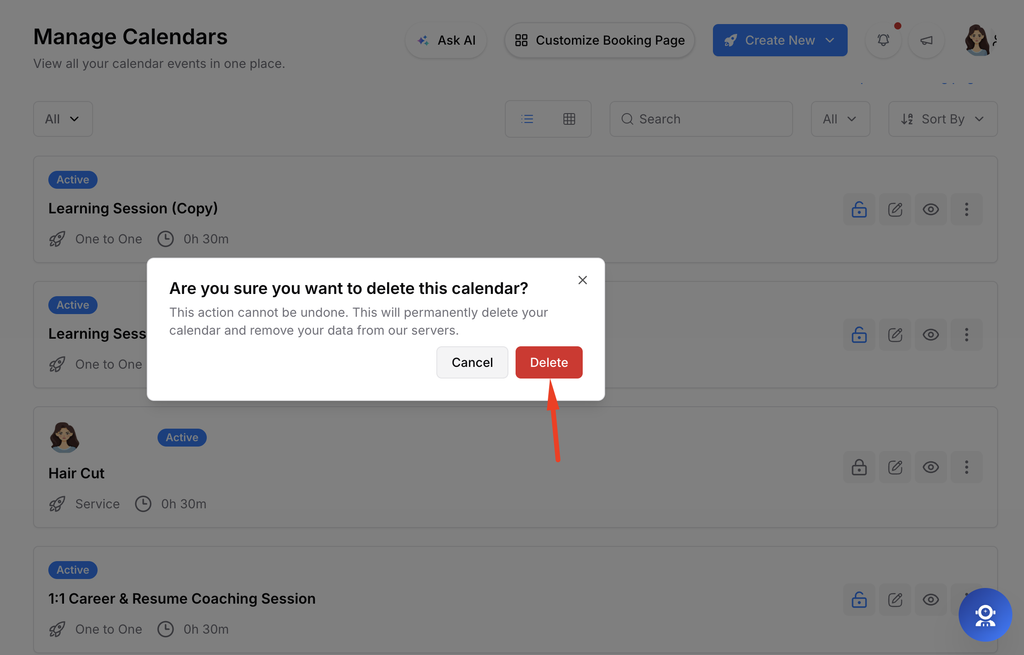
Select Delete from the same menu. Read the confirmation dialog and confirm only when you intend to remove it.
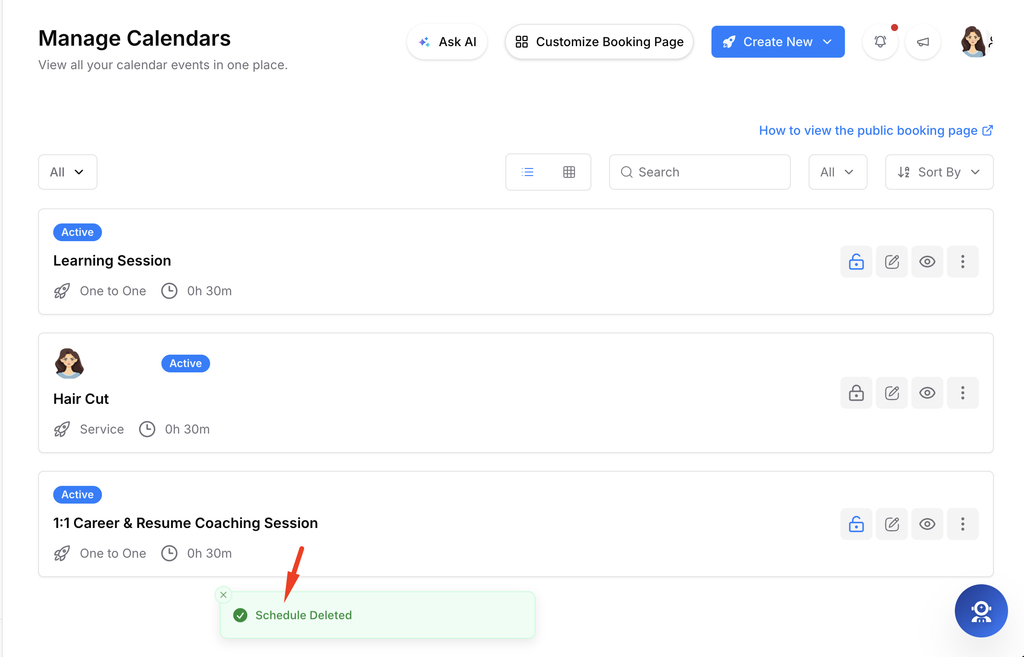
Step 4: Check the list

Return to Manage Calendars to confirm the copy appears or the deleted calendar is gone.
Important notes
- Duplicating creates a separate calendar; later edits do not change the original.
- Before deletion, check whether the calendar link is embedded or shared elsewhere.
Frequently asked questions
Can I recover a deleted calendar?
The UI does not offer a restore action. Duplicate first if you need to keep its setup.
Conclusion
A calendar card offers actions for copying an existing setup or permanently removing a calendar.