What are team members and pending invitations?
The Team area separates active members and pending invitations. You can review, resend, restrict, change roles, or remove members when permitted.
Why do you need this?
Use it to keep workspace access current and follow up with people who have not accepted an invitation.
Prerequisites
– Permission to read or manage the team.
Step-by-step instructions
Step 1: Open Team
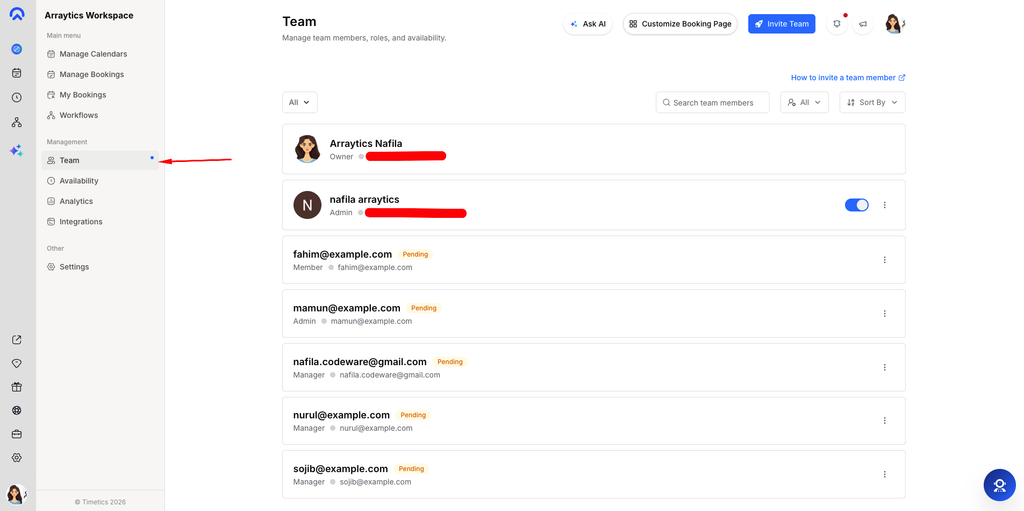
Go to Dashboard → Team.
Step 2: Find a person
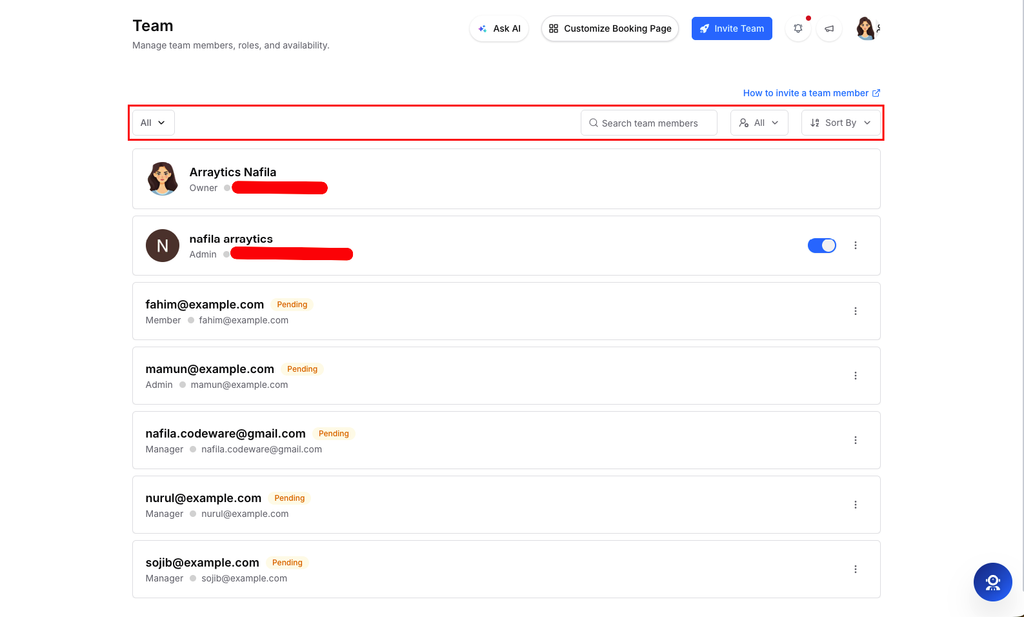
Use the member lists and filters to find active members or pending invites.
Step 3: Follow up on an invite
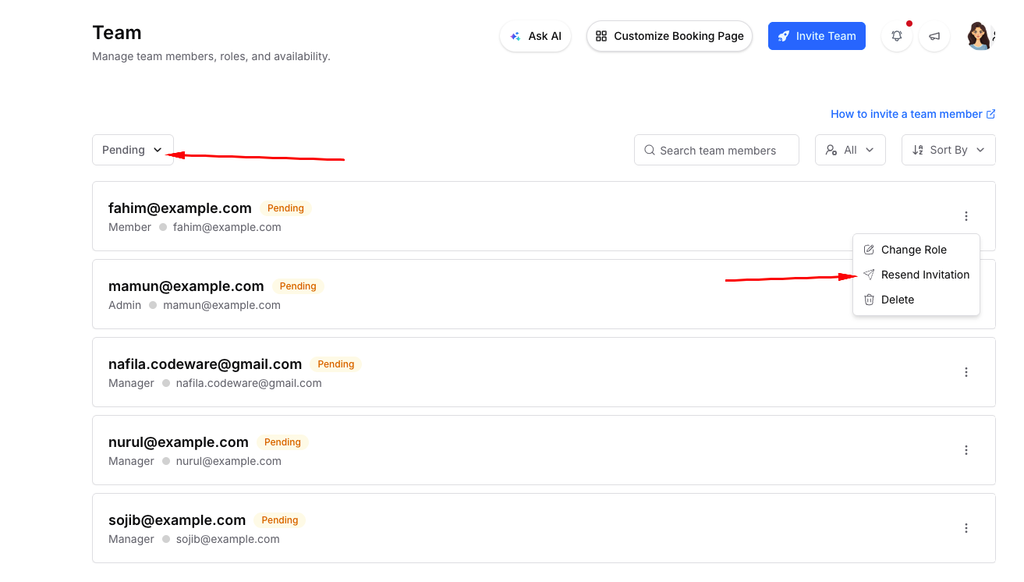
For a pending invitation, use Resend Invitation if the recipient did not receive it.
Step 4: Manage access
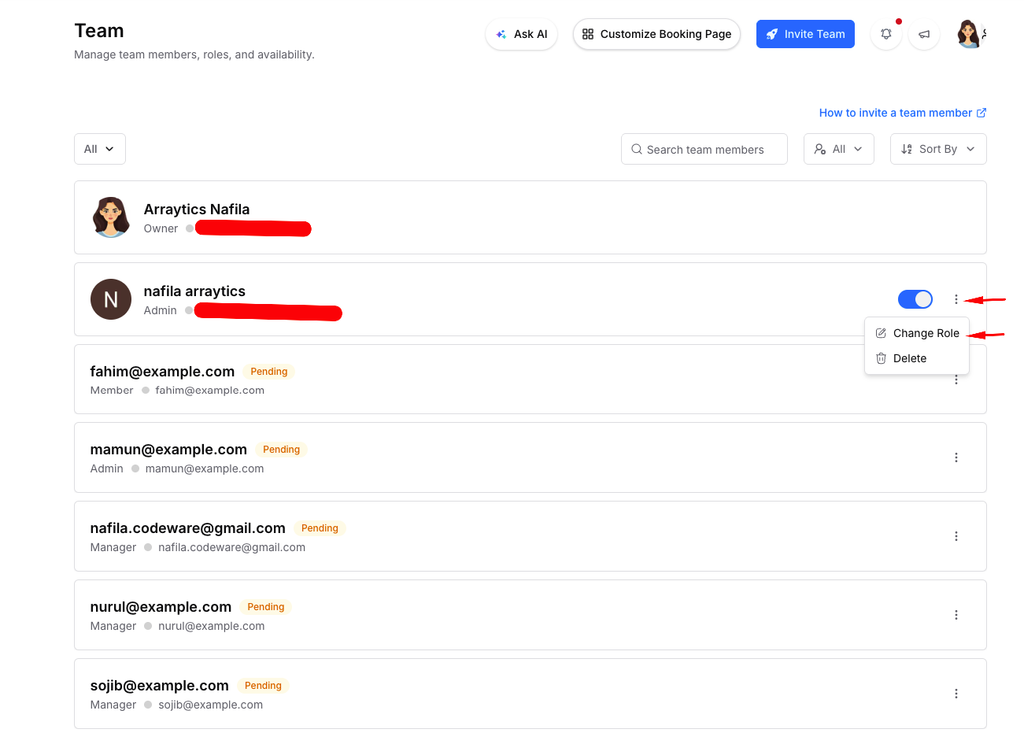
Open a member card’s actions to change their role, restrict access, or remove the member, as appropriate.
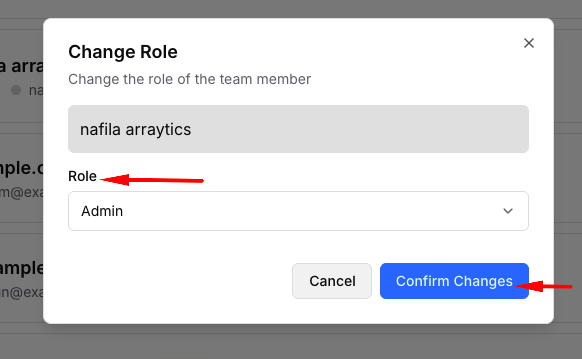
Step 5: Confirm changes
Review the refreshed list after each action.
Important notes
- An invite remains pending until the recipient accepts it.
- Removing a person from the workspace is different from deleting their personal Timetics account.
Frequently asked questions
Why is an action unavailable?
Your role may not have the required team permission, or the action may not apply to that invite state.
Conclusion
The Team area separates active members and pending invitations. You can review, resend, restrict, change roles, or remove members when permitted.