How Do I Share a Calendar Link?
What is a calendar booking link?
Every calendar has a public booking URL. The Copy Link action places that URL on your clipboard so you can send it to guests.
Why do you need this?
Use the link in email, messages, or your website when you want people to book a specific calendar.
Prerequisites
- A calendar in your workspace.
- A public booking URL generated for the calendar.
Step-by-step instructions
Step 1: Open Manage Calendars
Go to Dashboard → Manage Calendars and find the calendar you want to share.
Step 2: Copy the URL
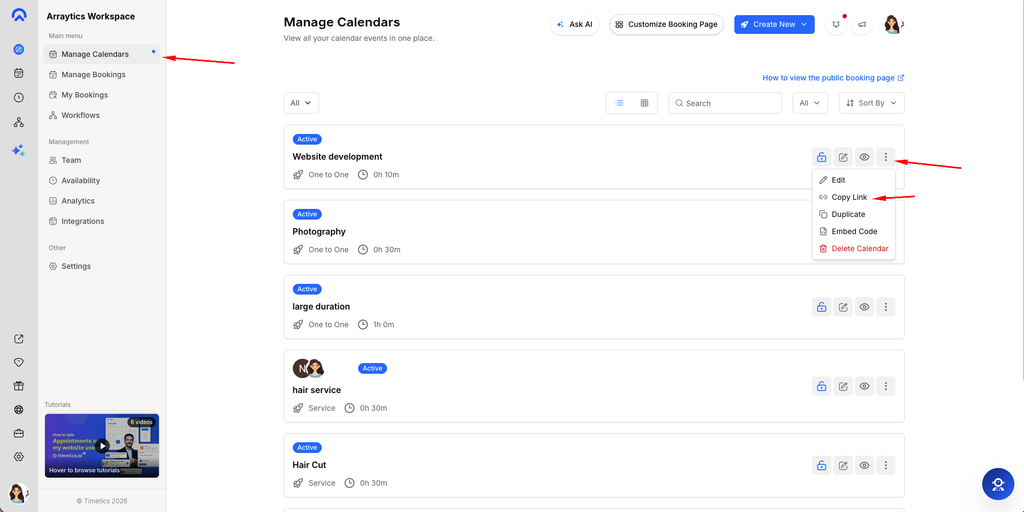
Open the calendar card’s three-dot menu and choose Copy Link. A Copied indicator confirms the action.
Step 3: Share the link
Paste the URL into your message or website. The copied URL uses the workspace custom domain when one is configured.
Step 4: Check guest access
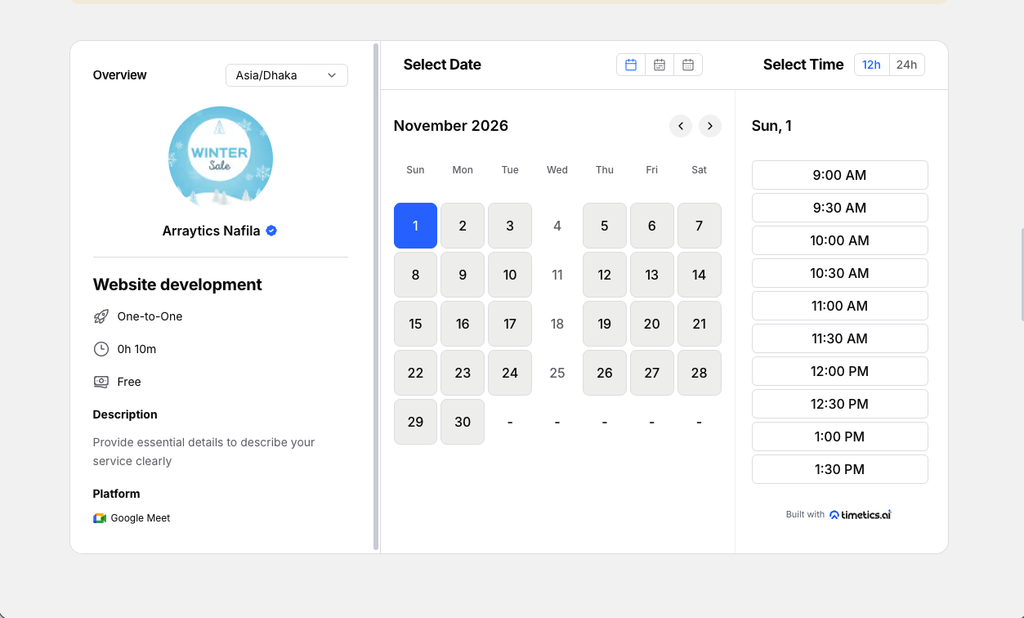
Open the link in a private browser window and confirm the booking page and available times are correct.
Important notes
- The Copy Link action is disabled if a public URL is unavailable.
- Check the calendar’s private/public control and status before sending its link.
Frequently asked questions
Can I share the workspace page instead?
Yes. Share the public workspace page when guests should choose among several calendars; use Copy Link for one calendar.
Conclusion
Every calendar has a public booking URL. The Copy Link action places that URL on your clipboard so you can send it to guests.