What is provider sign-in?
Timetics offers provider sign-in from its Sign In page. The provider authenticates you and returns you to your Timetics account.
Why do you need this?
You can sign in without entering a separate Timetics password.
Prerequisites
– An account with a supported sign-in provider.
Step-by-step instructions
Step 1: Open Sign In
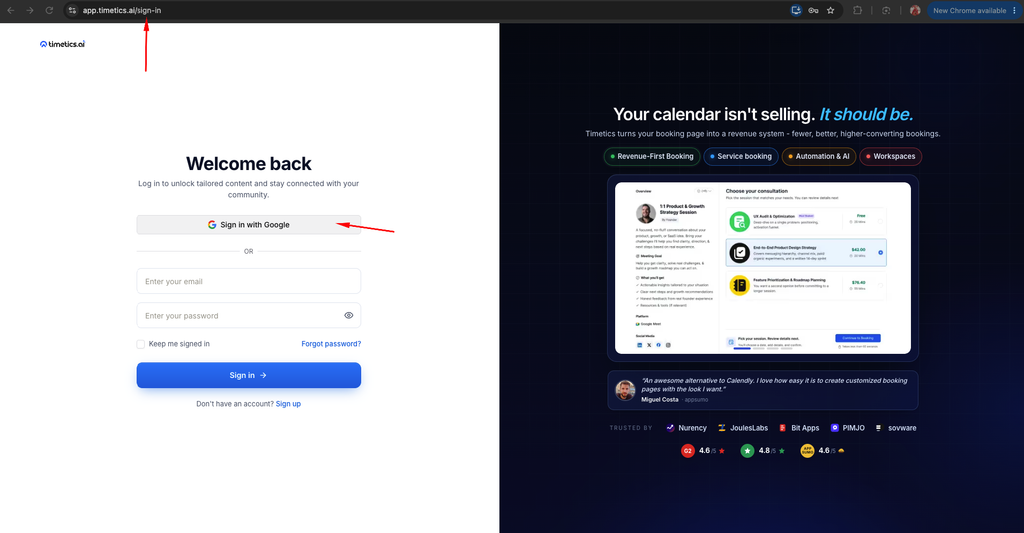
Visit the Timetics Sign In page.
Step 2: Choose a provider
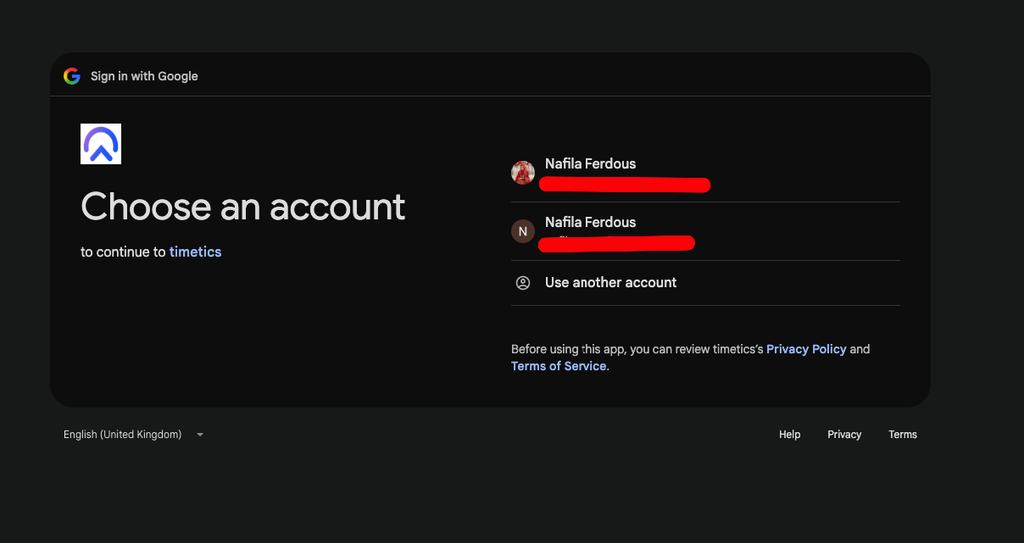
Select the provider sign-in option displayed on the page.
Step 3: Authorize access
Complete the provider’s sign-in and consent screens. You are redirected back to Timetics.
Step 4: Check the account
Confirm that the expected Timetics workspace appears after sign-in.
Important notes
- Use the same provider and email associated with your existing account.
- Provider availability may vary by configuration.
Frequently asked questions
What if I return to the Sign In page?
Retry the provider flow and check whether browser pop-ups or cookies were blocked.
Conclusion
Timetics offers provider sign-in from its Sign In page. The provider authenticates you and returns you to your Timetics account.