What is a Many-to-One Calendar?
A Many-to-One calendar lets one guest book a meeting with several of your team members at the same time. It’s built for panel interviews, group consultations, sales calls with a specialist, and any meeting where a few people from your side meet one client together.
You pick the team members who host the calendar. Every host attends every booking. A time only shows on your booking page when all of your hosts are free, so the guest never books a slot where someone can’t make it.
Why Use a Many-to-One Calendar?
- Stop juggling everyone’s calendars. Timetics AI checks every host for you and only offers times that work for all of them.
- Never double-book a host. Each host’s other bookings and connected calendar events block the time automatically.
- Show guests who they’ll meet. Your booking page lists every host by name.
- Keep every host in the loop. Each host gets their own email, notification, and calendar entry for every booking.
- Share the work. Any host on a booking can approve, cancel, or reschedule it, not just you.
Many-to-One vs. Other Calendar Types
Timetics AI has a few calendar types that involve more than two people. Here’s how they differ:
| Who hosts | Who books a time | Best for | |
|---|---|---|---|
| One-to-One | You | One guest | Private meetings |
| One-to-Many | You | Many guests, one seat each | Classes, workshops, webinars |
| Many-to-One | Several team members together | One guest | Panel interviews, group consultations |
| Round Robin | One team member, picked in turn | One guest | Sharing bookings across a team |
Before You Start
Make sure of the following:
- Your plan includes team booking. Many-to-One is a team booking calendar type. If your plan doesn’t include it, you’ll be asked to upgrade.
- Your team members have joined your workspace. You can only add people as hosts once they’ve accepted their invite. Invite them from Team first.
- Your hosts have connected their calendars (recommended). When each host connects Google, Outlook, or Apple Calendar, their personal events block times on this calendar and new bookings land on their calendar too.
- A video tool is connected, if you meet online. The meeting link comes from your own Zoom or Google Meet connection, since you’re the main host.
- A payment gateway is connected (only for paid meetings). If you plan to charge for the meeting, connect Stripe, PayPal, or another gateway under Integrations first.
How to Create a Many-to-One Calendar
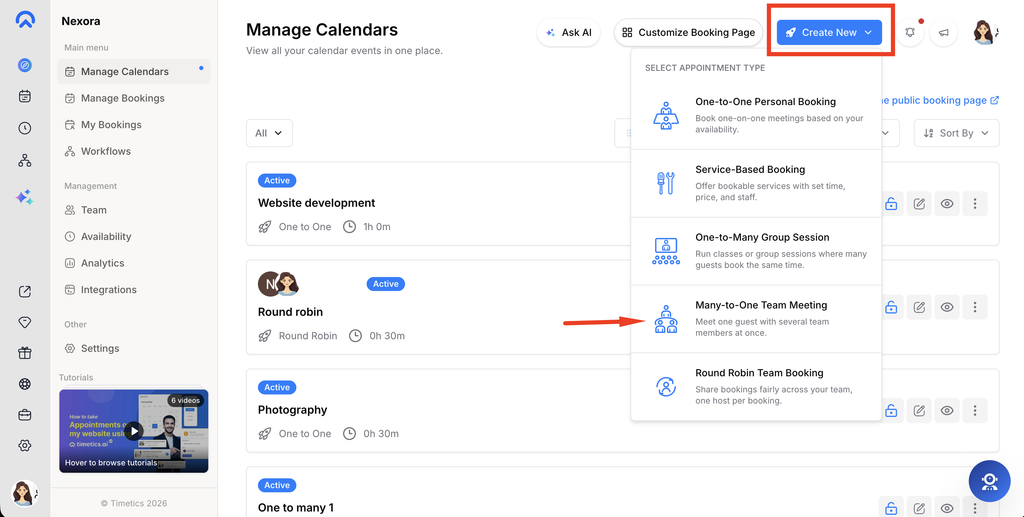
Step 1: Click Create New
Click Create New. Under Select Appointment Type, choose Many-to-One Team Meeting.
Step 2: Fill in the basics
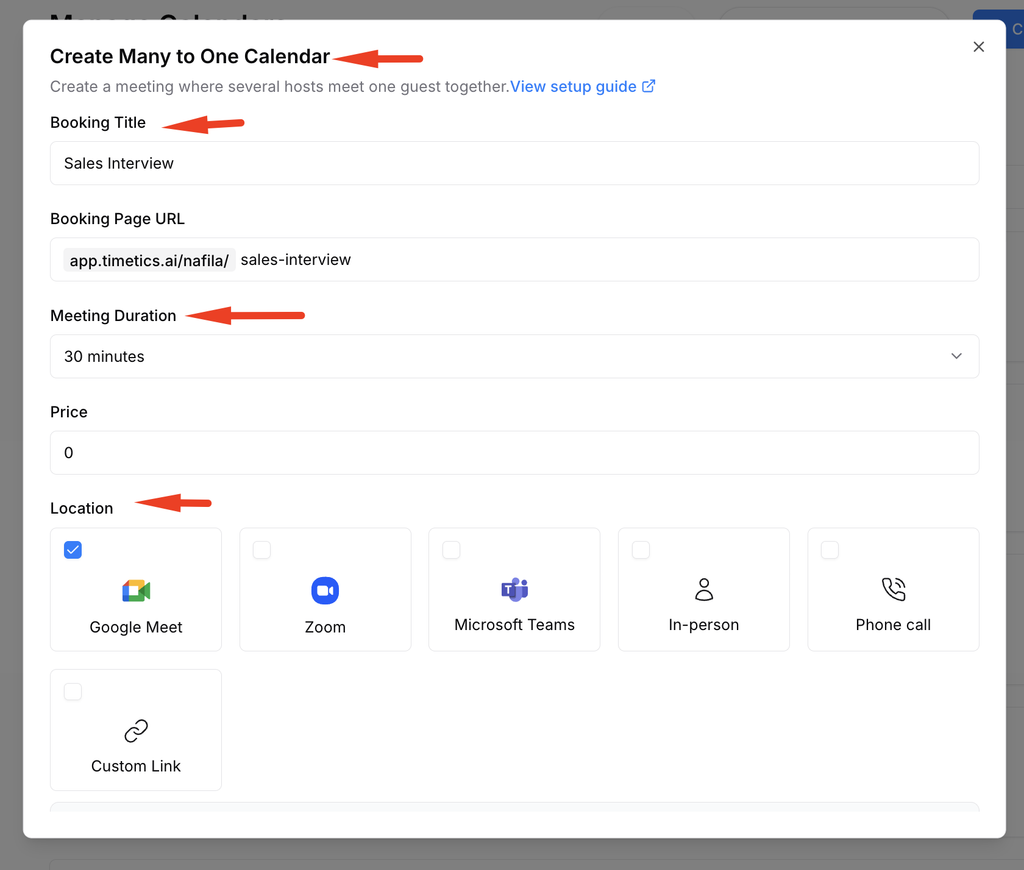
In the Create Many to One Calendar window, fill in:
- Booking Title: The meeting name guests will see, like “Design Review with Our Team”.
- Meeting Duration: How long each meeting lasts.
- Booking Page URL: Filled in from your title. You can change it.
- Price: What the guest pays for the meeting. Leave it at 0 for a free meeting.
- Location: Where the meeting happens, like Zoom, Google Meet, or an in-person address.
Click Continue. Your calendar is created and its setup page opens.
Step 3: Add your team hosts
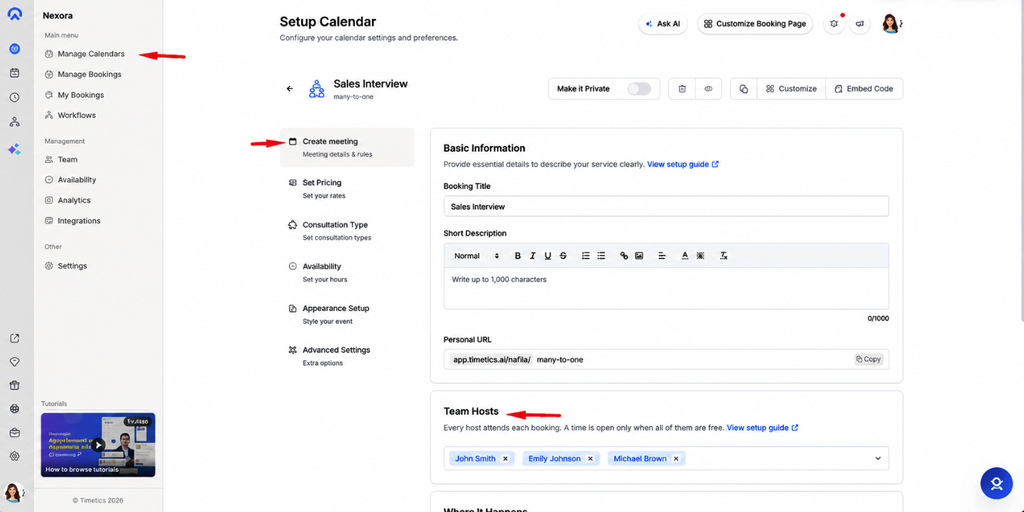
On the Create meeting tab, find the Team Hosts card. You’re already on the list as the first host.
- Click the field and pick the team members who should join every meeting.
- To take someone off, click the x next to their name.
You need at least 2 hosts, counting yourself. Until then you’ll see a red note under the field: Add at least 2 hosts. Until then this calendar takes no bookings. Your booking page won’t show any times while that note is there.
💡 Tip: Keep the host list short. Every extra host is one more calendar that has to be free, so a long list leaves your guests with fewer times to pick from.
Step 4: Finish the meeting details
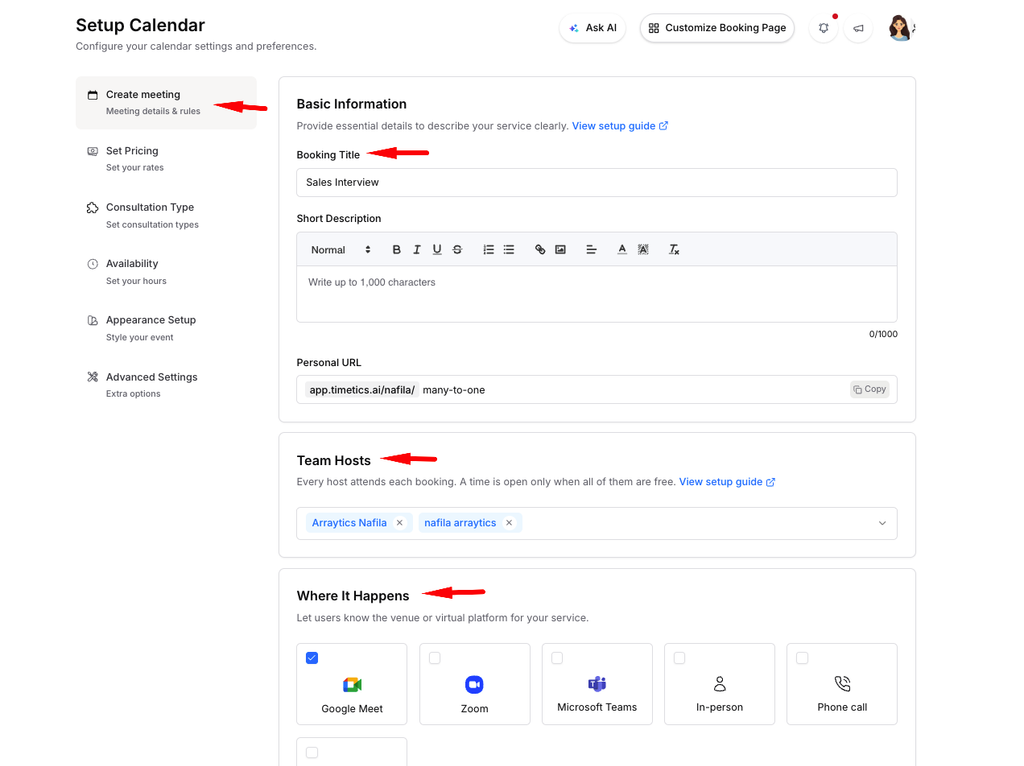
Still on the Create meeting tab, check the rest of the details:
- Basic Information: Your Booking Title, a Short Description of what the meeting covers, and your Personal URL.
- Where It Happens: Add or change the meeting location. For Zoom or Google Meet, the link is created from your connected account and shared with every host and the guest.
Changes save on their own when you click away from a field.
Step 5: Set your meeting hours
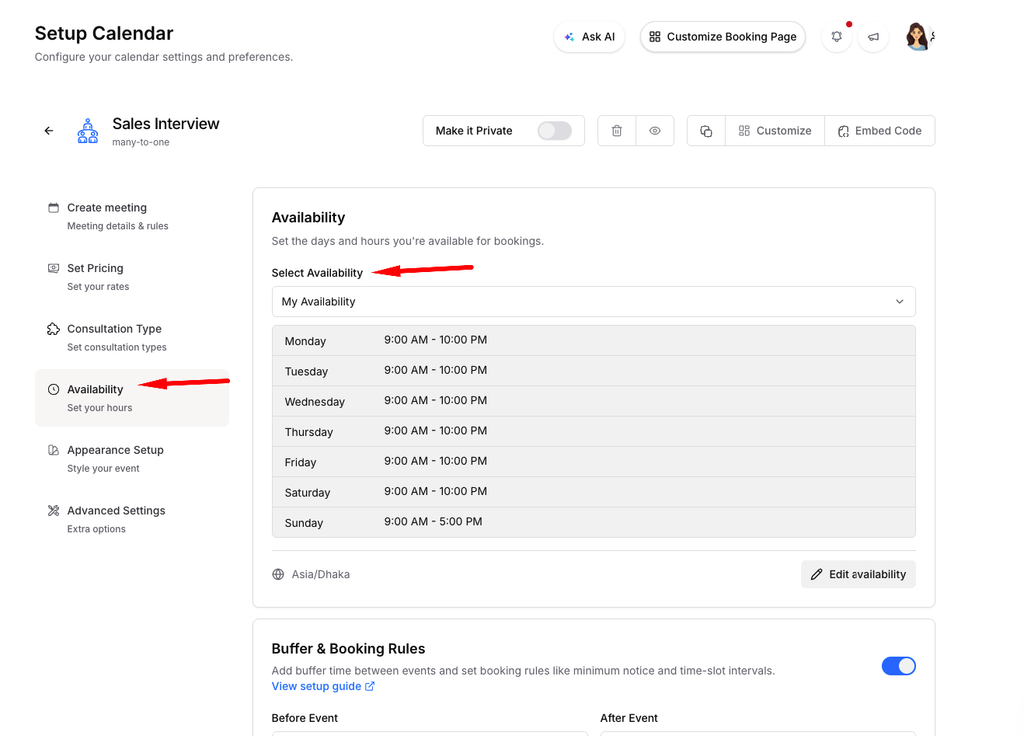
Open the Availability tab and set the days and hours you take meetings. These hours apply to every host on the calendar. Hosts don’t have separate working hours here.
Inside those hours, a time is only offered when every host is free. If even one host has another booking or an event on their connected calendar, that time is hidden.
Step 6: Set pricing and other options (optional)
Use the other tabs the same way you would on any calendar:
- Set Pricing: The guest pays once for the whole meeting, no matter how many hosts join.
- Consultation Type, Appearance Setup, and Advanced Settings: Booking questions, approvals, reminders, look and feel, and the rest of your booking rules.
Step 7: Share your booking page
Your calendar is live as soon as it’s active and has at least 2 hosts. Copy the link from Personal URL and share it with your guests, or embed it on your website.
What Your Guests See
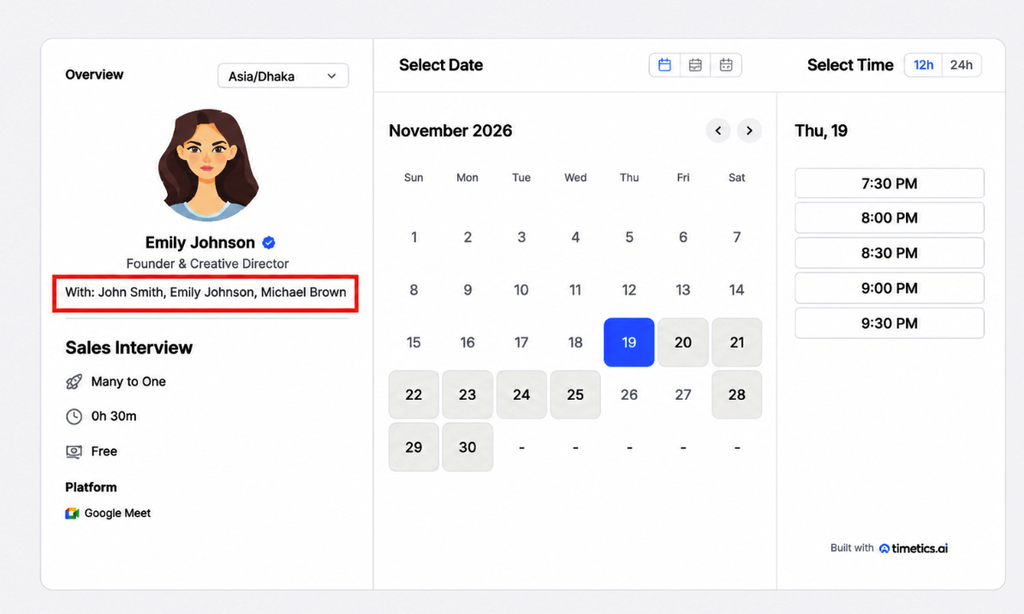
- The guest opens your booking page. Under the title it says With: followed by the names of every host.
- They see only the dates and times when all of your hosts are free.
- The guest picks a time, fills in the booking form, and pays if the meeting has a price.
- They get one confirmation email and one calendar invite, even though several people are hosting.
What Happens After a Guest Books
- Every host is told. Each host gets their own new booking email, greeted by name, plus an in-app notification.
- The meeting lands on every host’s calendar. If a host has Google, Outlook, or Apple Calendar connected, the meeting is added there too. These copies don’t list the guest, so the guest never gets a second invite from another host.
- Every host is now busy at that time. The booking blocks each host on all of their other calendars in Timetics AI, not just this one.
- You’ll find it in your bookings list. Use the calendar type filter and pick Many to One to see only these bookings.
- Cancelling or rescheduling updates everyone. Every host gets the cancellation or reschedule email, and the meeting is removed from or moved on each host’s calendar.
- Recurring bookings need every host free on every date. If one host is busy on any date in the series, the guest can’t book it.
How Hosts Manage a Booking
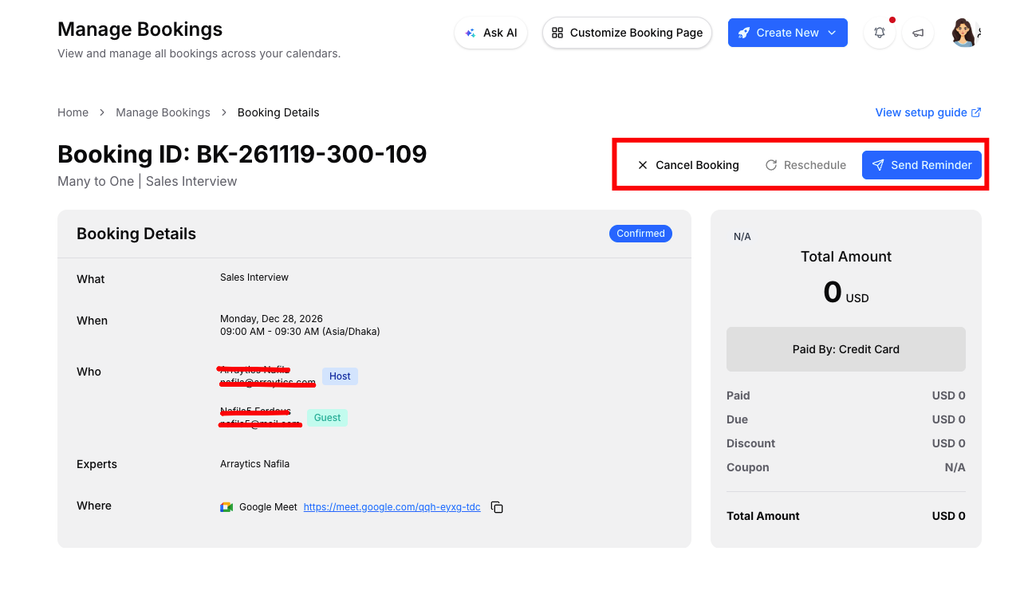
Any host on a Many-to-One booking can manage it from their dashboard. It doesn’t have to be the calendar owner.
- Open Bookings and find the booking.
- Choose what you need:
- Approve a booking that’s waiting for approval.
- Reschedule it to a new time. The new time must be free for every host, or it won’t go through.
- Cancel it. The guest and every host are emailed.
Team members who aren’t hosts on that booking can’t approve, cancel, or reschedule it.
Changing Your Hosts Later
You can add or remove hosts at any time from the Team Hosts card.
- New times follow the new list. Once you remove a host, their calendar stops blocking times. Once you add one, their calendar starts counting.
- Existing bookings stay as they are. A removed host stays on any meetings already booked. Reschedule those yourself if they can’t attend.
- Dropping below 2 hosts pauses the calendar. Your booking page stops showing times until you add a second host again.
- People who leave the workspace are removed for you. When a team member leaves, they’re taken off the host list of every calendar.
Automating Messages for Team Meetings
You can send emails or WhatsApp messages only for Many-to-One bookings with a workflow. In Workflows, add the Many-to-one Booking condition. Leave Calendars empty to match every Many-to-One calendar, or pick specific ones.
Admin emails from a workflow go to every host on the booking. Customer emails go only to the guest. Host details in your message, like the host name, use the calendar owner’s details.
For example, send a “Meet your panel” email to the guest 24 hours before the meeting with the Booking Reminder trigger and the Many-to-one Booking condition.
Important Notes
- Every host joins every meeting. If you want bookings shared out so only one person takes each one, use a Round Robin calendar instead.
- One busy host hides the time. A time is only offered when all hosts are free, including events on their connected calendars.
- Hosts share one set of hours. The calendar’s Availability tab sets the hours for everyone. Hosts’ own bookings and calendars still block them.
- You need at least 2 hosts. With fewer, the calendar takes no bookings.
- Hosts must be workspace members. Invite people to your team first, then add them as hosts. Your plan may limit how many hosts you can add.
- The meeting link comes from you. Zoom and Google Meet links are created from the calendar owner’s connected account.
- Any host can manage a booking. Hosts on a booking can approve, cancel, or reschedule it. Other team members can’t.
- Removing a host doesn’t touch past or booked meetings. They stay on bookings already made.
- Duplicating keeps the hosts. When you duplicate a Many-to-One calendar, the copy starts with the same host list.
Quick Limits
| Setting | Limit |
|---|---|
| Hosts per calendar | At least 2, including you (the most depends on your plan) |
| Hosts per booking | Every host on the calendar |
| Guests per booking | 1 |
| Working hours | One shared set, from the calendar’s Availability tab |
| Who can manage a booking | Any host on that booking |
| Plan | Needs a plan with team booking |
Frequently Asked Questions
What is a Many-to-One calendar?
It’s a calendar where one guest books a meeting with several of your team members at once. Every host attends, and a time only shows when all of them are free.
How many hosts can I add?
At least 2, counting yourself. The most you can add depends on your plan.
Why doesn’t my booking page show any times?
Check three things. You may have fewer than 2 hosts. Your hosts may have no time free together inside the calendar’s hours. Or one host may have a busy connected calendar that blocks the times you expected.
Do hosts use their own working hours?
No. Everyone follows the hours on this calendar’s Availability tab. Each host’s other bookings and connected calendar events still block them.
Can the guest see who they’ll meet?
Yes. The booking page shows With: and the name of every host.
Will the guest get an invite from every host?
No. The guest gets one confirmation and one invite. The copies added to other hosts’ calendars don’t include the guest.
Can a co-host cancel or reschedule a booking?
Yes. Any host on the booking can approve, cancel, or reschedule it from their dashboard.
What happens to booked meetings if I remove a host?
Nothing changes for meetings already booked. The removed host stays on them. Only new times are worked out from the hosts who are left.
Whose Zoom or Google Meet link is used?
The calendar owner’s. Every host and the guest join with that same link.
How is this different from Round Robin?
On a Many-to-One calendar, every host joins every meeting. On a Round Robin calendar, each booking goes to just one team member, picked in turn.
Why can’t I add a team member as a host?
They may not have joined your workspace yet, or you’ve reached the host limit on your plan. Check Team to see if their invite is still pending.
Why am I asked to upgrade when I create a Many-to-One calendar?
Many-to-One is part of team booking, which isn’t included in your current plan. Upgrade to a plan with team booking to use it.
[SCREENSHOT 13: Upgrade prompt shown when a workspace without team booking tries to create a Many-to-One calendar.]
Conclusion
A Many-to-One calendar takes the guesswork out of booking a meeting with several people. Click Create New, choose Many-to-One Team Meeting, add at least two hosts, set your hours, and share your link. Guests only see times that work for everyone, and every host gets the meeting on their calendar.